

Team Lead Guide
Approving your team’s leave — the first stage
HR.Click · Team Lead GuideLeading a team
1Being a team lead
Team lead isn’t a role toggle — it comes from your team: whoever carries the “Leader” mark on a team leads it (set by administrators in Teams). With it you get:
- Requests in the sidebar — leave requests waiting for your stage, with a count badge (appears only while something is pending).
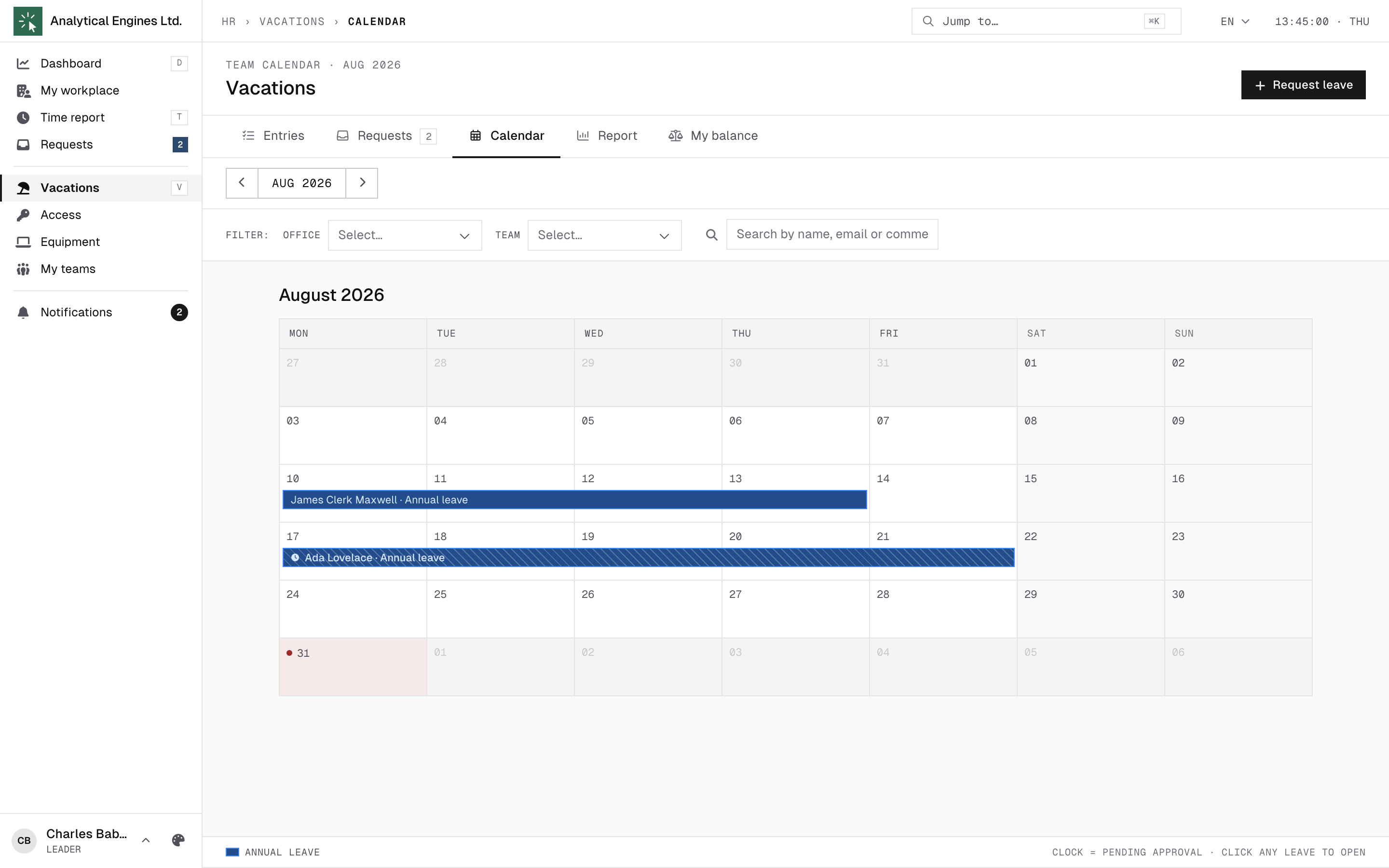
- Names on the Vacations → Calendar — you see who exactly is away, not just anonymous bars.
- An Org view on the Dashboard, next to My view, scoped to your team: who is working now and who isn’t (with On break / On leave flags), this week’s hours per person, late arrivals today, and the Pending approvals panel with Review / Approve right on it.
- Notifications when your people request leave — or check in late.
Each vacation type defines its approval path. When it includes the team lead, requests from your team stop at the TL stage first — after you approve, they continue to the vacation manager (if the type requires it) or become approved. You can’t approve your own requests; another approver handles those.
2Approving your team’s leave
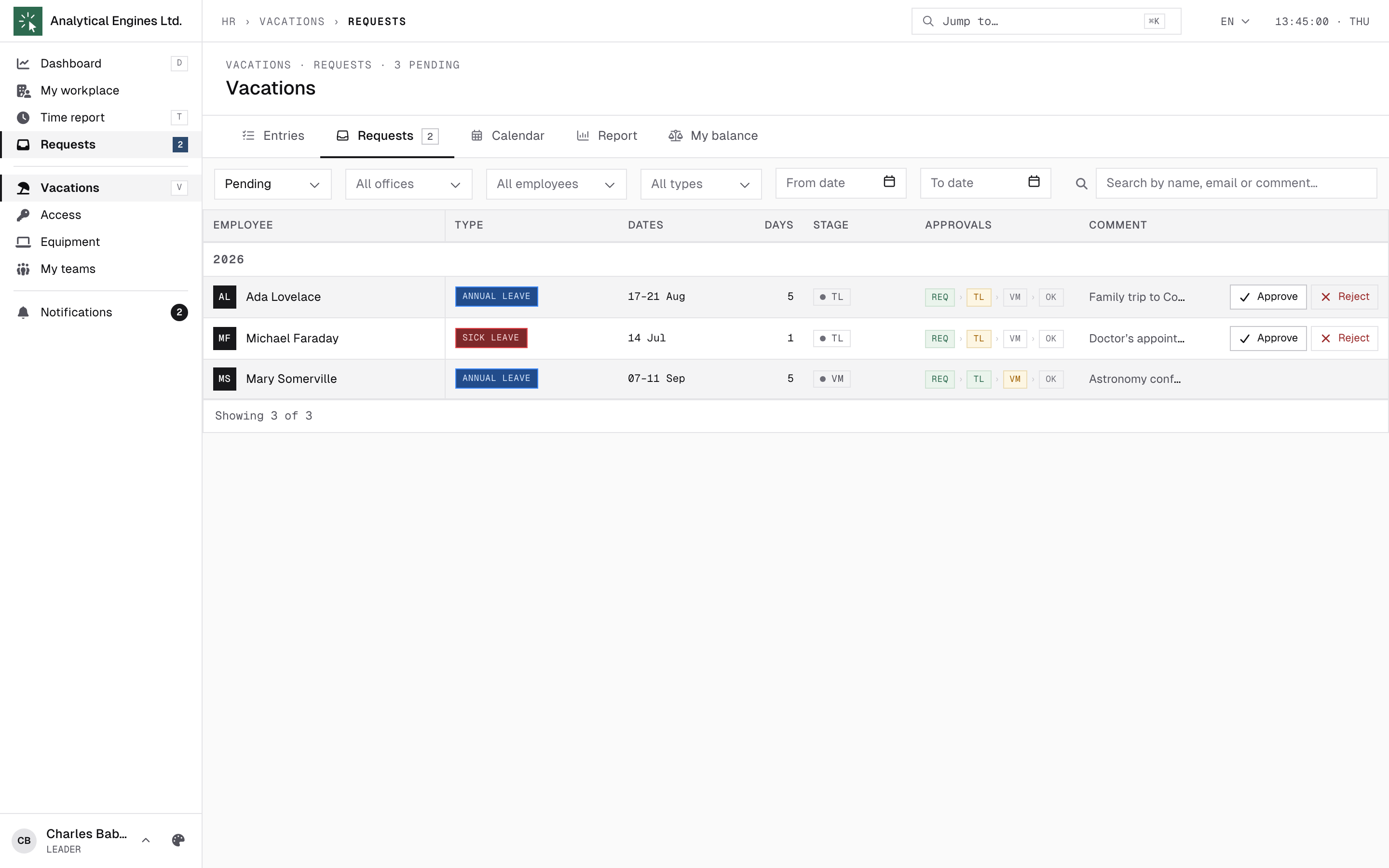
Requests lists what’s pending, each row showing the requested type by its own icon and colour. Act on rows with the TL chip — rows showing VM have already passed you and sit with the vacation manager (no buttons for you). Filter the list by status, employee or leave type — and by team, if you lead more than one. Opening the page with nothing left to approve takes you to Entries with a note that it has already been handled, instead of a dead page; a queue you have filtered down to nothing yourself just stays empty.
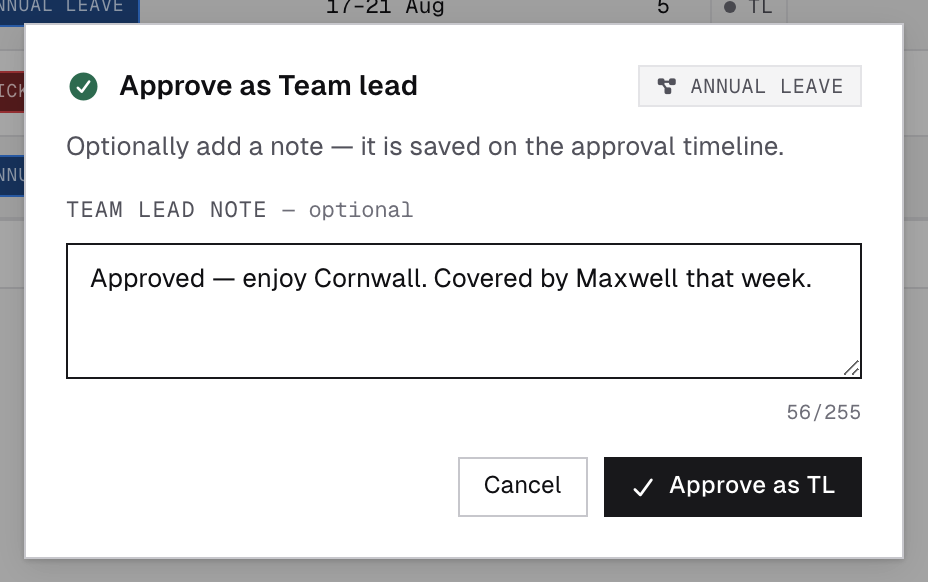
- Approve — confirm with an optional note (Approve as TL). Unlike the vacation manager, you can’t change the leave type — that decision is made at the VM stage.
- Reject — terminal; add a reason so the employee knows what to fix (it reaches them word-for-word).
- Flagged rows (over a limit, short notice, would overdraw the balance) are on a timer — decide before the deadline in the badge, or the system auto-rejects them. A few leave types are set up to skip this and just keep reminding you instead — even an ordinary, unflagged request left too long can auto-approve itself, except on those same types.
- Leave for part of a day — a single-day request for a few hours shows a Working hours row instead of working days, e.g. 2h · at the start of the work day. Where in the day it sits is the employee’s optional choice (see Leave for part of the day in the Employee Guide).
- Dates changed after you approved — if the dates of a request you already signed are moved while it still waits for the vacation manager, your approval is cleared and it comes back to you at the TL stage.
- Over the yearly limit — some leave types cap the working days a person may take per year. Going over doesn’t add a step for you: such a request reaches you only if its type already needs the team lead, and then the request shows Yearly limit / Left this year (red when over) next to the flag. The decision on the limit itself is the vacation manager’s.
Before approving, glance at the Calendar — names are visible to you, so team overlaps are easy to spot. The employee is notified automatically at every step.
3Your team’s leave, at a glance
Two more tabs open up for you, both scoped to your team — the people on teams you lead, plus yourself. Nobody else appears, whatever you type in the address bar.
Report — the year on one page
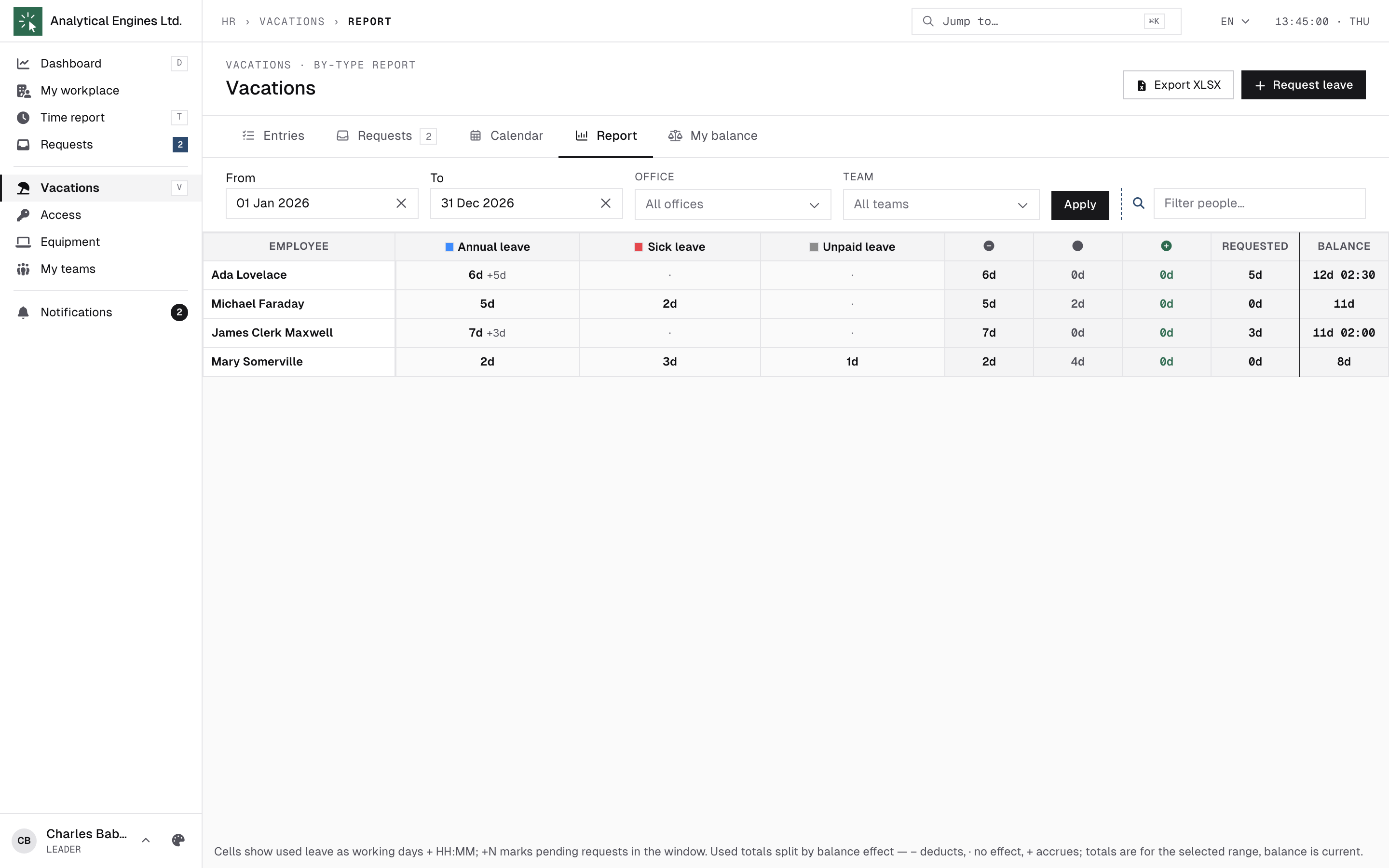
Vacations → Report is a matrix: one row per team member, one column per leave type, plus totals and the current balance. Cells show used leave as working days; a +N marks requests still pending in that window. Click a cell to see the leaves behind the number.
- Set the period with From / To and press Apply — the default is the current calendar year.
- Team narrows to one of your teams if you lead several; Office narrows within them.
- The search box filters the table down to matching people, with a “N of M people” counter — click a name to focus that row and dim the rest.
- Export XLSX downloads the same matrix as a spreadsheet, again for your team only.
Balances — how much is left
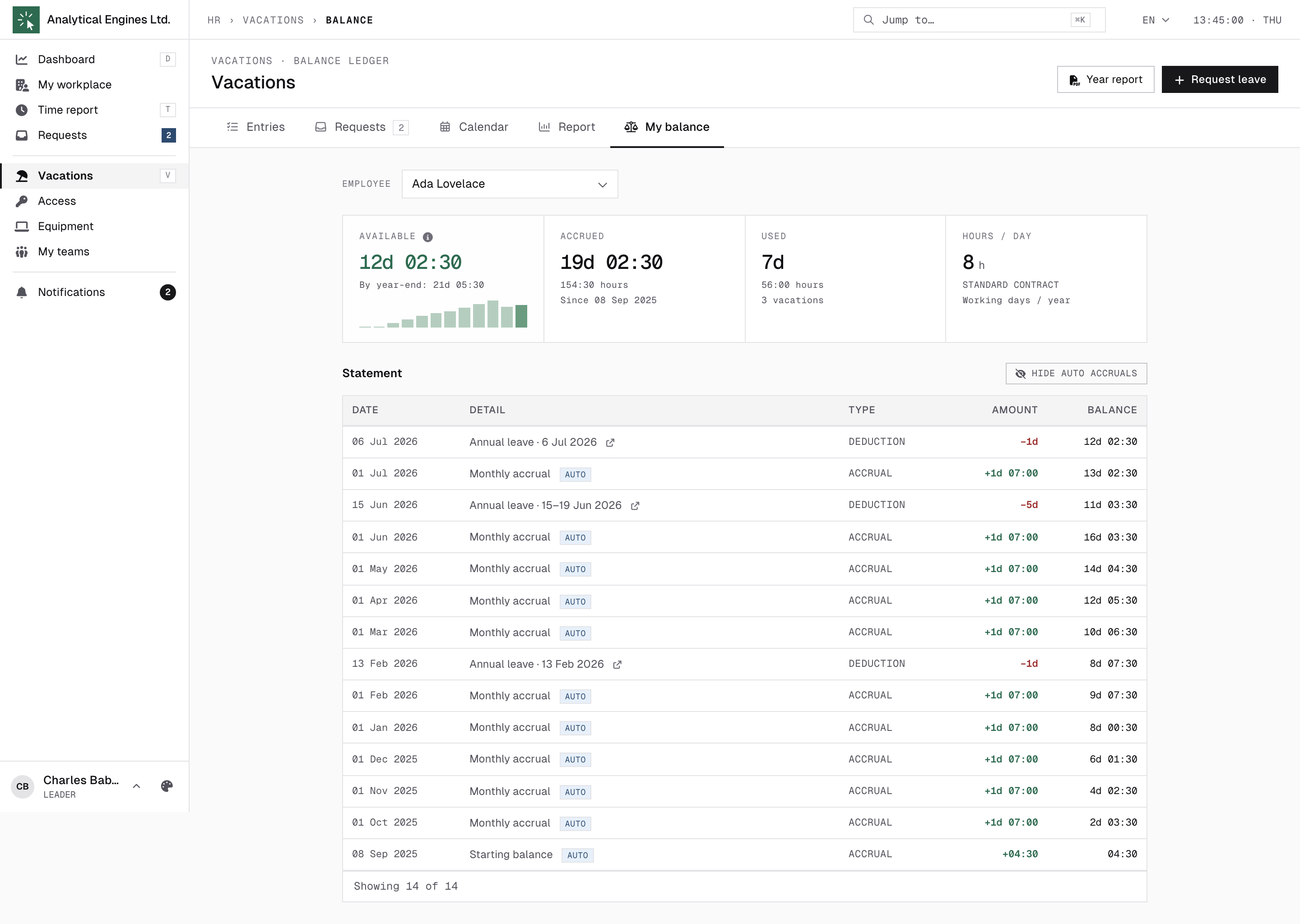
Vacations → My balance answers the question you actually have while approving: can this person afford it? The tab keeps your own name — it is your balance until you pick a team member in Employee; then you get their available balance, what has accrued, what has been used, and the full statement of every accrual and deduction. Year report saves it as a PDF.
The same figure also rides along in the request itself, so during approval you see the balance without leaving the dialog.
When someone asks why their balance is not a round number, or why “By year-end” shows more than “Available”, point them to How the balance is calculated in the Employee Guide — the daily slice, the hours format and the year-end forecast are explained there.
You can look at your people’s balances, not change them. Manual corrections — adding or removing days by hand — are the vacation manager’s job.
Leave is personal data. You see it for the people you lead because you decide on their requests — not for the rest of the company. Sick-leave days show as their own column, so treat the report as confidential.
4What you’re notified about
| Subject / title | When |
|---|---|
| Leave request awaiting approval | Someone in your team requested leave that needs your stage. |
| Leave request needs manual approval | A flagged request — includes the auto-reject deadline. |
| Leave request needs a decision | Reminder while a flagged request still waits (every ~8 h). |
| “<Name> checked in late” | A team member checked in after their shift started — visibility, no action required in the app. |
E-mails arrive within a few minutes and use the same titles as the in-app notifications; tune the channels in Notifications → Preferences. Time corrections and self-reported hours are handled by time managers — if a team member’s hours look wrong, point them to “Log time” (Employee Web Guide) or escalate to your time manager.
HR.Click — Team Lead Guide · v1.2 · October 2026. Product screens shown with sample data; names of persons are fictitious examples.