

Shift Manager Guide
The Shifts board — creating, repeating and editing shift schedules
HR.Click · Shift Manager GuideScheduling shifts
1Your role in two minutes
As a shift manager your sidebar card reads SHIFT MGR, and you get one extra page on top of the regular employee ones: Shifts.
You can only create, edit or cancel shifts for employees whose schedule type is set to Shift — office-schedule employees are entirely out of scope for this role, even if you outrank them elsewhere. That setting itself lives on the person’s profile in Users, a page this role does not open — an administrator is the one who puts someone on a shift schedule in the first place. You just work with whoever already carries it.
What the role does not give you
Two things this role deliberately does not give you, despite the name overlap with time tracking:
- No Approvals queue and no editing rights in the time-report day drawer — that stays with the Time manager role.
- No Users or Organization directories.
What you do keep, beyond Shifts itself: Following (scoped to shift-scheduled colleagues) and a read-only look at what your shift-scheduled people actually worked, right on the Gantt — both covered in section 8.
The sidebar only shows Shifts once the organisation actually has at least one shift-scheduled employee. On a company that runs entirely on office hours, a shift manager’s sidebar looks identical to a plain employee’s.
2The Shifts board
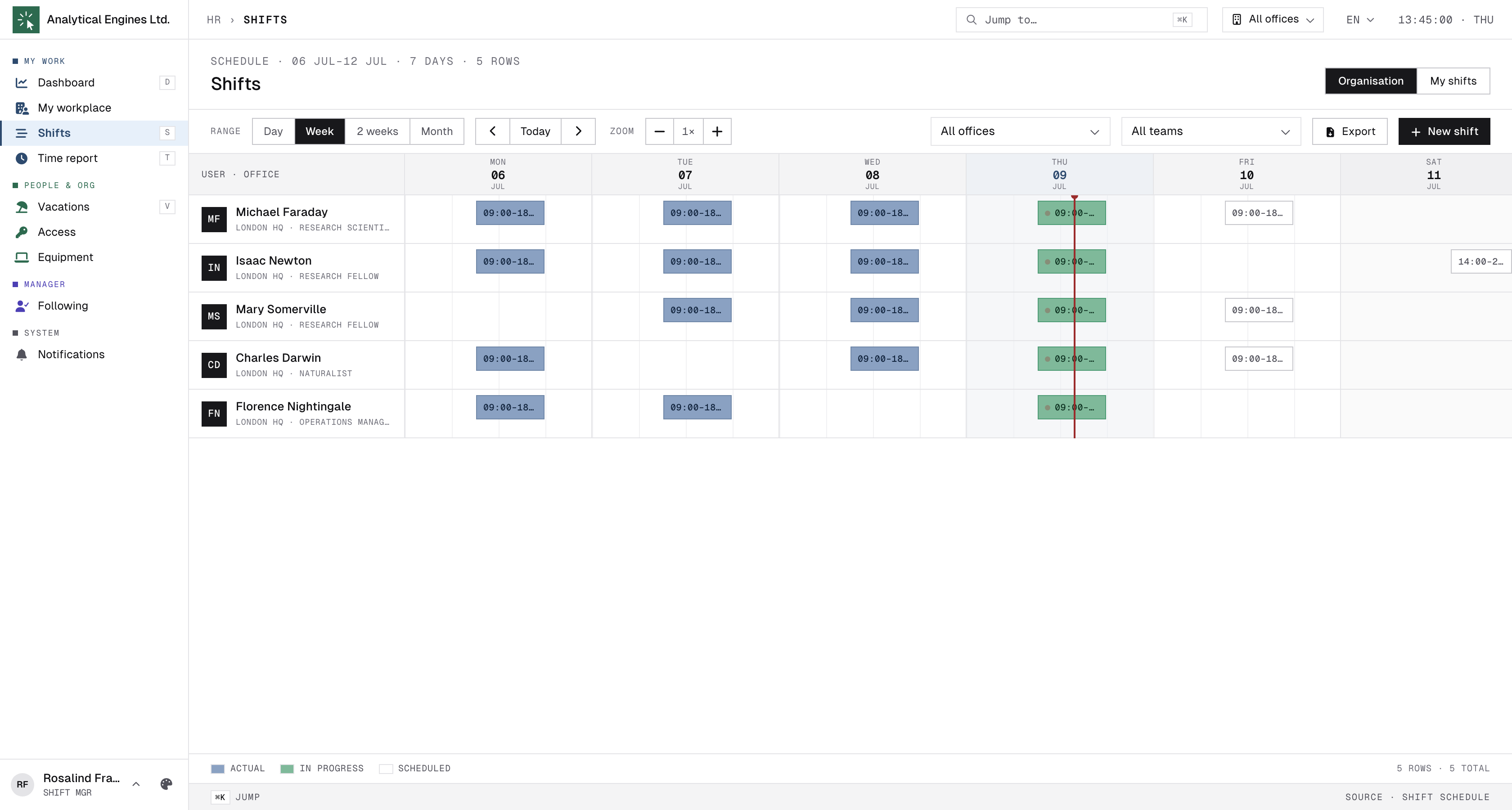
Shifts opens on the Organisation tab — the full schedule for everyone on a shift schedule. A My shifts tab sits next to it for your own agenda, in case you are shift-scheduled yourself.
- Range — Day / Week / 2 weeks / Month, with prev/next arrows and a Today shortcut.
- Zoom (desktop only) — widens or narrows the day columns without changing the range.
- Office and Team filters — the office filter only appears once the company has more than one office; the team filter only once teams exist.
- Export — downloads the visible range as XLSX.
- New shift — opens a blank shift drawer (section 4).
Below 768px width the board switches to a per-person card list instead of a grid — the same information, stacked for a phone screen.
3The Gantt
Each row is a person, each block a shift; a vertical line marks the current time. Two ways in:
- Click an existing block to open it in the edit drawer (section 7).
- Click an empty spot on someone’s track to open a new shift already pre-filled with that person and that time.
The legend below the board only lists the kinds actually present in the visible range, drawn from the same palette as the block colours: Actual, In progress, Scheduled, Short day, Cancelled, Lost, On leave, Vacation, Unpaid, Sick, On call, Training, Remote — leave and sick time ride on the same board so a gap in the roster is never a mystery. The strip under the legend totals rows and people for the current filter.
A shift on leave stays on the board. When a full-day leave is approved over a day that already has a shift, the shift is kept with the status On leave: it is drawn hatched in the leave type’s colour, and hovering it reads On leave · <type>. The shift still sets that day’s norm, and the leave covers it — so an unpaid day off counts the shift’s hours as unpaid, and a paid one leaves nothing owed. If the leave is cancelled, rejected or moved off that day, the shift comes back with the status it had before. A leave for part of a day, or one that is only a note, leaves the shift as it is. A shift belongs to the day it starts on in the office’s local time: a night shift from 22:00 is part of the evening it begins, so it goes on leave only when that day is on leave, and a leave ending on the 12th never takes the shift starting at 01:00 on the 13th. The same rule decides whether a new shift clashes with a leave. A shift that has already started, finished or been marked lost when the leave is approved keeps its record and stays as it is.
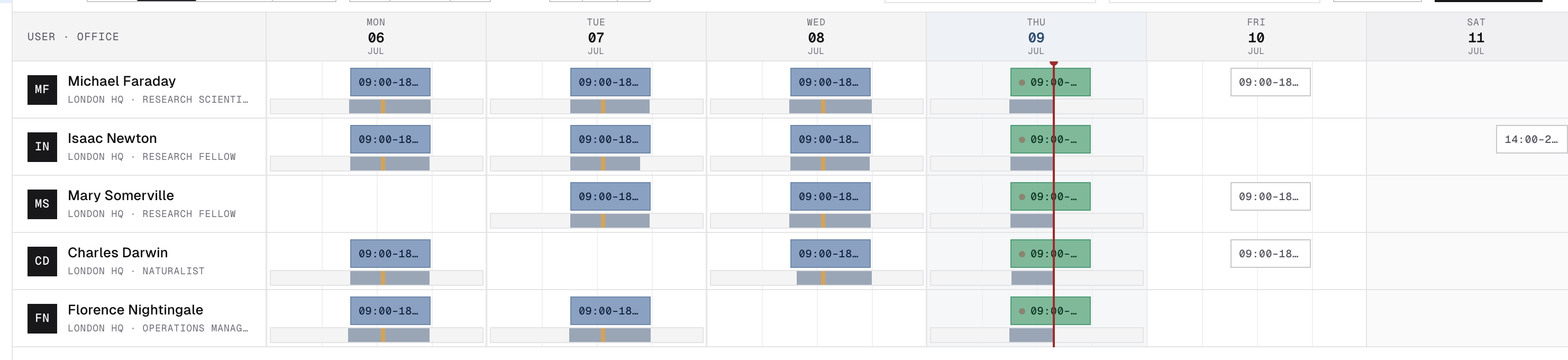
Under each day’s shift block runs a thin Actual strip: when the person really checked in and out that day, drawn on the same time scale, so “did they show up, and when” reads at a glance against the plan. Click the strip to open that person’s day — the same day view the Time report opens, with every punch and where it came from.
4Creating a shift
New shift (or a click on an empty gantt track) opens the drawer with these fields:
- Employee — a searchable dropdown listing shift-scheduled people only.
- Office (optional).
- Kind — Regular, On call, Training or Remote; each gets its own colour on the board.
- From date / From time, and — for a one-off shift — To date / To time.
- Shift with a break — an unpaid break inside the window, and what an unpunched one costs. Section 5.
An inline notice reminds you that times are entered office-local wall clock but stored as UTC underneath, so a shift always displays in whoever is looking at it’s own local time.
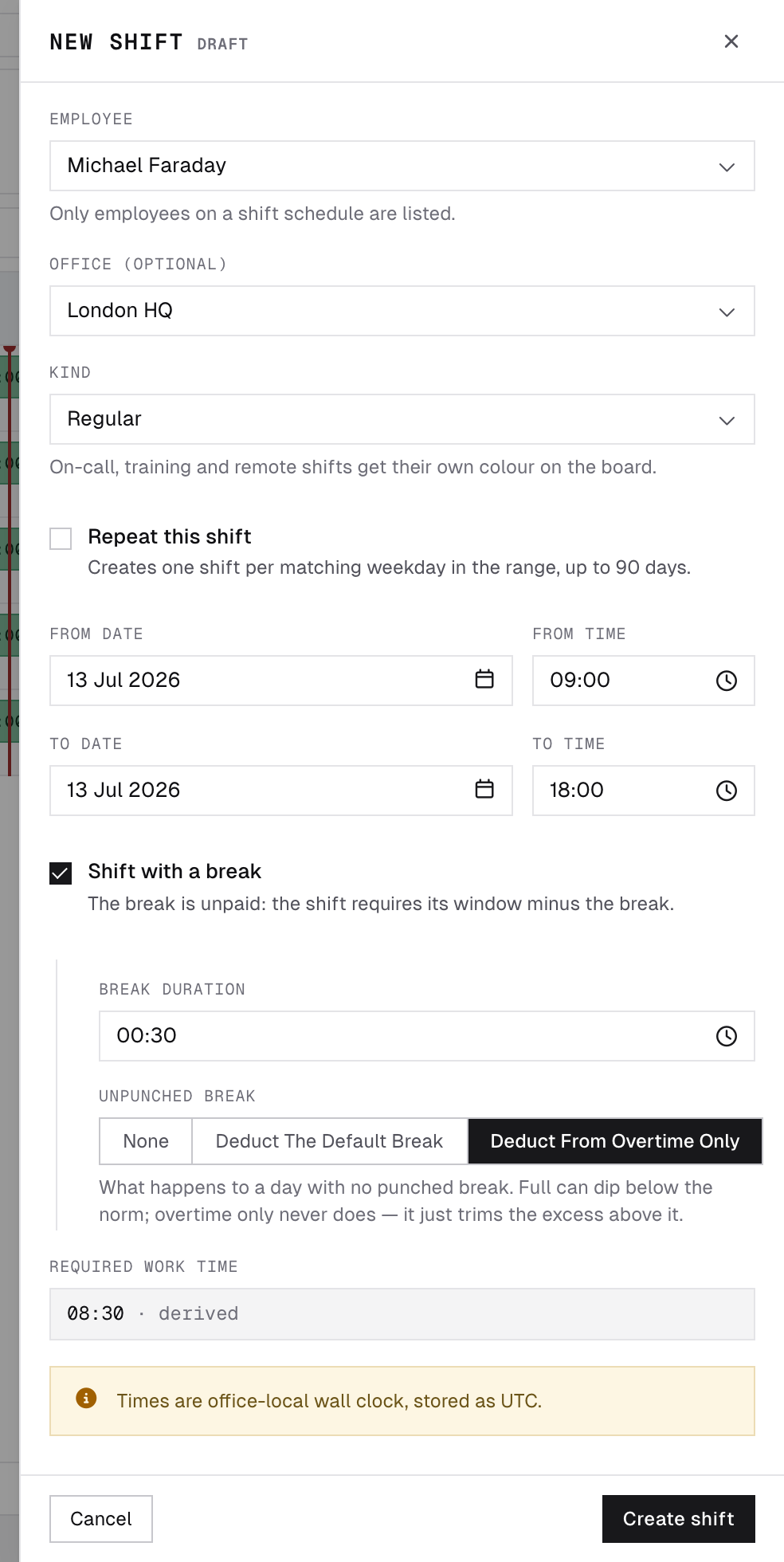
The save button reads Create shift for a one-off; it becomes Create series the moment you turn on Repeat this shift — section 6.
5The break, and what the shift requires
A shift window is normally entered the way people talk about it — “ten till half six” — with lunch sitting inside it. So the window on its own is not what the shift requires: the break has to come out of it. Turn on Shift with a break and you get:
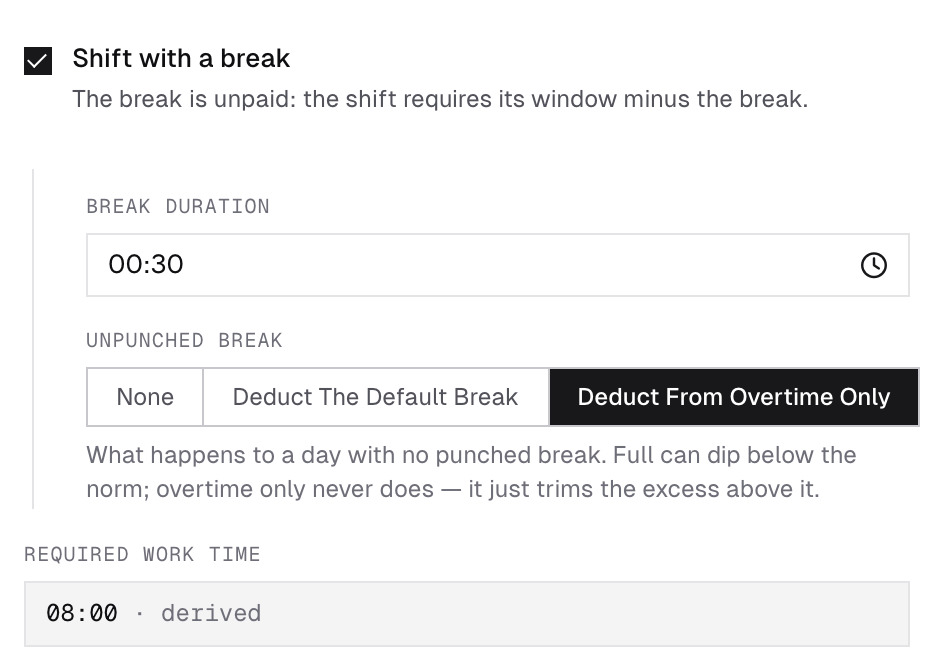
- Break duration — unpaid, and subtracted from the window. Same hh:mm picker as the shift times above it, so 00:30 is half an hour.
- Unpunched break — what to do on a day where nobody punched a break at all (below).
Required work time under it is derived, not typed: it is the window minus the break, and it is the number the employee is measured against. A 10:00–18:30 shift with a 30-minute break requires 08:00 — so someone who punches their lunch lands exactly on the norm instead of half an hour short of it.
A new shift starts on the resolved office’s own break rule, so a shift worker’s day matches the office workers’ unless you change it. Leave the checkbox off and the shift requires its whole window, with nothing deducted.
Unpunched break
Unpunched break decides what a day costs when the employee never punched one. None leaves the day alone — the whole presence counts as work. Deduct the default break charges the break once the day is worked to at least 75% of its norm, which can bring the day below the norm. Deduct from overtime only never does that: it trims the break out of whatever was worked past the norm and stops there, so a day short of the norm or landing right on it is never touched. Any punched break, however short, opts that day out of either mode.
It never moves the window. The shift still starts and ends when it says it does, and the board still draws it that way — the break only changes the amount the day requires. A break must also be shorter than the shift itself; the drawer says so before you can save.
Across midnight and in a series
On a shift that runs past midnight the break is split across the two days in proportion to how much of the shift falls on each, so the two days together always add up to the window minus the break — however the shift straddles midnight. Editing the break on one occurrence of a series pushes it onto every other date you leave ticked in Apply to (section 7); a plain time change leaves each day’s own break alone.
6Repeating a shift
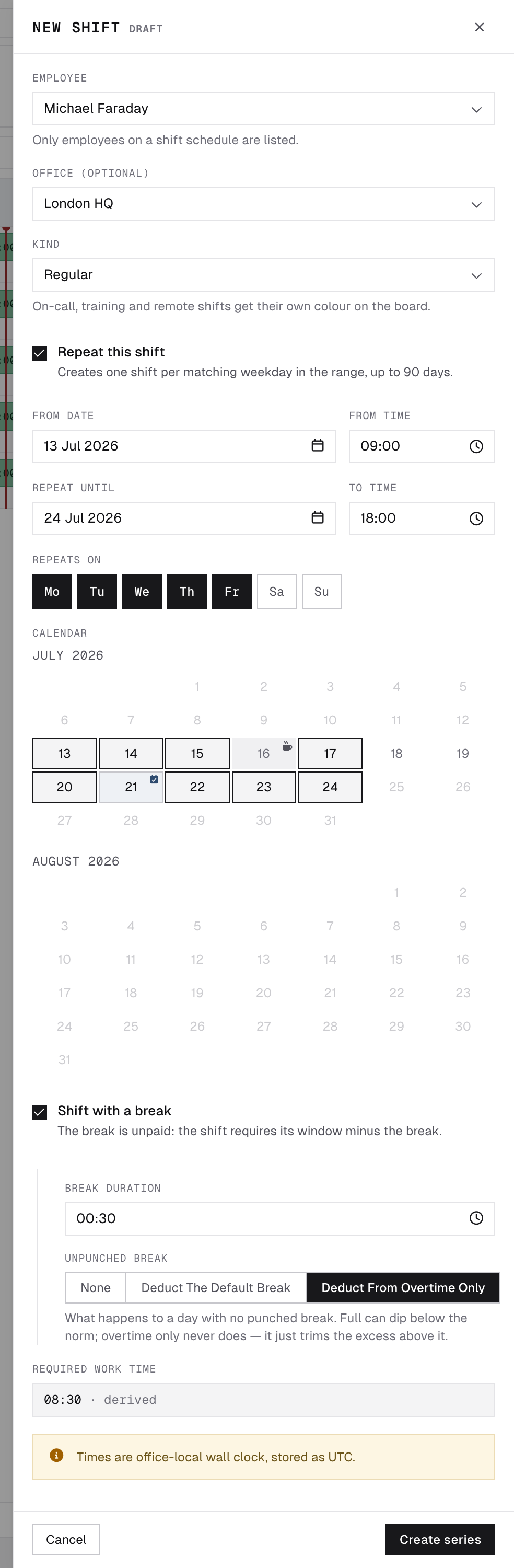
The Repeat this shift toggle only appears while creating — you can’t turn an existing single shift into a series after the fact. Switching it on replaces To date/To time with:
- Repeat until — the last date the pattern can land on, plus To time for every occurrence.
- Repeats on — day-of-week pills (Mon…Sun), defaulted to the office’s own working days until you touch one by hand.
A series is capped at 90 days end-to-end — pick a range past that and the drawer blocks saving with an explicit warning instead of silently truncating it.
Previewing the dates
Once both From date and Repeat until are filled in, a calendar appears right in the drawer previewing every date the pattern lands on. Two flags can show up on a day: a cup icon for a custom office day off (the shift is still created there unless you untick it), and a small calendar-check icon where the employee already has a shift that day (a shift on leave doesn’t count — the leave itself is what skips that date) (a genuine clash — it still shows checked here, but the save step below is where it actually gets sorted out). After you save, if any date turned out to already have a conflicting shift, a summary panel reports the created count and lists every skipped date with the reason — nothing is created twice, and nothing silently overwrites an existing shift.
A series creates one independent shift per matching date — not a single recurring record. That is what makes the cascade calendar in section 7 possible: editing later can target the whole remaining series, or just one occurrence.
7Editing a shift, and the status lifecycle
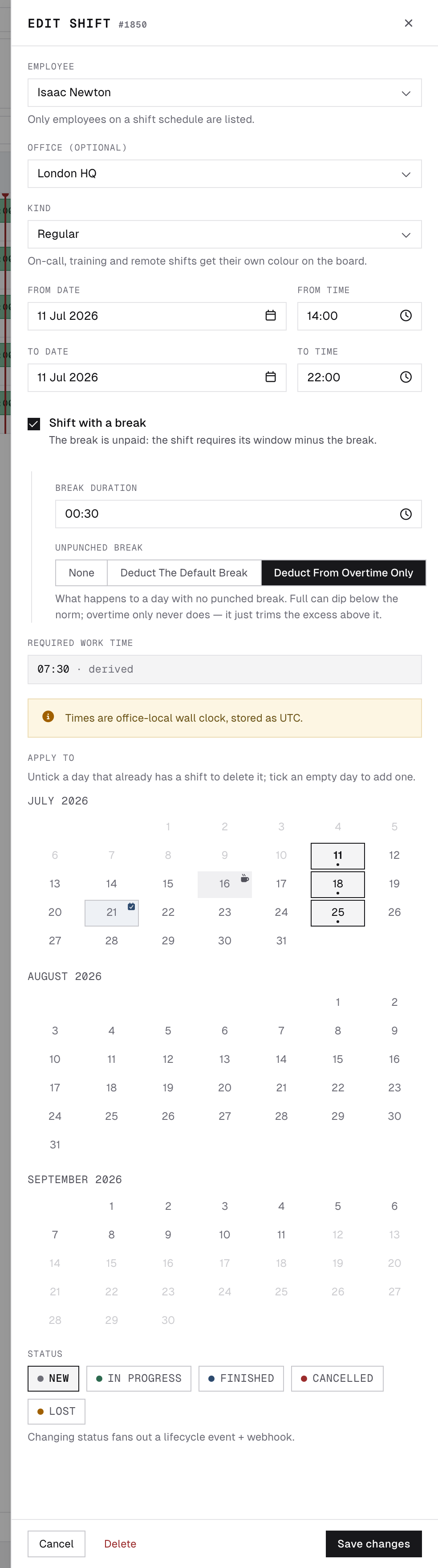
Clicking any existing block reopens the same drawer with two additions:
- If the shift is part of a series with other editable occurrences, an Apply to calendar shows up so you can pick which of the remaining dates your change should also apply to, instead of touching every one of them by hand. Unticking a day that already carries a shift in the series marks it for deletion; ticking an empty one adds a shift there.
- A Status row of pills: NEW → IN PROGRESS → FINISHED, or CANCELLED / LOST. Changing it fires a lifecycle event (and any subscribed webhook) and notifies the employee — a shift created, updated or cancelled all reach them the same way.
Delete in the drawer footer removes just that one occurrence, not the rest of its series.
A shift on leave can only be deleted. The status ON LEAVE is never in the pills — only an approved full-day leave sets it, and only the leave ending gives the shift back. Opening such a shift shows “On leave · <type> — The shift comes back when the leave is cancelled; it can only be deleted.”: every field is read-only and the only action left is Delete. No start or end reminders go out for it, it is never marked LOST, and a check-in that day does not move it to IN PROGRESS — work done on a leave day simply counts on top of the covered norm.
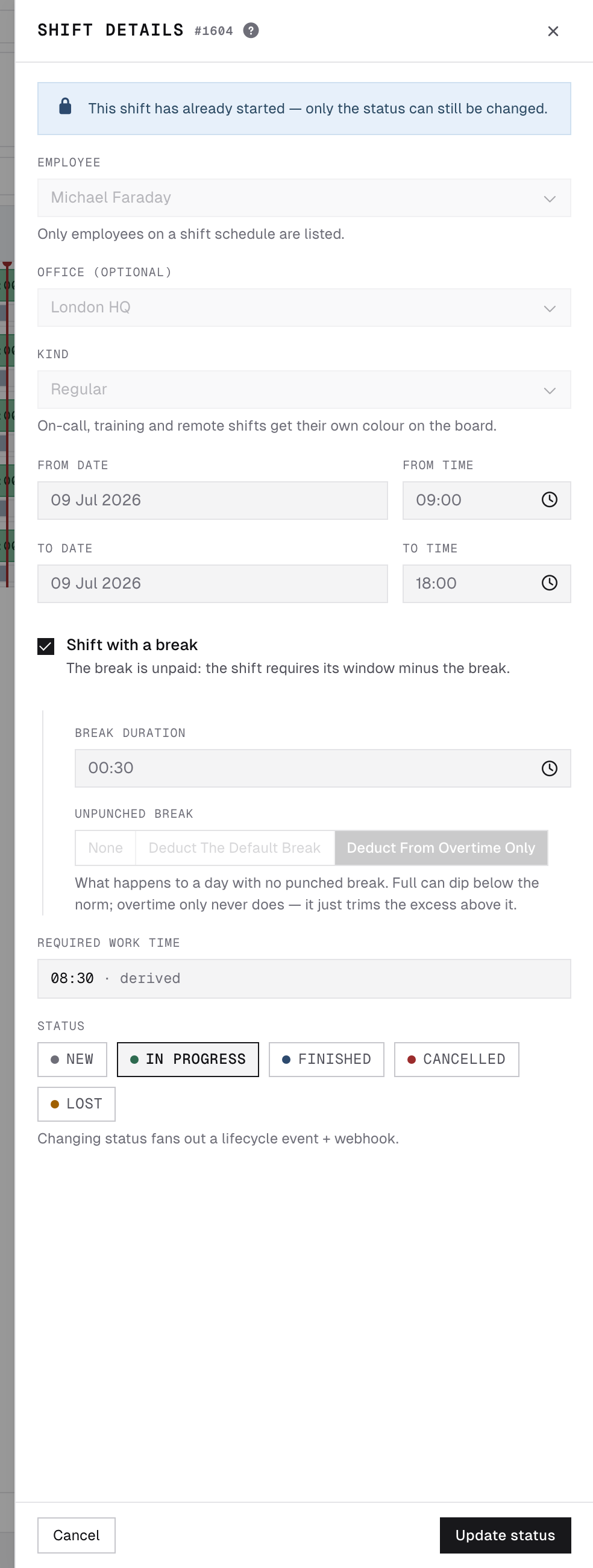
A shift that has started is locked. Opening a shift that is in progress or already finished shows “This shift has already started — only the status can still be changed.” Times, employee, office, kind, break and the Apply to calendar are read-only; only the status pills stay live.
HR.Click sets LOST by itself on a shift that is still IN PROGRESS long after it should have ended — the person checked in and never checked out. Once the missing check-out is added and confirmed (by the employee’s missed-punch request or a time manager’s correction), the shift closes as FINISHED by itself; a late correction never takes over the shift the person is working right now.
8A narrow view of time
The role description on your profile says “without access to time tracking” — that covers the team-wide time matrix and everything that changes data. What you do get is read-only and scoped:
- Time report opens your own report — the same personal page every employee has (see the Employee Web Guide), not the team matrix. The matrix, the Approvals queue and the day drawer’s manual corrections need the Time manager role.
- To check what someone actually worked against what was scheduled, use the Actual strip under their shift on the Gantt (section 3): it covers the same shift-scheduled people you see on the board, and clicking it opens that person’s day with every punch, read-only.
- Following — follow colleagues to be notified when they check in, take a break or check out (see Following in the Time Manager Guide for how it works). For you, the choice of colleagues is limited to the same shift-scheduled group you see on the board.
9Day-to-day checklist
| Situation | What to do |
|---|---|
| New roster for the week | Shifts → set the range → click empty tracks or New shift for each person, or one series if the pattern repeats. |
| Same pattern for several weeks | New shift → Repeat this shift → pick weekdays and an end date, check the preview calendar, then Create series. |
| One person’s shift moves | Click their block → adjust the date/time → Save changes. Use Apply to only if the rest of the series should move too. |
| A shift falls through | Open it → set Status to CANCELLED or LOST — the employee is notified either way. |
| A shift turned hatched — On leave | Nothing to do: the person’s full-day leave was approved over it. It returns by itself if the leave is cancelled; delete it only if the slot should go for good. |
| Everyone on shifts is half an hour short every day | Their window almost certainly includes lunch while the shift has no break set. Open a shift → Shift with a break → the minutes → Apply to the rest of the series. |
| Payroll or a manager asks who was scheduled when | Shifts → set the range → Export. |
| Someone needs a shift schedule to begin with | Ask an administrator to switch their schedule type to Shift — that’s outside this role. |
HR.Click — Shift Manager Guide · v1.1 · October 2026. Product screens shown with sample data; names of persons are fictitious examples.