

Time Manager Guide
The time matrix, confirmations, and who is in
HR.Click · Time Manager GuideManaging time
1Your role in two minutes
As a time manager you own the recorded working time of the whole organisation. Your sidebar card reads TIME MGR, and on top of the regular employee pages you get:
- Time report opens the org-wide Matrix, plus the Personal tab (one person’s own report) and the Approvals tab with a pending-count badge.
- The Users directory — read-only for you: find anyone and open their profile, including its Time & attendance block and OPEN IN TIME REPORT ↗, which opens their personal report with that person already picked. Creating and editing people is for administrators.
- Following (section 4), and the dashboard Org view — next to My view: who is working now, late arrivals and people on leave today, this week’s hours per person, the day’s recent check-in events and the pending approvals, across the whole organisation.
Shift scheduling is not part of this role — it moved to its own Shift manager role, with its own guide.
A punch carries the source it came from, and the drawer names it: FACE · TERMINAL, PHONE + QR, PHONE, BROWSER (an HR.Click browser extension), WEB DASHBOARD (the check-in buttons on the portal’s own Dashboard), MANUAL ENTRY, SELF-REPORTED (an employee logging a whole day), MISSED PUNCH (an employee asking for one forgotten or wrong punch) and EXTERNAL SYSTEM (an integration pushing punches in).
Phone, browser-extension and Dashboard check-in are each governed by their own company-wide policy an admin sets in System settings → Time tracking — office network only, anywhere, or disabled. The face terminal is never affected by it. A punch from outside a known office network is recorded as remote. Anything people did not punch they can only log for confirmation — you are that confirmation: nothing unconfirmed counts into totals until you approve it.
2The time matrix
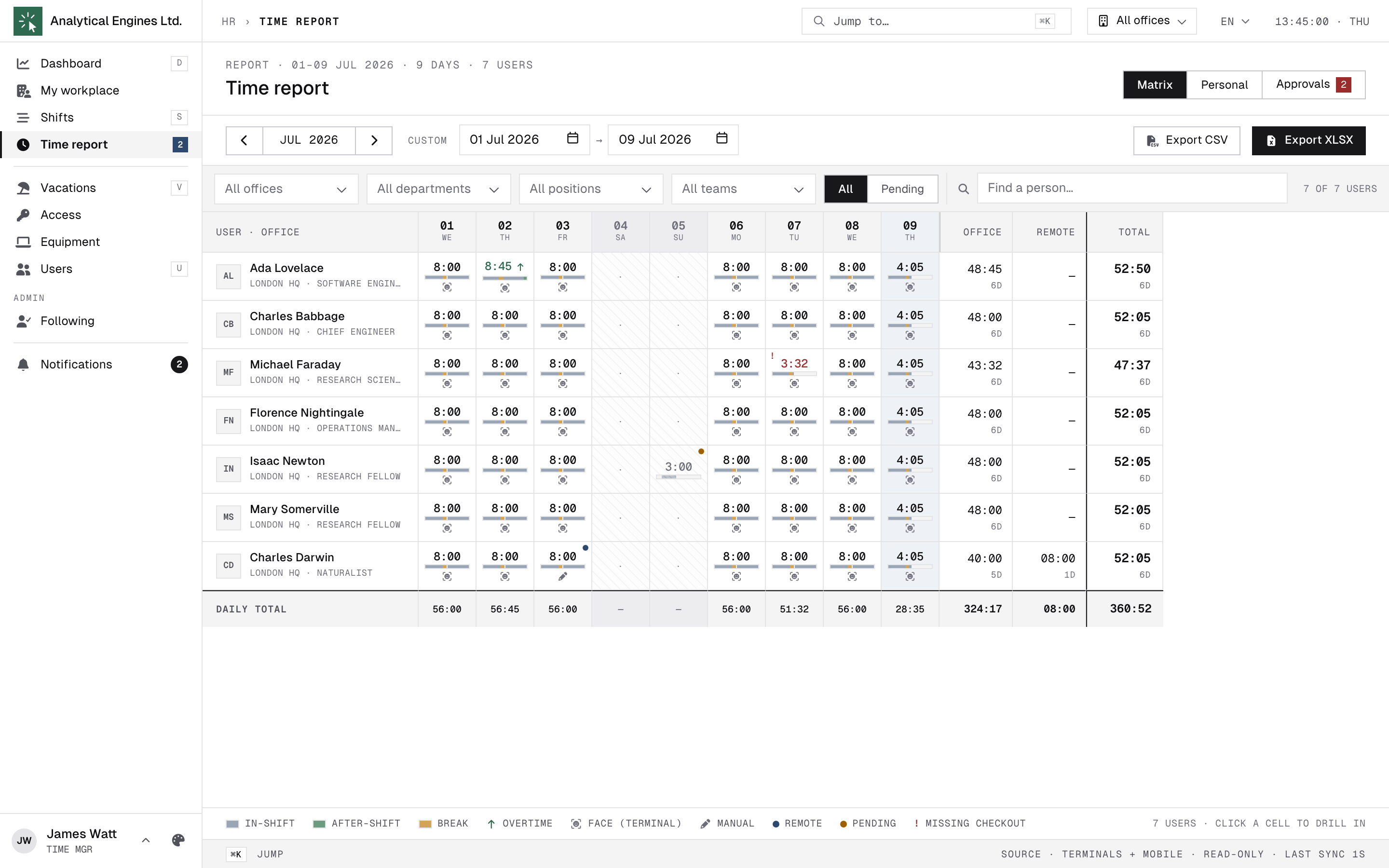
Time report → Matrix: one row per person, one column per day, each cell = the day total with a micro-bar of the day’s structure. Navigate months or set a custom range — clicking the month name (e.g. OCT 2026) resets a custom range to that whole month, and the current month runs up to today; filter by office, department, position or team; Find a person… narrows the matrix to the matching rows; the Pending toggle keeps only rows that need attention.
- Red cell / ! — a broken day: missing checkout or a late arrival.
- Green cell (↑) — worked over target.
- Hatched / amber corner — unconfirmed time waiting for you (doesn’t count yet).
- Cell tooltip — the day’s worked figure, and underneath it any note the person attached to a punch (“stuck in traffic”), one per line. Only notes on confirmed punches appear.
- Total column — worked time and days; hovering shows the live signed balance (overtime / shortfall) for the period. Click it for a fuller breakdown: the period’s worked total, then — measured over closed days only — worked against the norm, the balance as both hours and a percentage, lateness over the days that had a shift to be late for, and the office/remote split. When the person had unpaid leave in the period, an Unpaid leave row adds the hours to hold back from pay and the days, with part days apart — 10:00 · 1 d (+1 partial). It covers the whole period, closed days or not, and counts the hours of the norm each unpaid day covered (a part day its requested hours, a weekend or holiday nothing); paid, note-only and overtime-compensation leave stay out. When someone is still on the clock, the hours not yet measured are listed separately and the measured block carries its own date range. A period with no closed day yet says so instead of printing zeroes.
Fixing a day — the day drawer
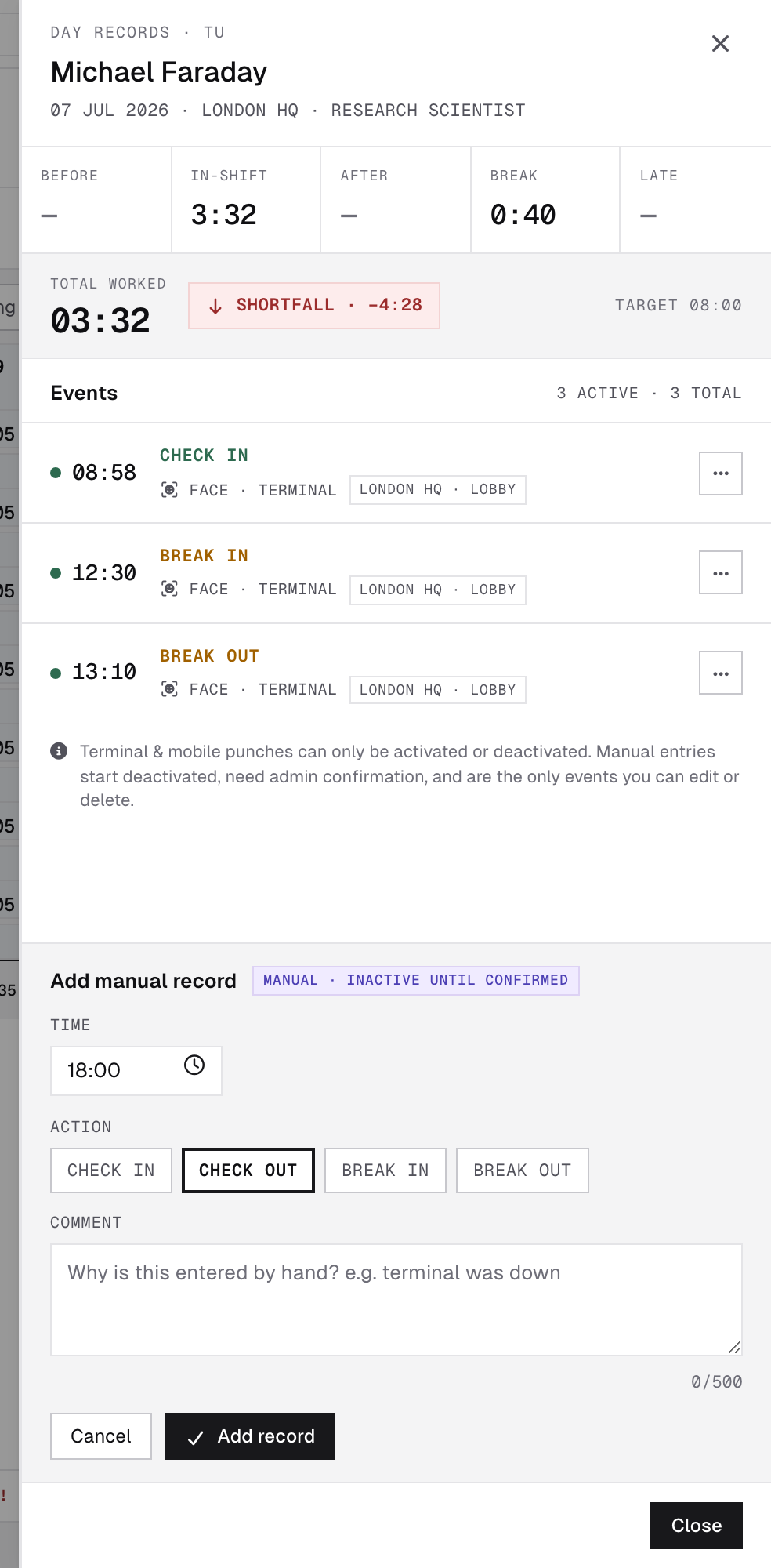
Click any cell (even an empty or future one) to open the day: every punch with its source and note, any leave that covers the day, and a KPI strip against the target. You can:
- Add a manual record (IN / OUT / BREAK IN / BREAK OUT) with an optional comment saying why — it lands unconfirmed and needs activation.
- Edit or delete hand-entered punches while they are unapproved — manual back-fill, self-reported days and missed-punch requests. A request whose time is ten minutes out is worth nudging rather than sending back.
- Activate / deactivate any punch — including terminal ones. Everything that wasn’t hand-entered (terminal, phone, browser, external system) can only be switched on or off, never edited; this keeps the original record intact. Deactivating counts as a decision: the punch stays visible here, inactive, and stops appearing in Approvals.
- Mark a punch remote / in-office — fixes the office/home split.
Leave on this day lists the leave covering the date, one click from the request itself. A leave for only part of the day, with a part of the day chosen, is also drawn on the person’s day graph in the Personal report as a hatched band in its type’s colour; hover it for the time, type and comment. It is a picture only — punches made during it still count as worked time, and unless the type is note-only the norm is already reduced by the leave hours (section 7).
The Unpunched break rule decides what happens on a day where nobody punched a break at all. It is set per office for office-schedule people, and on the shift itself for shift workers — a shift carries its own break and its own rule, so the office setting never reaches a shift day. Deduct the default break charges the office break once the day is worked at least 75% of its norm — this can bring the day below the norm. Deduct from overtime only never does that: it trims the break only from whatever was worked past the norm, so the norm itself is always protected — a day that's short of the norm, or lands right on it, is never touched. Either way the per-day breakdown prints the deducted amount in a lighter tint next to the break, with the hint “Break not punched — counted by default”. Any punched break, however short, opts the day out.
Exporting and importing
Export CSV / Export XLSX on the toolbar download the whole matrix for payroll; in the XLSX a day’s note rides along as a cell comment. Both carry Employee, Office, the day columns, Total, Norm, Balance, In office, Remote and Unpaid leave, h (the unpaid leave over the whole period, as in the popover) — the CSV as decimal hours, the XLSX as H:MM; Total, In office and Remote cover the whole period, while Norm and Balance cover closed days only. People close their days at different times, so the XLSX additionally gives every row its own Measured to date (blank if nothing closed yet) — read a row’s balance against that date and it always matches the popover on screen — and adds a Balance % column just before Unpaid leave, h: the balance as a share of that row’s norm, green when it is over and red when it is under. If you also hold the Admin role, an Import button sits next to them for bulk-loading a ZKTeco/Anviz-style clock export (CSV, TXT or XLSX) — it matches each row’s device user ID to a person and reports how many records were imported, skipped as duplicates, or left unmatched.
3The Approvals queue
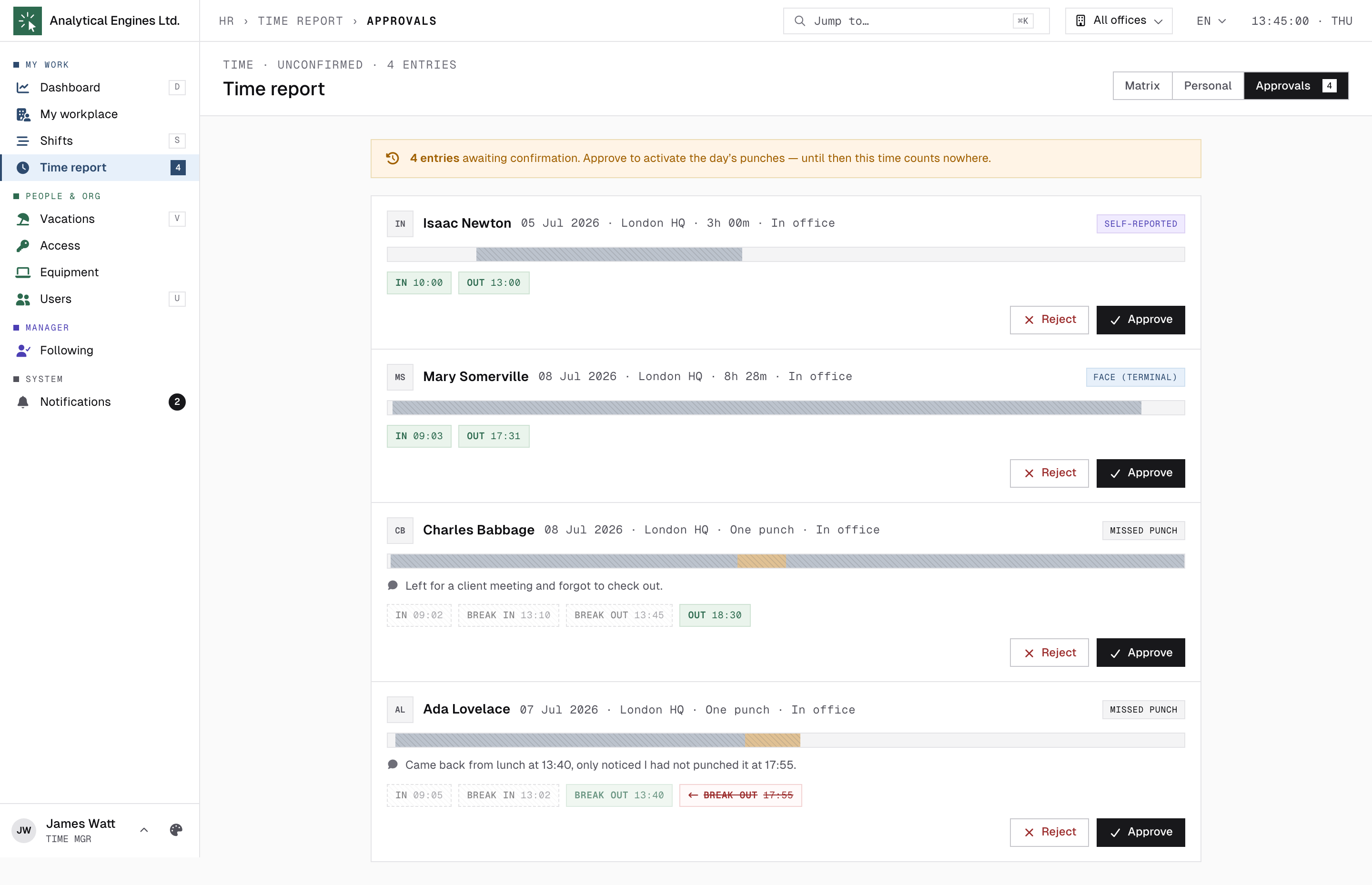
Time report → Approvals collects every record still awaiting a decision, grouped per person per day: employees’ self-reported time (a whole day logged by hand), their missed-punch requests (one forgotten or wrong punch), manual back-fill, and conflicted terminal punches — e.g. a punch that arrived late from an offline terminal and no longer fits the day. Each card shows the source chips, the raw punches and the day shape.
- Approve — the records activate and immediately start counting into totals and reports.
- Reject — the records are discarded. You are asked why: the reason reaches the person who filed it, and “declined” with no explanation only comes back to you as a question.
- A card is listed when it holds a reviewable IN + OUT interval, or at least one missed-punch request — which is a single punch by definition. A lone conflicted punch still belongs in the day drawer instead.
- Anything you have already decided is gone from here for good, including a punch you simply deactivated in the day drawer.
A card reading MISSED PUNCH shows One punch instead of a duration — one punch has no duration to approve. Underneath it, the day’s already-confirmed punches are printed in a lighter, dashed style: a lone OUT 18:30 means nothing until you can see the IN 09:02 it closes. A correction also prints the punch it would retire, struck through — approving replaces one with the other in a single step, and until you do, the original keeps counting.
Employees can only file these for roughly the last day (longer where shifts are longer), one punch at a time, within a monthly allowance — the rules are in System settings, and anything older still comes to you.
4Following
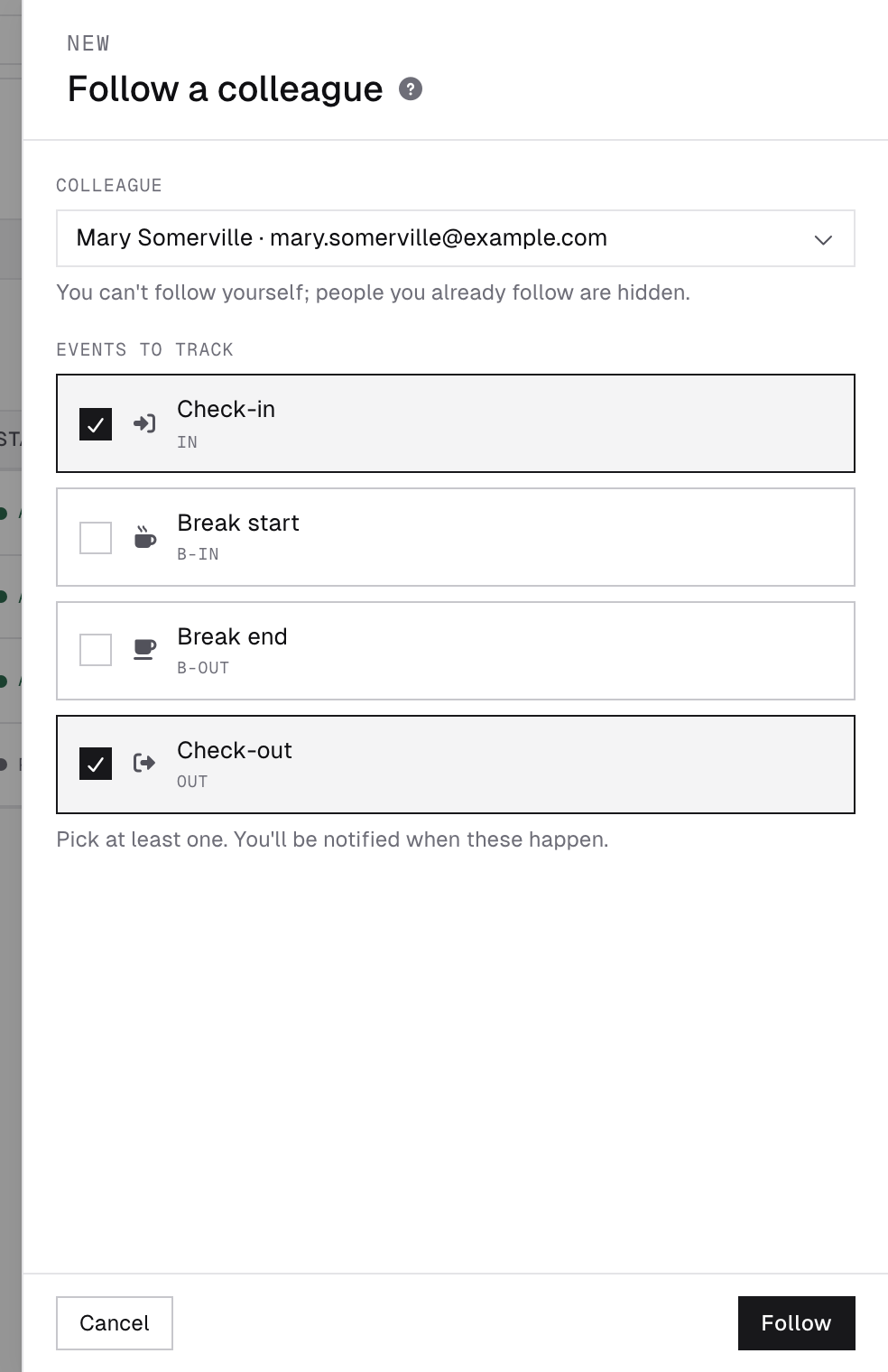
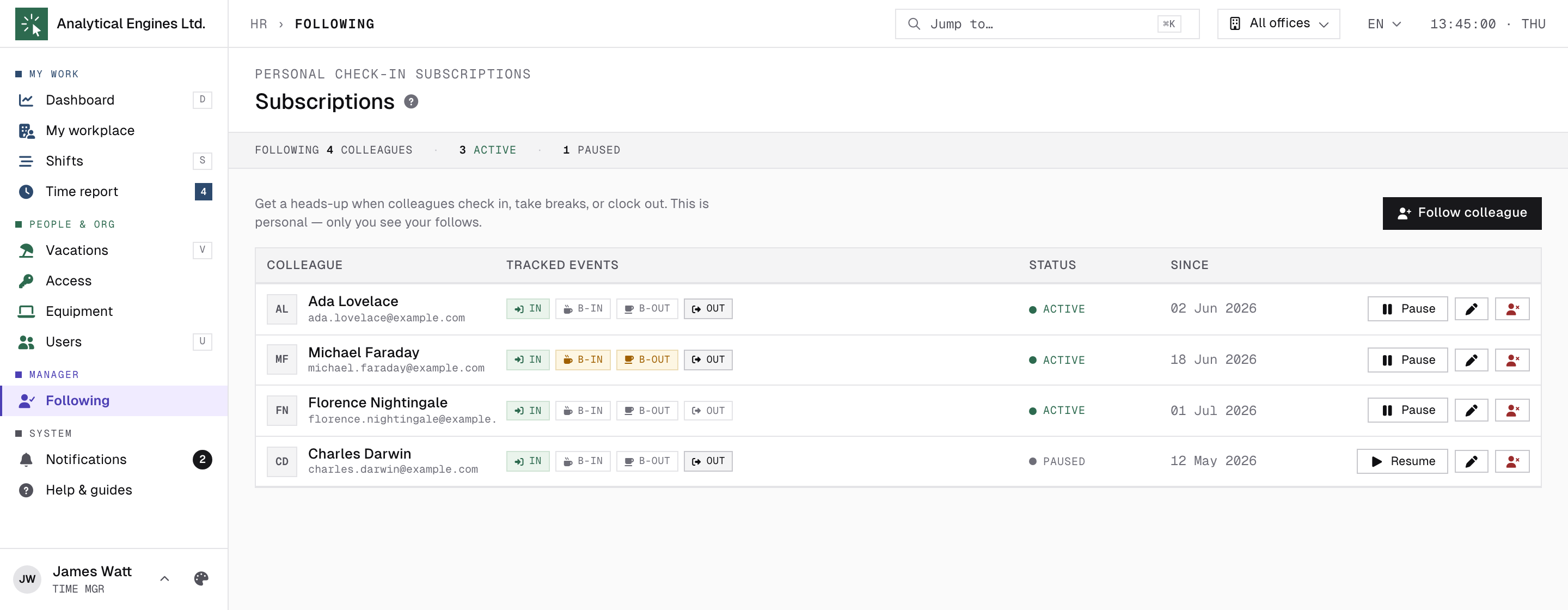
Following is a personal heads-up list: pick colleagues and HR.Click notifies you when they check in, take a break or check out — handy for a reception desk, a site lead or anyone who has to know who has arrived. Only you see your follows.
- Follow colleague — search by name or e-mail, then tick the Events to track: Check-in, Break start, Break end, Check-out (at least one).
- Each row can be paused and resumed without losing its settings, edited, or removed with Unfollow; the header counts active and paused follows.
- Notifications arrive through the usual channels — set them in Notifications → Preferences under Followed colleague checked in/out.
5How you’re notified
| Signal | What it means |
|---|---|
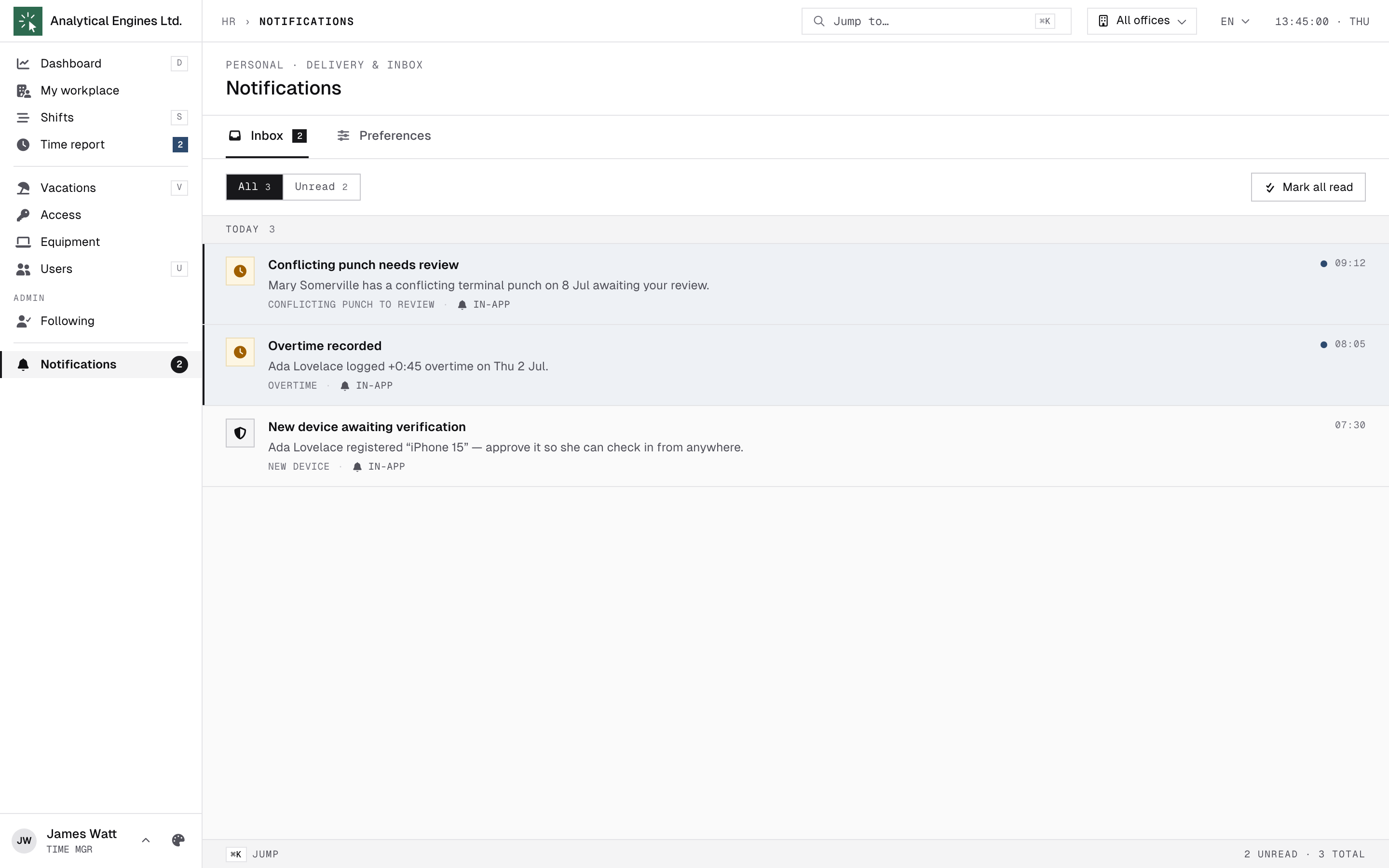
| “Conflicting punch needs review” (push / in-app) | A terminal punch didn’t fit the existing day (often after an offline period) and was saved deactivated — resolve it in Approvals or the day drawer. |
| “Missed punch requested” (e-mail / push / in-app) | Someone asked for a forgotten punch to be added, or a wrong one replaced. Their hours do not count until you answer, so this one does page you. |
| Badge on Time report | Pending self-reports / unconfirmed records — the Approvals queue. |
| “… checked in late” | Goes to the person’s team lead — you’ll see it only for teams you lead. Lateness is visible in the matrix regardless. |
There is deliberately no e-mail per submitted self-report — the badge and queue are your workflow. A missed-punch request is the exception: it is one punch blocking one person’s day, and it is cheap to answer. Whoever filed it is told the outcome either way, with your reason when you rejected it.
6Day-to-day checklist
| Situation | What to do |
|---|---|
| Red ! in the matrix | Open the day drawer — usually a missing checkout. Add the missing OUT as a manual record and activate it. If it is yesterday’s, the person can file it themselves and you just confirm it. |
| “Conflicting punch needs review” | Approvals (complete pairs) or the day drawer (single punches): activate what’s genuine, reject duplicates. |
| Employee logged time | Approvals → check the interval against the day → Approve or Reject. It counts only after approval. |
| Employee logged one missing punch | Approvals → read their comment against the day’s confirmed punches shown beneath it → Approve or Reject with a reason. |
| Employee asks to fix a wrong day | Recent day: point them at Log time → One punch — they can propose the correction themselves and you confirm it. Older, or several punches at once: day drawer — deactivate the bad punch, add a manual correction, activate. |
| Payroll asks for hours | Matrix → set the period → Export XLSX. |
7How the norm is worked out
A period’s norm is never just “working days × office hours” — approved leave already covers part of it, whether the type is paid or unpaid. A day fully covered by leave asks for no norm at all, and a partial one asks only for its remainder. The exception is a type the admin marked Note only (an informational mark such as INFO): it never changes the norm, so a full working day of it without work still asks for the whole norm (−8 h on an 8-hour day), and its hours on a partial day leave the norm untouched; on a weekend, a holiday or a day without a shift it creates no norm, and work done then is ordinary weekend work. Overtime compensation (Adds to balance) records work on a day off, so it covers no norm either. A day worked outside any shift adds no norm. The same trimmed figure backs the Personal report’s per-day table header (TARGET) and its Overtime tile, and the matrix’s per-user popover (section 2) — all three read the same number.
Wherever a period balance is shown — the Personal report’s Overtime tile (“worked of norm working hours”, signed and coloured) or the matrix’s per-user popover — it is a straight over/under call against that trimmed norm, never a flat weekly number. Both also measure closed days only: a day is weighed against its norm once it is finished — either it is in the past, or it is today and the person has already checked out. A day still on the clock is never judged against a norm it has not earned (a lunch break does not close a day), and a period with no closed day yet shows no figures rather than a misleading row of zeroes. A day nobody has punched at all today stays unjudged until tomorrow.
Time report → Personal → Export CSV / XLSX / PDF totals the same closed-days figures. When the export range reaches today, the totals row is labelled “measured to <date>” so it is never mistaken for a plain sum of the rows above it. The per-day overtime column stays in the file; the period total drops it, since summing individual days’ overtime would contradict the balance printed beside it. The totals line also names the period’s unpaid leave in hours when there is any.
HR.Click — Time Manager Guide · v1.3 · October 2026. Product screens shown with sample data; names of persons are fictitious examples.