

Vacation Manager Guide
Approving leave, guarding balances, keeping the calendar honest
HR.Click · Vacation Manager GuideManaging leave
1Your role in two minutes
As a vacation manager you have the final say on leave requests and custody of everyone’s leave balances. Your sidebar card reads VACATION MGR, and on top of the regular employee pages you get:
- Requests in the sidebar — the approval queue. It appears only while something is pending, with a count badge (your own requests never count towards it).
- Extra Vacations tabs: Requests, Report, and Balances (instead of “My balance”) with an employee picker and balance adjustments.
- The team Calendar with names visible.
- The Users directory — read-only for you: find anyone and open their profile, with their leave balance, yearly limits and this year’s requests. Creating and editing people is for administrators.
- The ability to file leave for someone else, and to reassign the type of a pending request (section 5).
- An Org view on the Dashboard (next to My view): who is working now and who is on leave, how many requests are pending, and the Pending approvals list with Review / Approve right there. It carries no time figures — no hours, no lateness; those belong to time managers.
Each vacation type defines its path: TL → VM (team lead first, then you), VM only, TL only, or Auto-approved. You act at the VM stage; requests still sitting with a team lead show a TL chip and no action buttons for you. Nobody can approve their own request — an admin or another VM handles yours. The type catalogue itself (limits, flows) is configured by administrators.
2How you’re notified
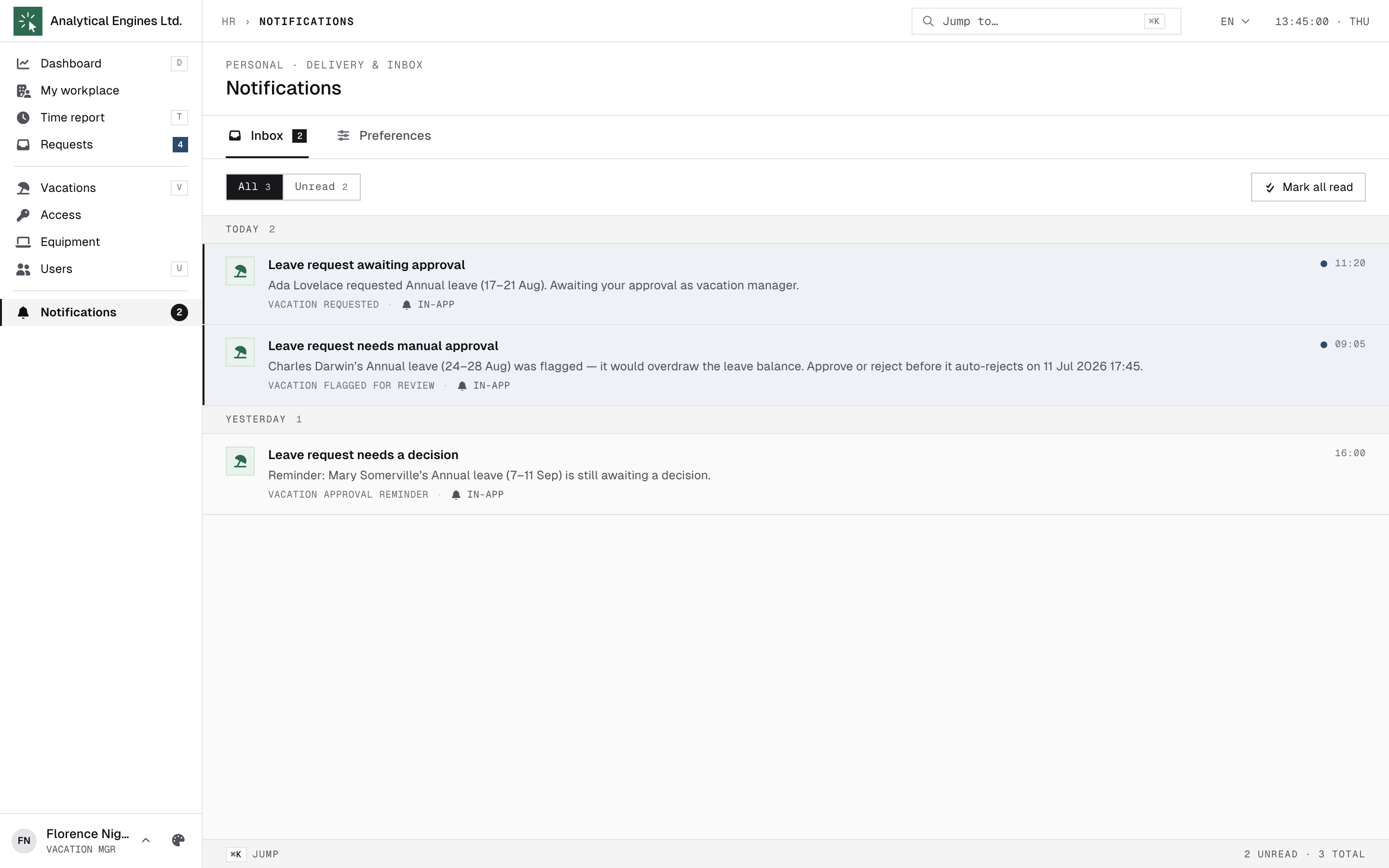
Approvers (you + the requester’s team lead) are pinged on every event, in-app / push / e-mail according to your Notification preferences. E-mails arrive within a few minutes (several events may be combined into one digest). The subjects match the notification titles:
| Subject / title | When |
|---|---|
| Leave request awaiting approval | A new request needs a decision. |
| Leave request needs manual approval | A flagged request (section 4) — includes the auto-reject deadline. |
| Leave request needs a decision | Reminder while a flagged request is still waiting (every ~8 h). |
| Leave request auto-rejected | Nobody decided before the deadline — the system rejected it. |
The requester is notified automatically at every step — Vacation approved, Vacation activated, or Vacation rejected (with your reason). You don’t need to tell them separately.
Tune what reaches your mailbox in Notifications → Preferences — but keep the vacation category on: flagged requests are time-boxed.
3The approval queue
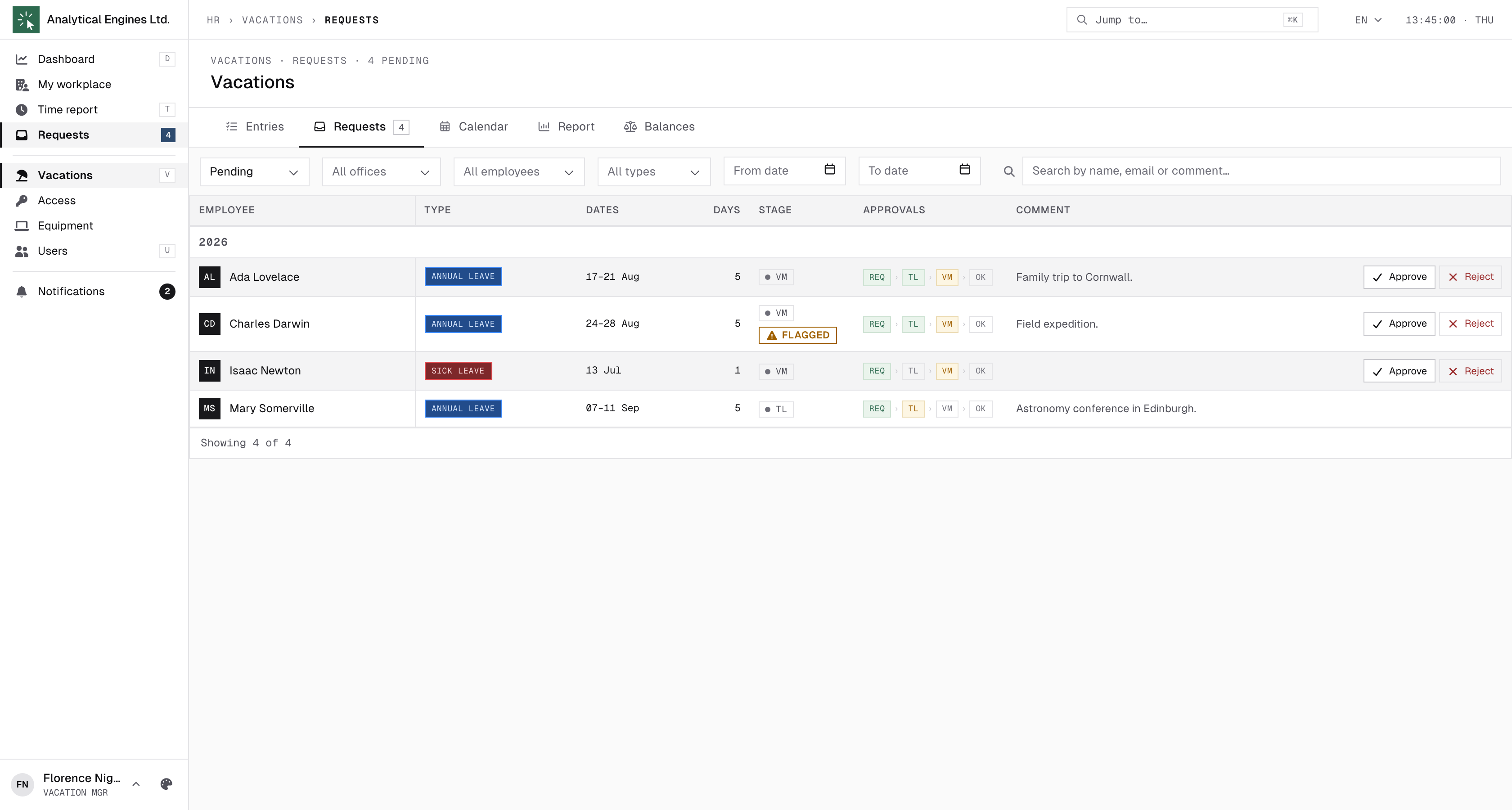
Requests (sidebar, or Vacations → Requests) lists everything pending, one row per request: employee, requested type (shown with its own icon and colour), dates, days, the stage chip (TL / VM), the approval stepper, and the comment. Filter by status, office, team, employee or leave type, plus a date range or free-text search.
- Rows at the VM stage show Approve / Reject for you.
- A red Flagged badge marks requests that tripped a limit — hover it for the reasons and the auto-reject deadline (section 4).
- Hover the approval stepper to see who already signed off (e.g. the team lead) and when.
Opening Requests with nothing left pending — say, from a stale notification — takes you to Entries instead, with a note that it has already been handled; clearing the last request yourself just leaves the queue empty, with no such note. A queue you have filtered down to nothing yourself stays put rather than redirecting you.
4Approving and rejecting
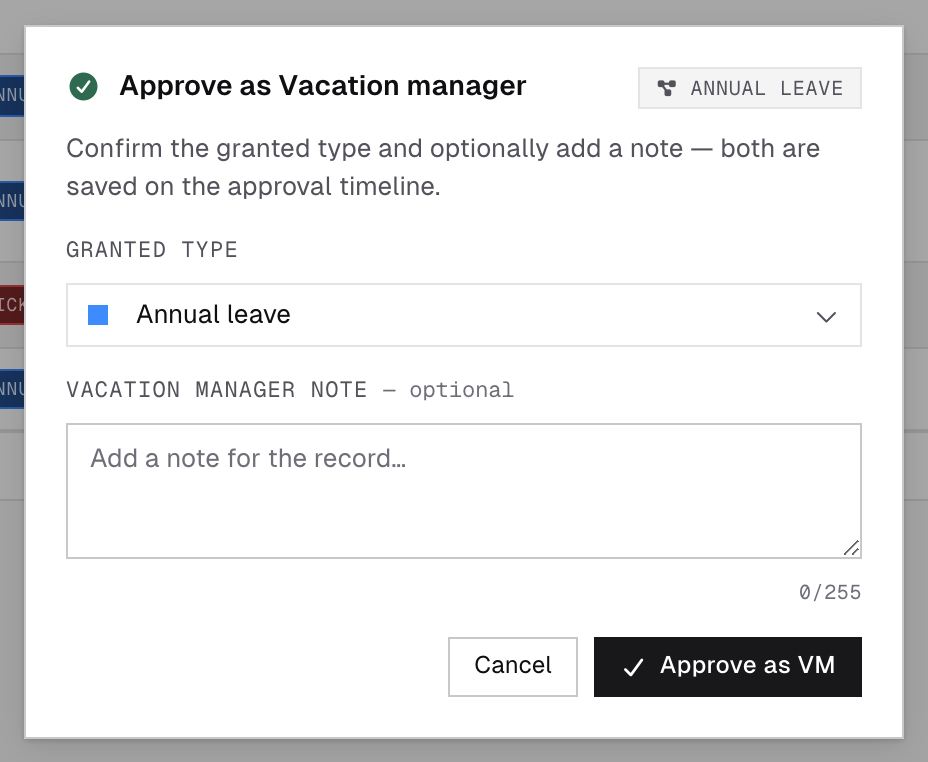
Approve
The dialog shows the request and, at your stage, a Granted type dropdown — you may grant a different type than requested (e.g. convert Annual leave to Unpaid when the balance is short). The employee sees “asked: …” next to the granted type. Add an optional note and click Approve as VM.
After the final approval the leave activates automatically: working days are counted and the hours are deducted from the employee’s balance, with a ledger entry. If it goes below zero, that’s allowed but audited.
Both stages in one click. On a request still sitting at the team-lead stage, if you are also the person who would sign it as team lead, the dialog offers Approve both stages at once. Ticking it signs the TL and VM stages together (and unlocks the Granted type dropdown), so you don’t approve the same request twice. The checkbox only appears when you already hold both powers — it never skips a review someone else owes. Opening the request itself offers the same shortcut directly: its footer carries an Approve fully button next to Approve as VM, which opens the same dialog with the box already ticked.
Reject
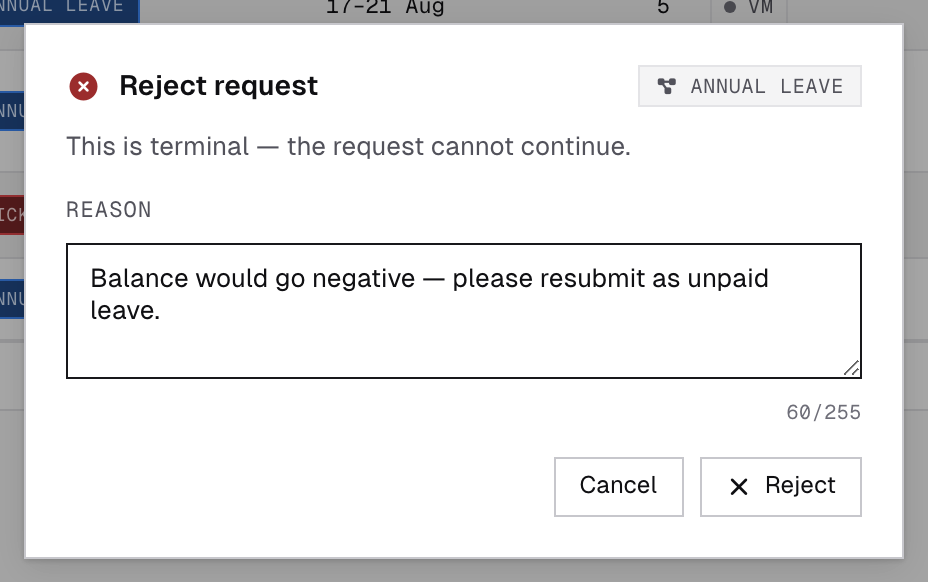
Rejection is terminal — the request cannot continue. At the VM stage a written reason is required; the employee receives it word-for-word, so make it actionable (“resubmit as unpaid leave”).
A request gets flagged when it exceeds the consecutive working-day limit, was requested with too little notice, would overdraw the leave balance, or exceeds the yearly limit for its type. Flagged requests always need a human decision. On most types, one nobody decides on before the deadline (72 h per stage by default) is auto-rejected, with reminders every ~8 h while it waits; even an ordinary, unflagged pending request auto-approves once it has waited long enough at a stage (48 h by default). An administrator can mark a type Restrict auto approve/reject to switch both timers off — its requests, flagged or not, only ever move on a human decision, and the reminders settle to about one a day for as long as one waits. For a negative-balance flag, approving with the type switched to Unpaid is often the clean fix.
Back-dated leave lands here too. “Too little notice” is measured against the leave’s own start date, so anything an employee files for today, tomorrow or a past date (a sick day entered afterwards) is flagged the moment it is created — and it never auto-approves. The 72 h clock, however, runs from when the request was filed, not from the leave dates: a leave entered for last week is not rejected on the spot, it waits three days for you like any other flagged request. Decide those promptly — an auto-rejected sick day has to be re-filed. (Leave an admin or manager files on behalf of someone is never flagged for notice.)
Over the yearly limit
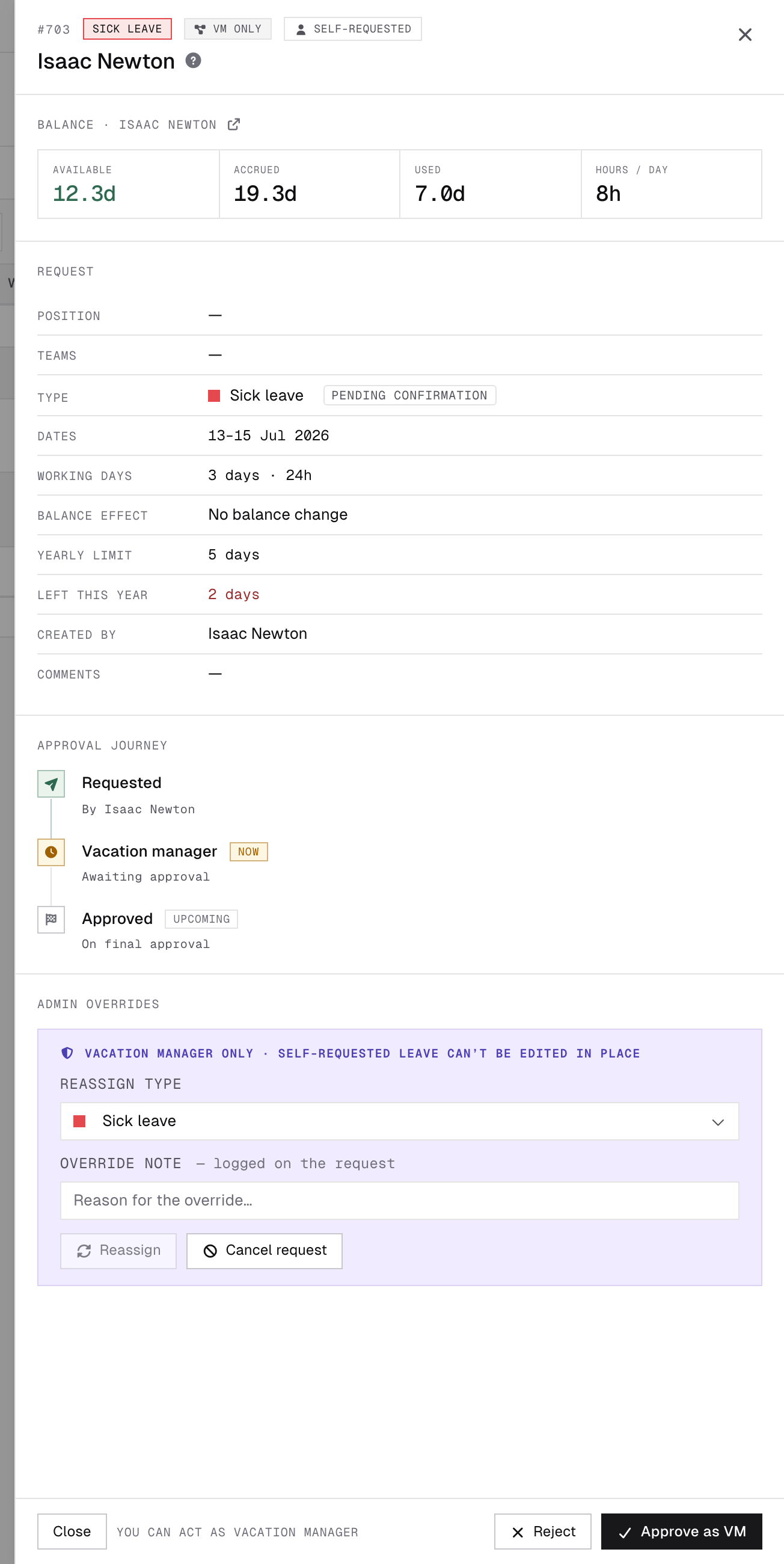
A type with no balance effect (sick, unpaid…) may carry a yearly limit — working days per person per calendar year (counted against each person's own work day), set by an administrator and overridable per office. A request that goes over it lands in your queue flagged, even on a type that normally needs no approval: the limit always makes it your decision. The notification says by how much, e.g. “… exceeds the yearly limit for this leave type (5 working days; 3 days already used in 2026). Approve it, or it auto-rejects on …”.
Open the request: under Request the card shows Yearly limit and Left this year — what remained before this request, counting the person's approved and pending leave of that type; red means this request goes over. The usual deadline applies, unless the type restricts auto approve/reject.
5Filing and correcting leave
Filing leave for someone
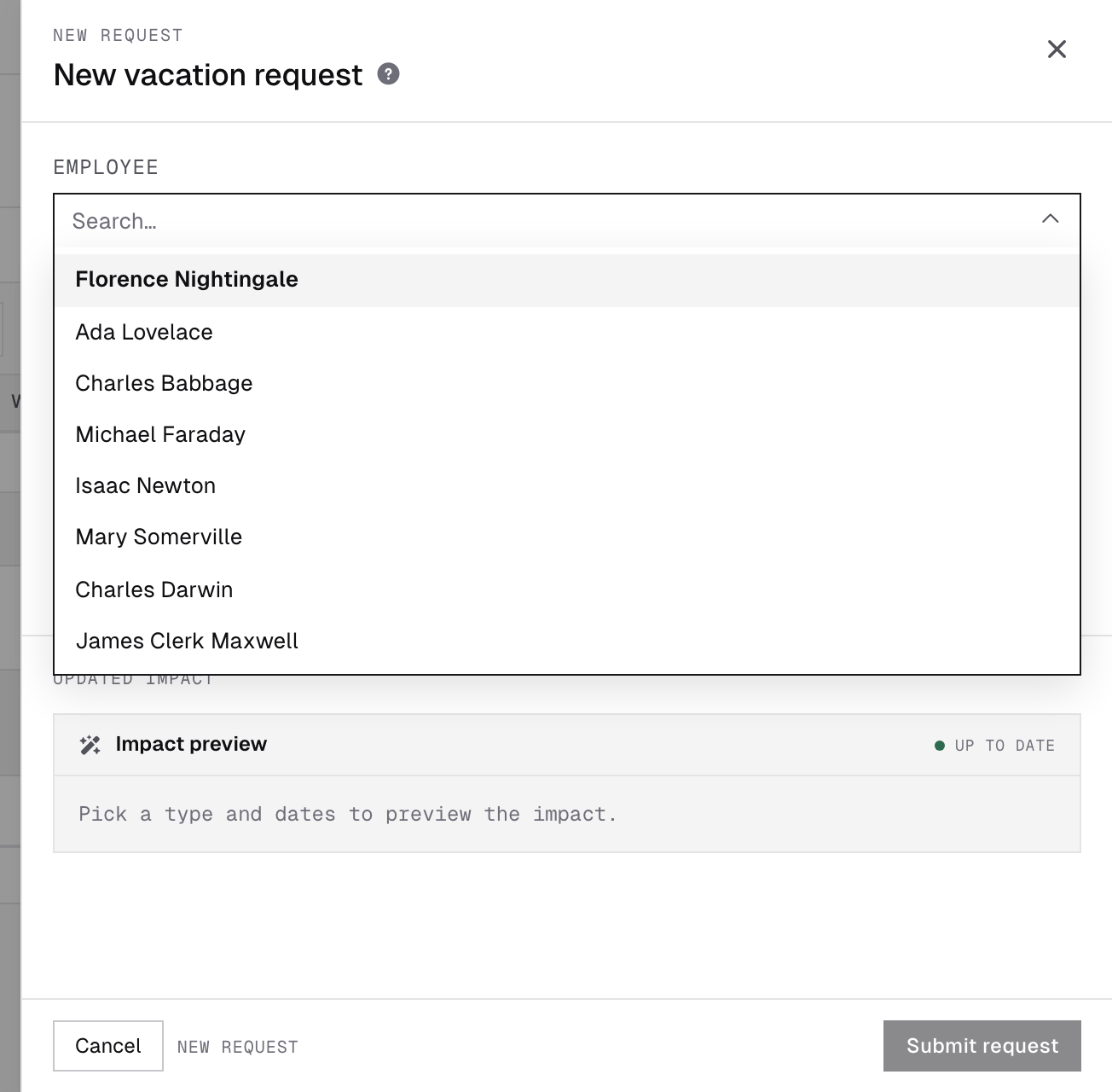
Request leave opens with an Employee picker for you — pick the person and fill in the request as they would (a sick day phoned in, leave agreed in a meeting). It follows the type’s usual approval path, and it is never flagged for short notice: a sick day you enter afterwards does not land in your queue just for being late. While it is pending you can still change who it is for; the request shows admin-created request next to the name.
Leave for part of a day
For a single day, Only part of the day — shorter than a full work day takes a duration (HH:MM) — those hours, not a whole working day, come off the balance or the yearly limit; they also reduce the person’s daily norm, paid type or not. Only a type marked Note only (an informational mark such as INFO) never changes the norm — not for part of a day, and not for a full day either: a working day of it without work leaves the whole norm owed. Approving any other full-day leave (overtime compensation aside) puts a shift worker’s shifts on the days it covers on leave, even a single day: the shift stays on the board, keeps setting that day’s norm, and the leave covers it; cancelling, rejecting or shortening the leave gives the shift back. A leave for part of a day keeps that day’s shift — the day then asks for the shift’s hours minus the leave — and a note-only leave keeps the shifts too; new shifts can still be planned over either. The optional Part of the day radio places them:
| Choice | Placement inside the person’s working hours |
|---|---|
| Not specified | Default — counted, but not drawn on the day. |
| Start of day | Starts when their working hours start. |
| Middle of the day | Centred, its start rounded to the half hour; shown as Approximate position. |
| End of day | Ends when their working hours end. |
“Working hours” are the office’s hours for that day, or the person’s shift on that day if they work in shifts (no shift that day — counted, not drawn). Overtime-compensation types (the ones that add to the balance) keep the duration but offer no part of the day.
Opening such a request, its Working hours row reads e.g. 2h · in the middle of the work day instead of a count of working days. A placed leave appears as a hatched band in the type’s colour on the person’s day graph — on their Dashboard, the week table and the personal time report — with a tooltip naming the time, the type and the comment. The band is a picture only: if the person also worked during it, their worked time and totals are unchanged.
Correcting a request
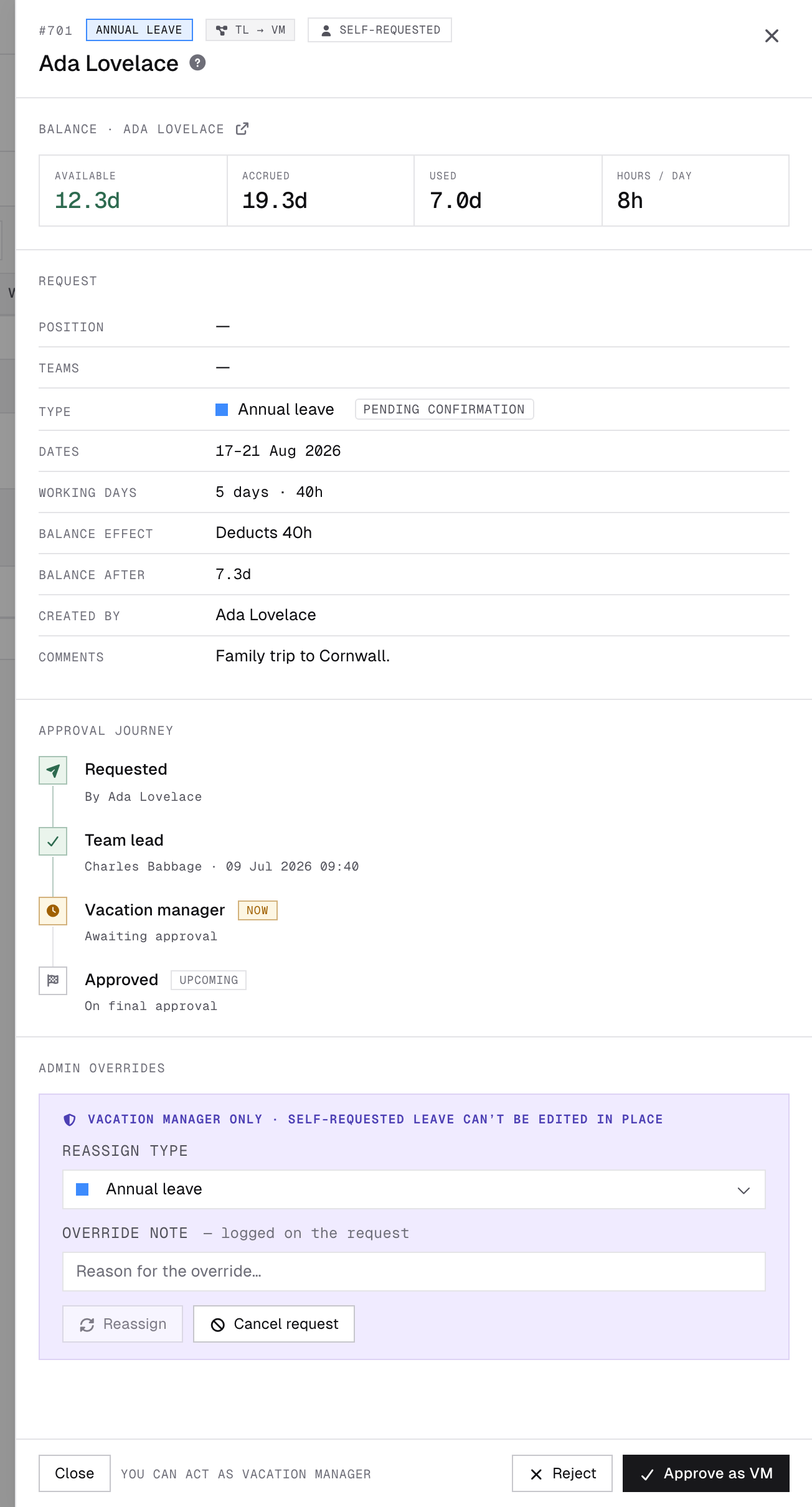
Opening someone’s pending request shows Admin overrides:
- Reassign type + Reassign — change the leave type before it is decided, e.g. annual leave that should be recorded as sick. Its flags and approval path are re-checked against the new type, and the employee sees “asked: …” next to it.
- Cancel request — withdraw a pending request on the person’s behalf.
An approved leave is already active — its hours are booked. Changing its type, dates or hours needs an administrator: they deactivate it (Deactivate), correct it and activate it again.
6Balances
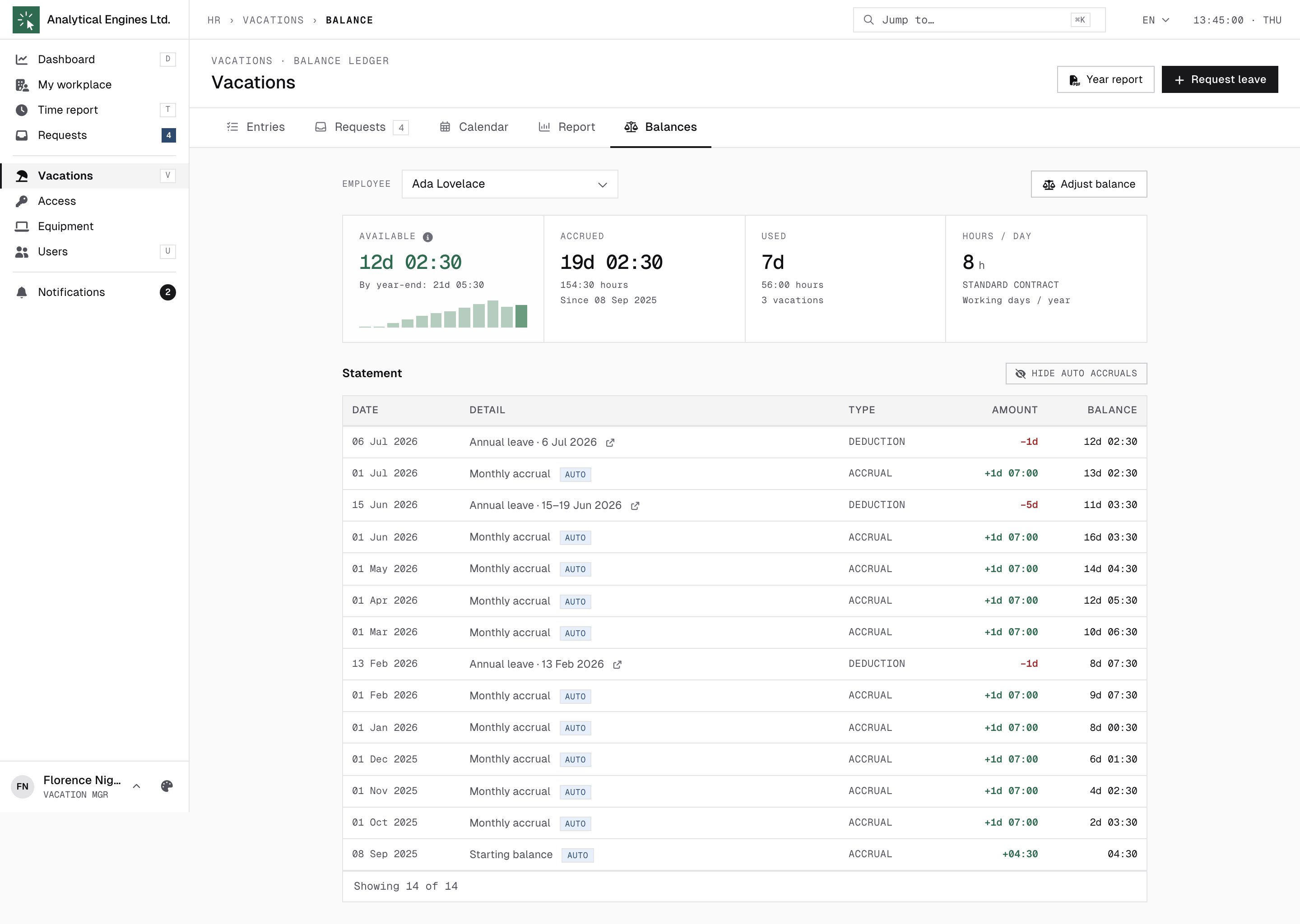
Vacations → Balances gives you any employee’s balance: pick a person to see their Available / Accrued / Used, the 12-month trend, and the full Statement ledger (toggle “Show auto accruals” for the daily accrual rows). Year report downloads their 12-month PDF statement.
Yearly limits per person
Under the balance figures, Yearly limits · 2026 shows a tile for each of the person's leave types with a yearly cap: what is left, used of the limit (an OFFICE chip marks an office's own limit), and a link — “2 approved · 0 pending →” — that opens Vacations filtered to that person, that type and this year. Only types with a limit appear.
Adjusting a balance
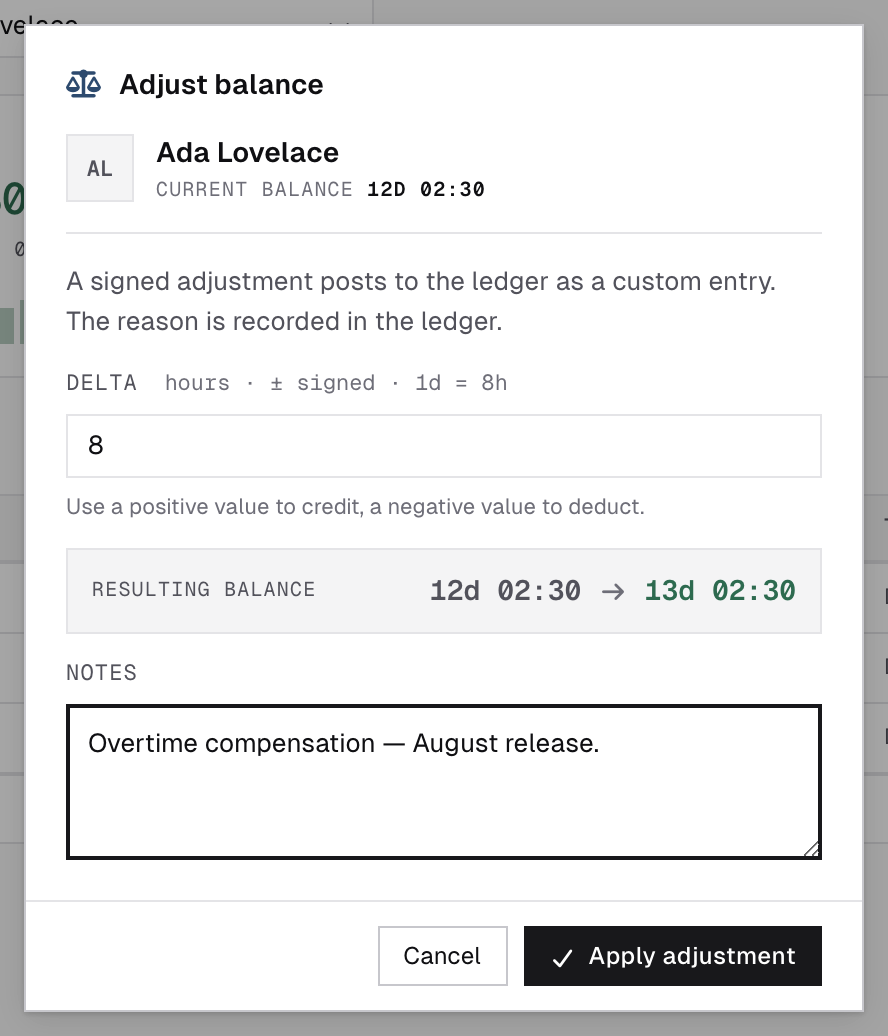
Adjust balance posts a manual correction: a signed amount in hours plus a mandatory note (e.g. “+8 — overtime compensation”). It lands in the ledger as a CUSTOM row and is written to the audit log. You cannot adjust your own balance.
Balances are counted in hours against each person’s own working day, so part-time and full-time are directly comparable. Accrual is automatic (daily); there is no year-end reset. The rule itself — the daily slice, which days count, why rows read 00:19 or 00:20, and what “By year-end” forecasts — is written up for employees in How the balance is calculated; the accrual-pausing leave types you configure there are the only days that earn nothing.

7The by-type report
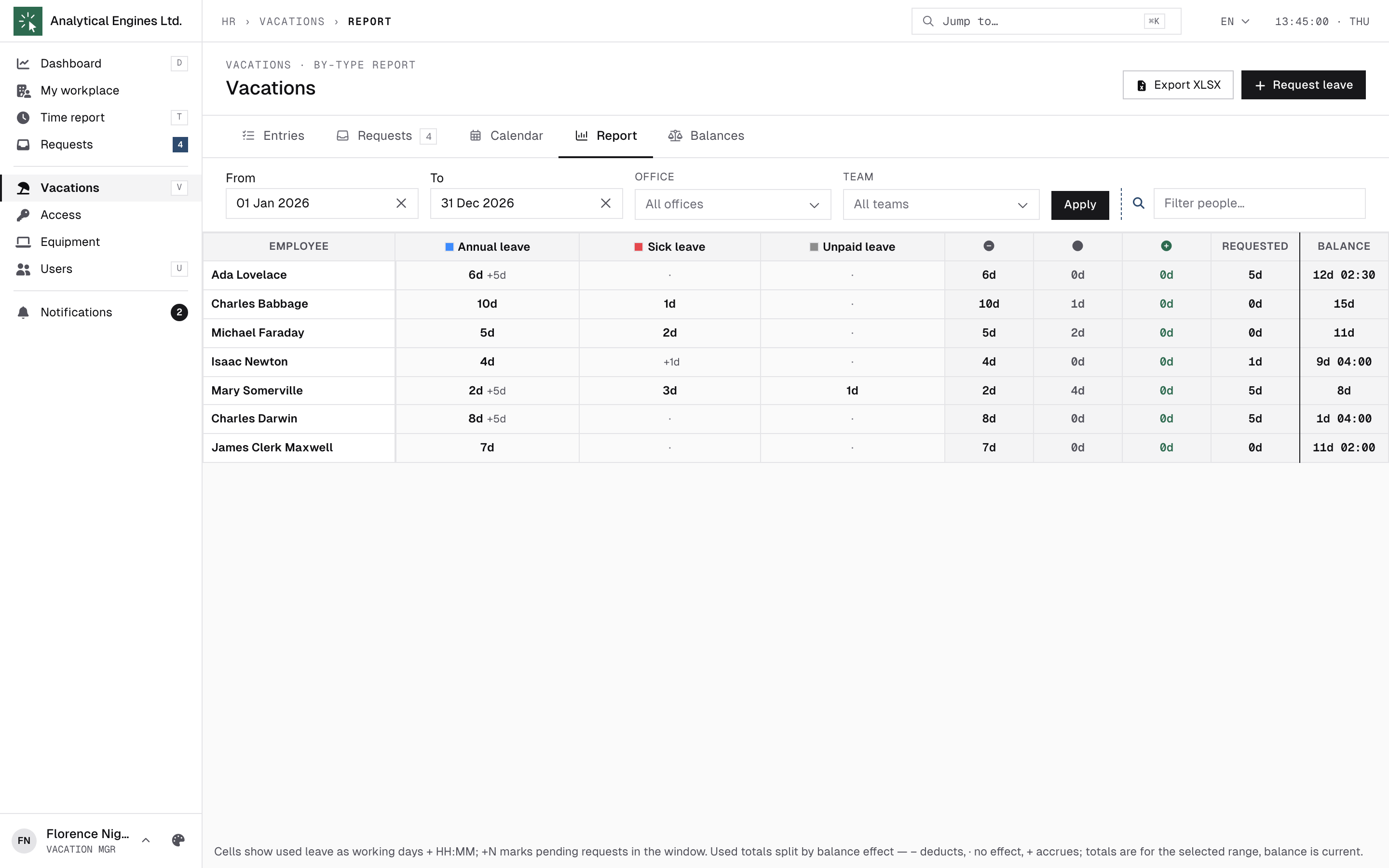
Vacations → Report is your period overview: one row per employee, one column per vacation type, cells showing used working days (a +N marks still-pending requests in the window). Pinned totals split leave by balance effect and show each person’s current balance. Filter by dates, office or team, and Export XLSX for payroll or audits.
The pinned Unpaid column is the figure for payroll: the hours of unpaid leave in the range — the hours to hold back from pay. It counts every activated leave of a type that is not paid, leaving out note-only types and overtime compensation. Each day counts the hours of the norm the leave covered: a full day is that person’s own norm for the day (part-time and shift hours included), a part of a day is its requested hours, and a weekend, holiday or day without a shift counts nothing. The hours lead; the line under them gives the days, with part days apart — 3 d (+1 partial). A shift worker’s full-day leave counts the hours of the shift it put on leave (window minus its break); a leave approved before shifts were kept on leave counts the shift it removed back then. The XLSX ends with the same two columns: Unpaid leave, h and Unpaid leave, days.
8Day-to-day checklist
| Situation | What to do |
|---|---|
| “Leave request awaiting approval” arrives | Open Requests, review dates and the comment, Approve or Reject. The calendar helps spot team overlaps. |
| A request is Flagged | Decide before the deadline in the badge/e-mail — otherwise it auto-rejects, unless its type restricts auto-resolution. Negative balance? Consider granting it as Unpaid. Over the yearly limit? Left this year in the request shows by how much. |
| Employee asks “where is my request?” | Open it — the Approval journey shows the stage. A TL chip means it’s still with their team lead, not you. |
| Balance looks wrong to someone | Balances → pick the person → Statement ledger explains every hour. Fix genuine errors with Adjust balance + a clear note. |
| Payroll asks for leave data | Report → set the period → Export XLSX. |
| Wrong leave type was approved | An approved leave is active, so its type and dates are an admin correction — escalate to your administrator. Still pending? Fix the type yourself: Admin overrides → Reassign type (section 5). |
| Someone phones in sick | Request leave → pick them in Employee → the sick-leave type and the date (or Only part of the day for a few hours). |
HR.Click — Vacation Manager Guide · v1.2 · October 2026. Product screens shown with sample data; names of persons are fictitious examples.