

Asset Manager Guide
The equipment desk — inventory, requests, assignments
HR.Click · Asset Manager GuideRunning the equipment desk
1Your role in two minutes
As an asset manager you run the equipment desk: the inventory of company hardware, and the queue of employee requests to get, return or retire it. Your sidebar card reads ASSET MGR; the Equipment entry carries the pending-request count, and the page gains two tabs beyond “My equipment”: Inventory and Requests (the Requests tab appears while something is pending, and the page opens straight on it).
The catalogue of asset types (Laptop LTP, Phone PHN, Monitor MON, Keycard KEY…) defines the icons and the inventory-code prefixes. Its editing tab is on the administrators’ side — ask your admin to add a type if a new category appears.
2Inventory
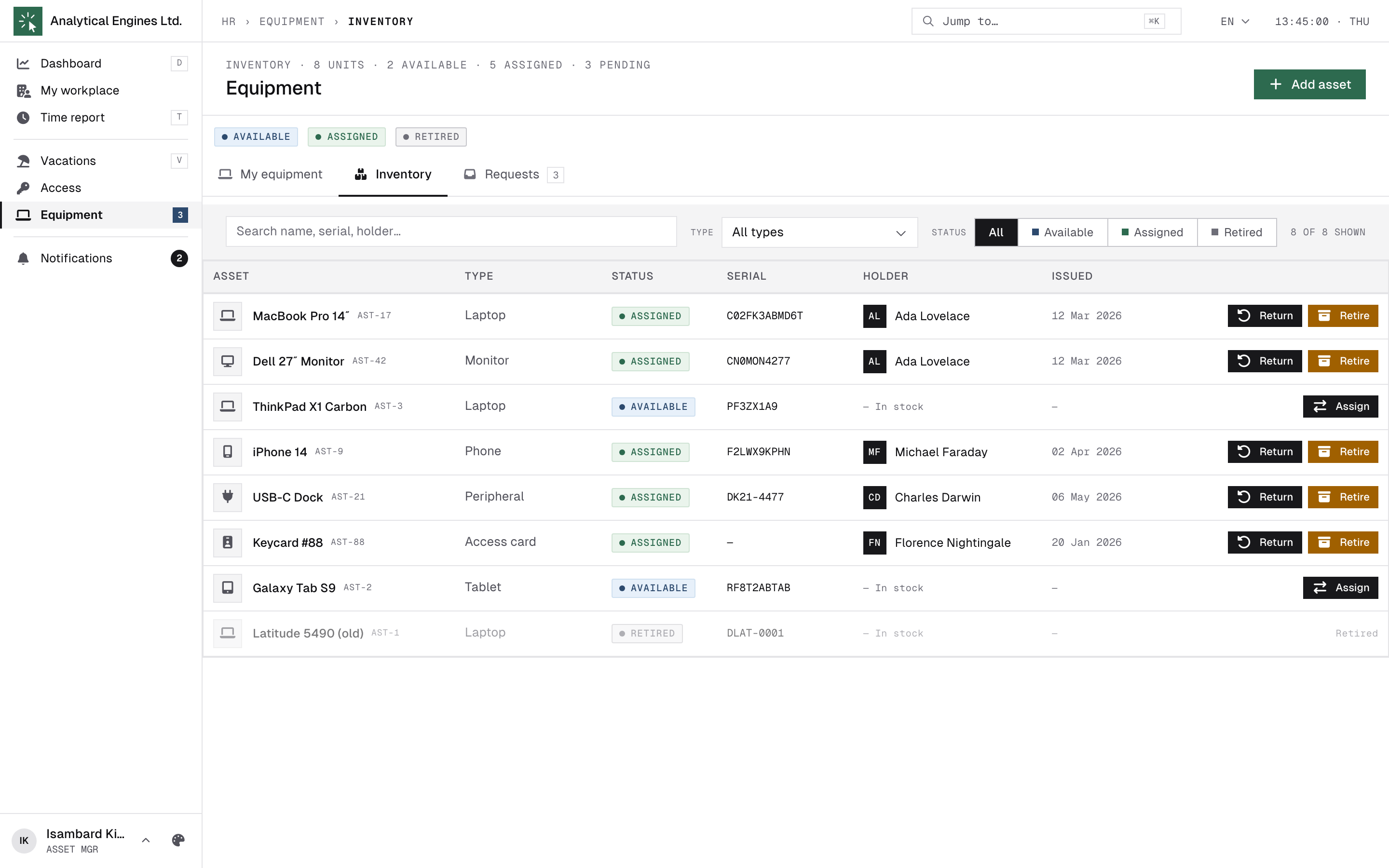
One row per physical unit: name, type, status (Available — in stock, Assigned — with a holder, Retired), serial, holder and issue date. Rows sort by holder (last name, first name) then asset name, so one person’s kit lists together; unassigned units sort last. Search by name/serial/holder, filter by type, and by either status or holder (picking a holder narrows to their kit and hides the status filter, since it would otherwise conflict).
- Add asset — record a new unit: type, name, serial, and an inventory code — Generate issues the next number for the type’s prefix (e.g. LTP-00018). A new unit enters stock as Available, so it also needs a stock location — the office it physically sits in.
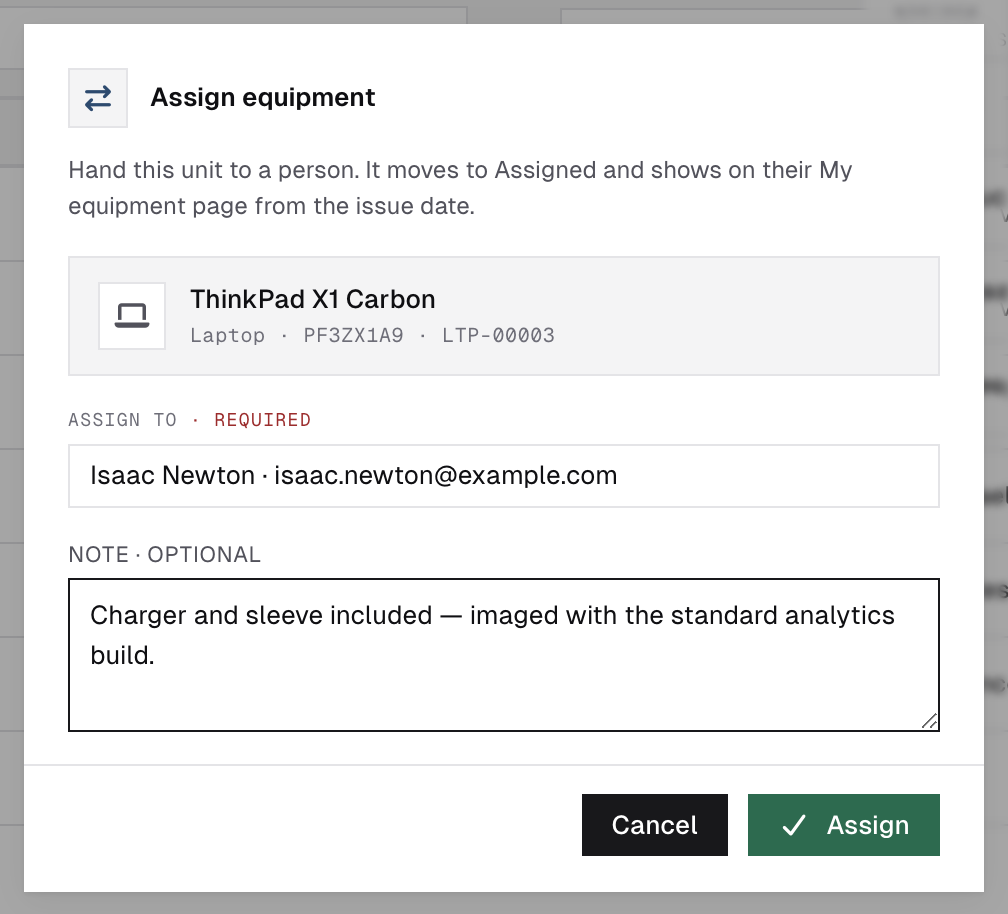
- Click a row to open the asset record: its details plus the full history timeline — every assignment, return and request the unit has been through.
- Row actions by status: Available → Assign / Retire (a unit in stock that turns out broken can be written off without handing it to anyone first); Assigned → Return / Retire. Return also asks for the stock location the unit is going back to; Retire doesn’t, since the unit leaves stock. Retiring is permanent; a note explains why.
Assigning directly
Assigning directly: pick the holder from the directory, add an optional note, done — the unit flips to Assigned and appears in the employee’s “My equipment”. The note is kept on the assignment and shown on the “Assigned” step of the unit’s history. Use it when gear is handed out without a request.
Every movement (created / assigned / returned / retired) is written to the audit log and fires the matching webhook event, so external inventories can stay in sync.
If a holder or a stock location is later removed from HR.Click, the inventory keeps showing the record rather than breaking — the name is suffixed “(deleted)” so it still reads clearly.
3The Requests queue
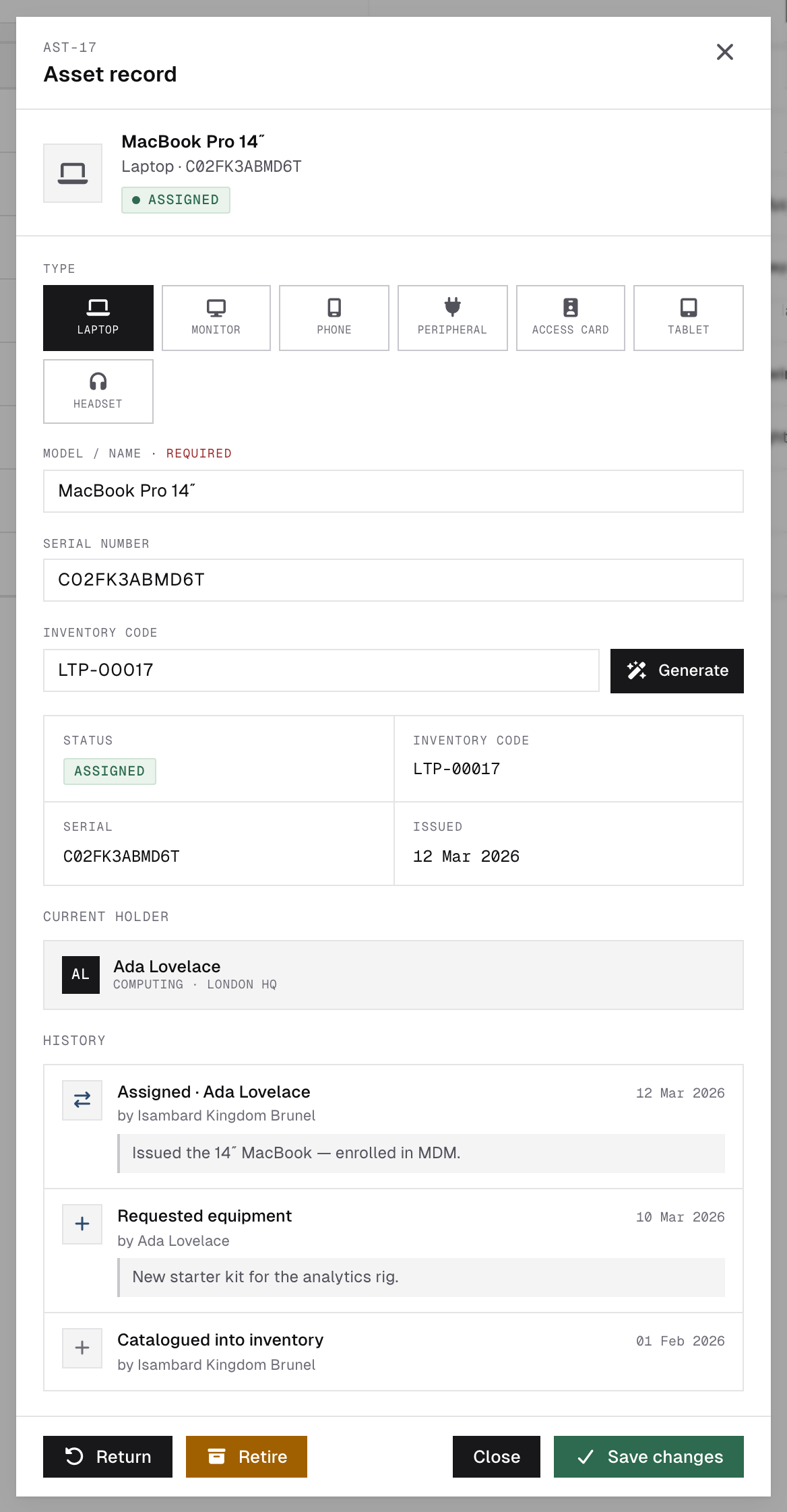
Employees send three kinds of requests (each with their written reason):
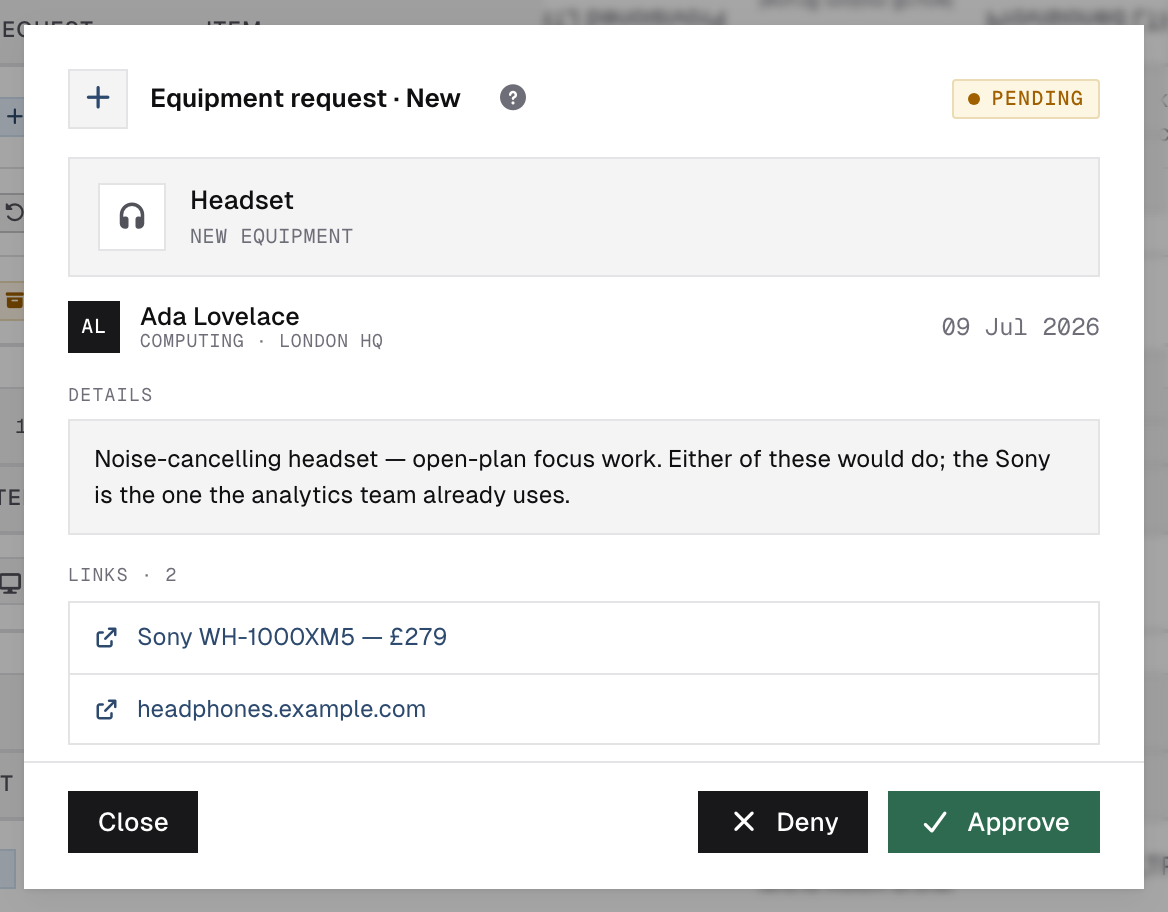
Click a row to open the request in full — the whole text, the employee’s named product links and, once decided, the decision. The same Deny / Approve buttons sit at the bottom of that window, so you can read first and decide from there. Rows in “Recently decided” open read-only.
| Kind | Your action | What happens |
|---|---|---|
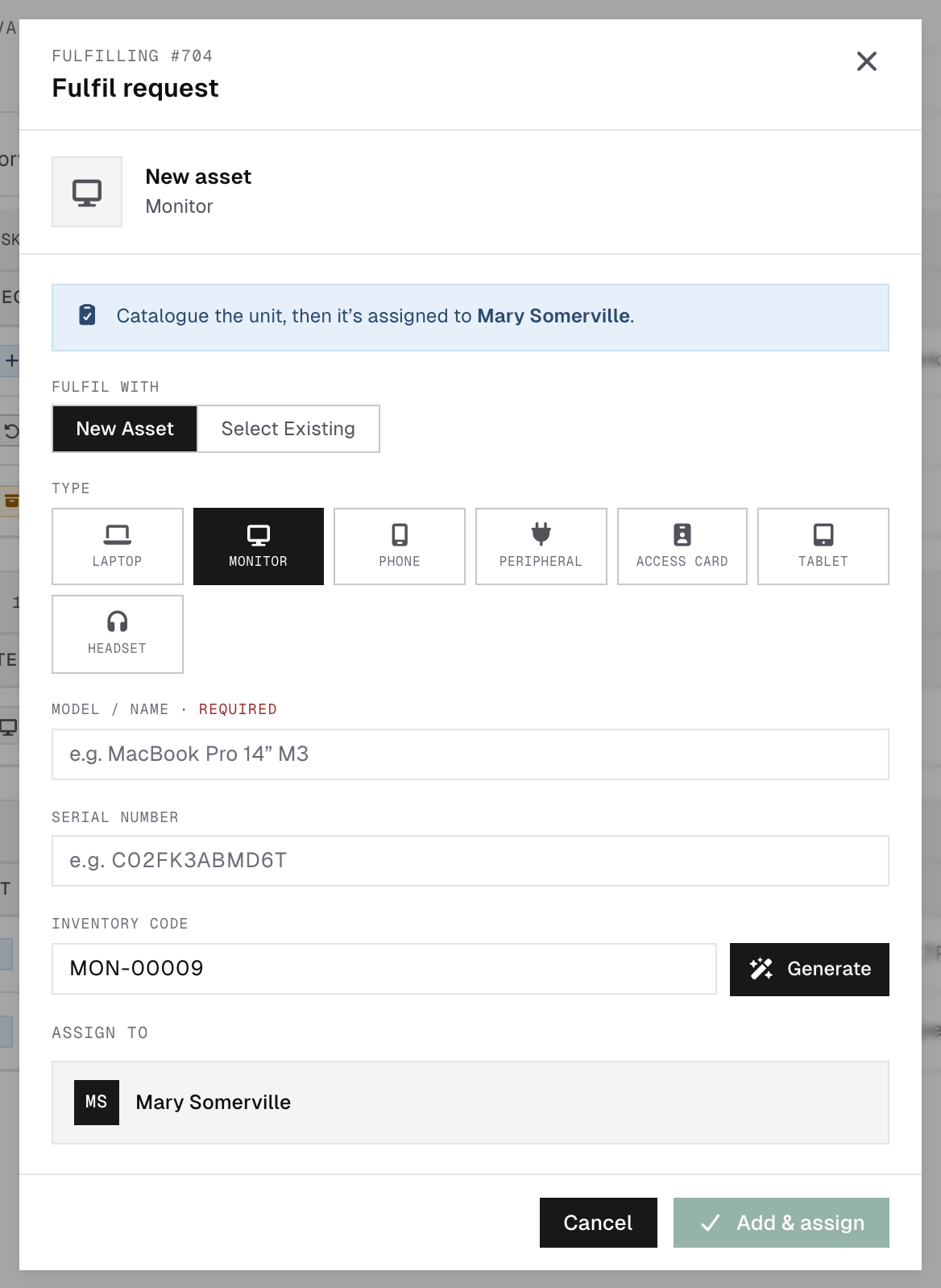
| New | Approve, then Assign device | Approve only confirms the ask — it moves to a separate “Approved · awaiting hardware” list and the employee’s tracker reads “Awaiting hardware”. Once a unit is ready, Assign device opens the fulfil dialog to pick a free unit from stock (or record a new one on the spot); confirming assigns it to the requester and closes the request as Fulfilled. |
| Return | Confirm return | The assignment closes; the unit goes back to Available at the stock location you record when confirming. Until you confirm, the item remains the employee’s responsibility. |
| Retire | Confirm retire | The assignment closes and the unit is Retired (broken / lost / stolen), with the reason kept on the record. |
Deny is always available — including on a New request already sitting in “Approved · awaiting hardware”, if sourcing falls through — a written reason is required, and the employee sees it in their request tracker. Decided requests stay in “Recently decided” (last 30 days) with who decided and the note.
Your own equipment requests are decided by someone else: unless you are also an administrator, you cannot approve, fulfil or confirm a request you filed yourself — another asset manager or an admin does it.
Assigning a device
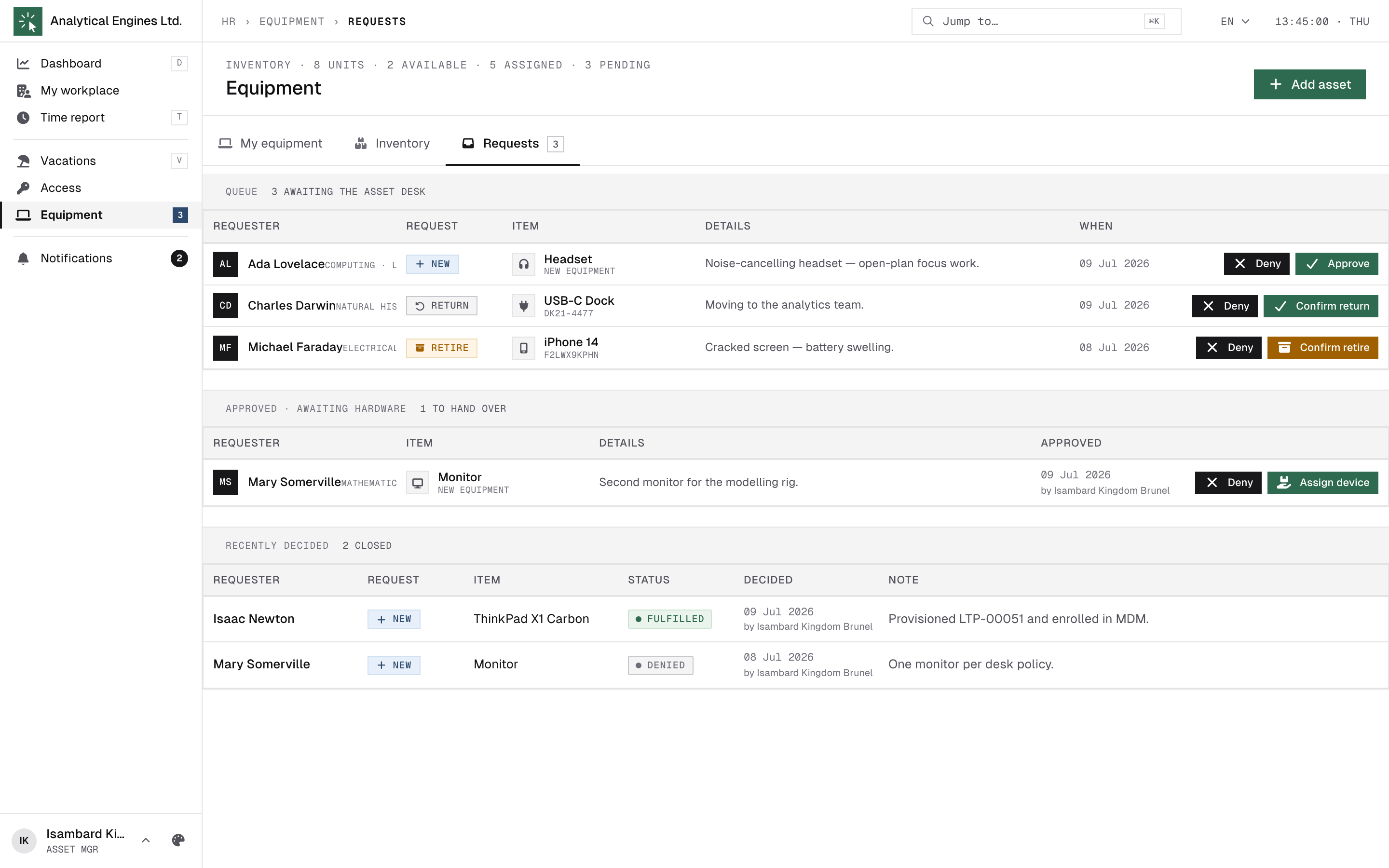
Assign device on an approved “new” request opens this dialog: pick an existing Available unit of the right type, or catalogue one inline (with a generated inventory code). Confirming assigns it to the requester and closes the request as Fulfilled.
4How you’re notified
| Subject / title | When |
|---|---|
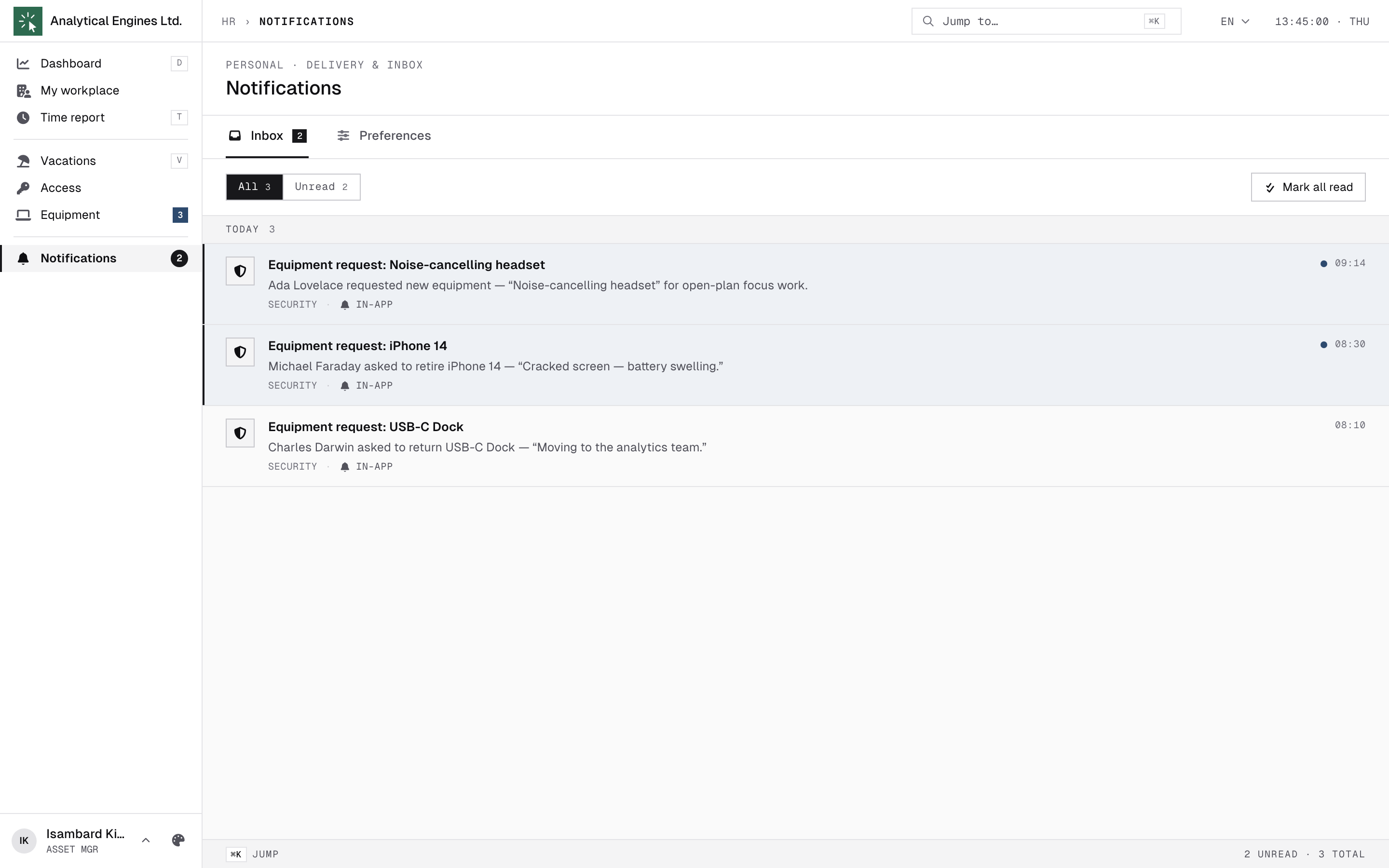
| Equipment request: <item> (e-mail: “Equipment request — <item>”) | An employee submitted a new / return / retire request — all asset managers and admins are pinged. |
| Equipment request fulfilled / denied | What the requester receives after your decision, including your note. |
When someone leaves the company, the admin offboarding wizard returns their equipment in bulk through the same return path — check the inventory afterwards for anything that needs servicing or retirement.
5Day-to-day checklist
| Situation | What to do |
|---|---|
| “Equipment request” arrives | Requests tab → read the reason → Approve (New) / Confirm (Return, Retire), or Deny with a note. |
| New hardware delivered | Inventory → Add asset per unit → Generate the code and set the stock location → stick the label on the device. Awaiting an approved New request? Use Assign device on it instead. |
| Handing gear out without a request | Inventory → the unit → Assign → pick the person, note the condition. |
| “Where has this laptop been?” | Open the asset record — the history timeline lists every holder and request. |
| Device broken / lost | Employee files a Retire request (or you retire directly from the row) — the reason stays on the record. |
| Employee leaving | Offboarding (admin wizard) returns their items; verify their state in Inventory afterwards. |
HR.Click — Asset Manager Guide · v1.2 · October 2026. Product screens shown with sample data; names of persons are fictitious examples.