

Administrator Guide
People, organisation, policies and system administration
HR.Click · Administrator GuideAdministering HR.Click
1Your role, and where everything else is
An administrator can do everything every other role can, org-wide. Those flows are documented once, in the companion guides — this guide covers only what is admin-only:
| Topic | Where it's documented |
|---|---|
| Everyday portal use (time, leave, requests…) | Employee Web Guide |
| Leave approvals, balances, vacation reports | Vacation Manager Guide |
| Time matrix, corrections, approvals, devices | Time Manager Guide |
| Shift rosters: the board, series, breaks | Shift Manager Guide |
| Access requests, provisioning, systems catalogue | Access Manager Guide |
| Face terminals: setup, pairing, enrollment, OTA, troubleshooting | Face Terminal Manual (covers the web's Terminals & Enrollments pages too) |
What remains — and what this guide walks through — is: users and their lifecycle, the organisation structure, teams, leave policy (vacation types), GDPR consent texts, system settings, company guides, webhooks and partner integrations, the audit log, import, billing, Following, and where a check-in came from.
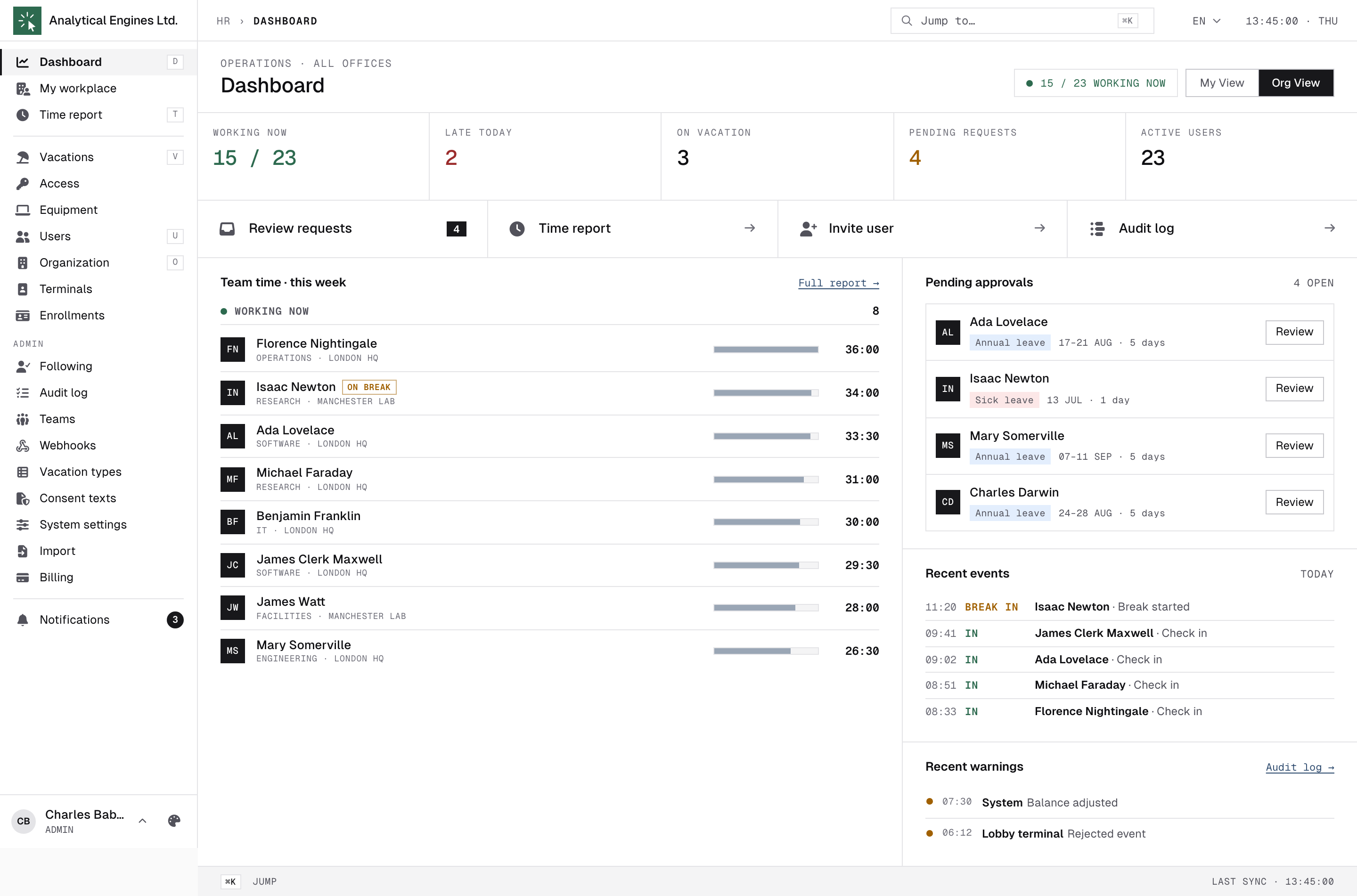
As an admin your Dashboard gains an Org view: live company KPIs (working now, late today, on vacation, pending requests, active users), a pending-approvals panel with inline actions, the events feed, and Recent warnings — the latest Warning/Critical audit entries, one click from the full log.
A new instance is not empty: it starts with one office, department, position and team, each named “First …”, and the first administrator holds every manager role. Rename and fill them in (sections 3 and 4) rather than building a second set beside them.
Alerts that come to you. When a face terminal’s firmware update fails, every active admin gets an e-mail and an in-app notification naming the terminal, its office, the version and the reason, with a link to the terminal’s page — at most once per terminal per hour. The terminal normally rolls back to its previous version by itself; what to do next is in the Face Terminal Manual.
2Users and their lifecycle
Users has two tabs. List is the directory below. Report is the composition report — admin-only, because it is built from gender and date of birth.
The directory and export
The list shows name, department, office, role chips, vacation balance, joined date, status (ACTIVE / BLOCKED / PENDING) and last-seen. Filter by text, position, role, office or status.
Export saves the directory as an XLSX file: every person who matches the filters you have set, across all pages — not only the page on screen. Columns: name, position, department, office, roles, joined date, status (Active, Blocked, Offboarded or Deleted), gender, phone, address, e-mail and date of birth. The button is admin-only, even though time and vacation managers can open the list: the file carries personal details in bulk, so treat it like any other personnel record and delete copies you no longer need.
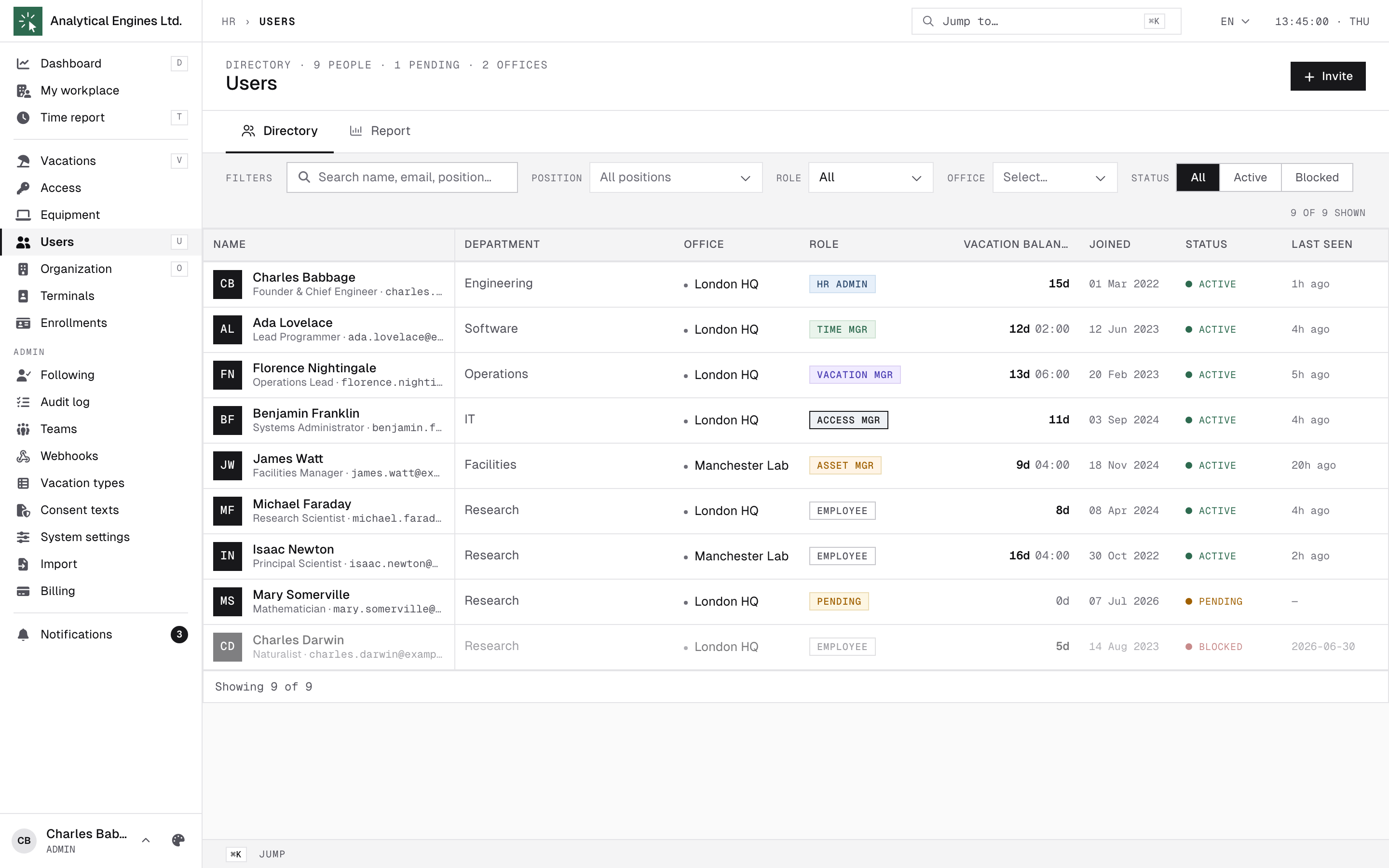
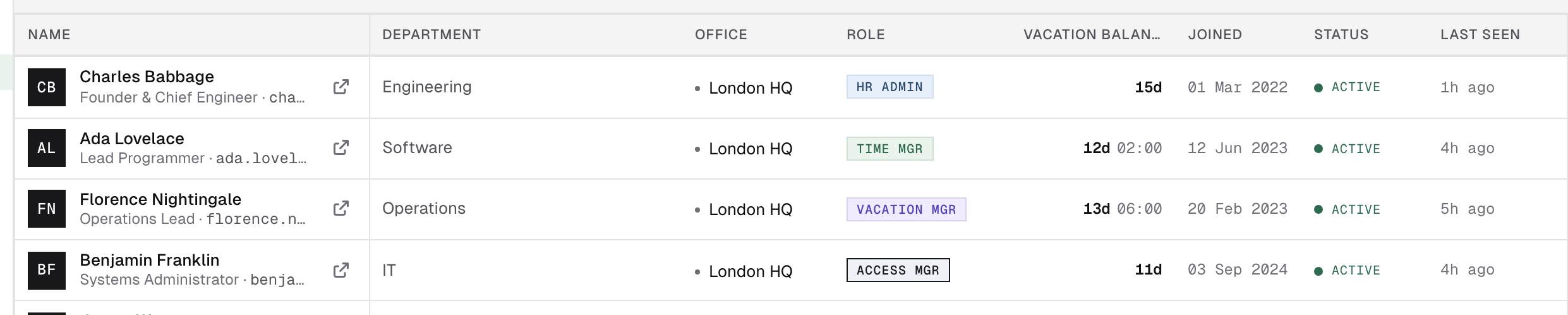
Clicking a row opens the edit drawer. The Open user profile icon next to the name (admins only) opens that person's read-only Profile page instead — /profile?uid=N, the same page they see, marked “Viewing … — read-only”. On screens narrower than 1280 px the list drops Vacation balance, Joined and Last seen so it never scrolls sideways.
On someone else's profile, admins and time managers also get Time & attendance: a This month tile, Details for the month day by day, and OPEN IN TIME REPORT ↗, which opens their time report (/time/me?uid=N) with that person already picked. Below the leave figures sit their yearly leave limits and a Details list of this year's requests — the blocks are described in the Employee Web Guide (section 12).
Inviting and editing
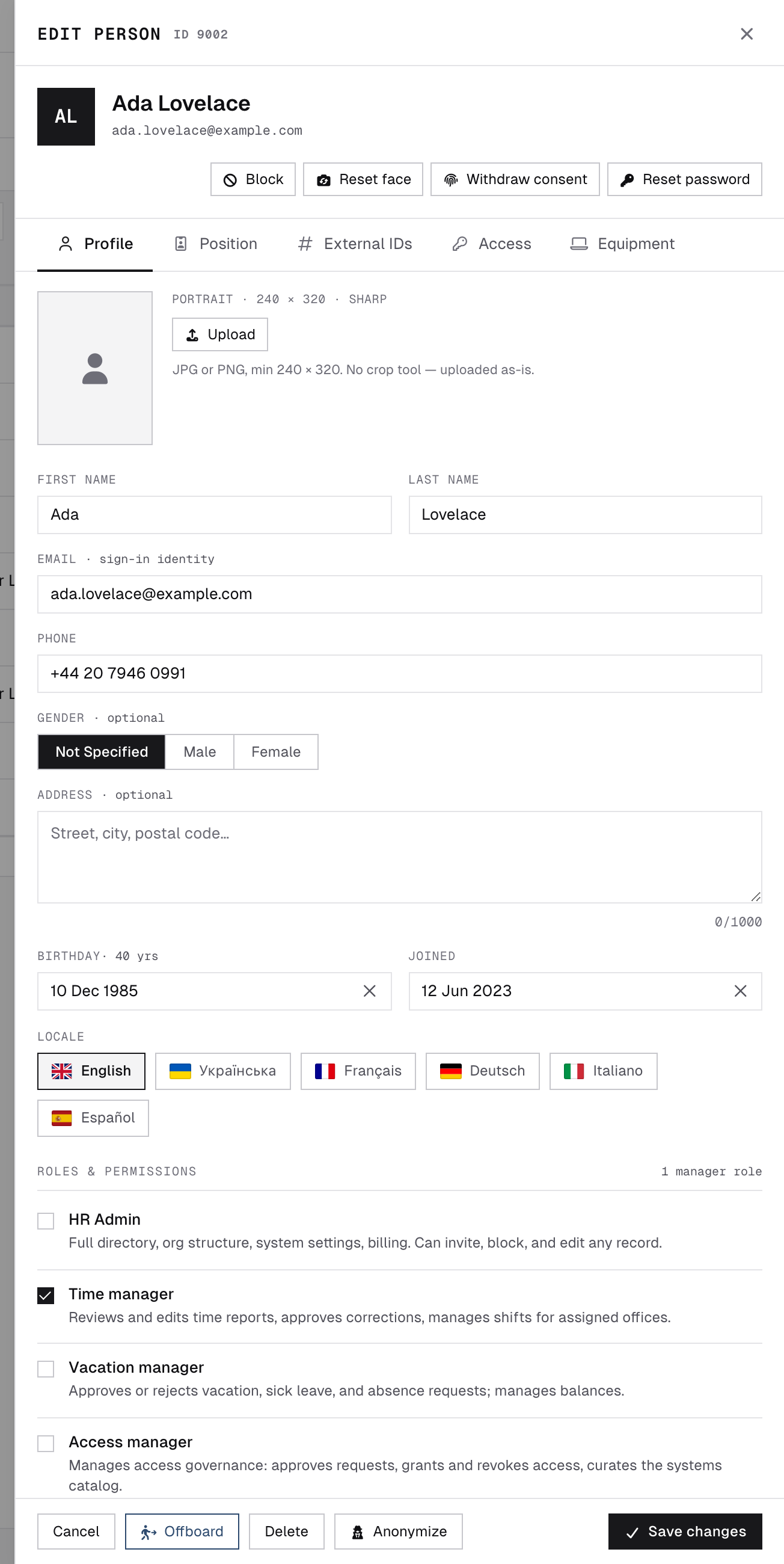
Invite creates the account — first and last name, e-mail, office, one or more teams (at least one, with an optional Mark as team leader tick) and, optionally, the position assigned right there. The person receives an e-mail link to set their own password, then enrols at a terminal. Tracks work time is off by default on an invite: switch it on for anyone who is expected to check in, otherwise they get no dashboard and no time report. The other fields — phone, gender, address, birthday, joined date, locale — are optional and editable later; Joined may be left empty when the start date is genuinely unknown.
The edit page tabs: Profile, Position (assignment history, work-time overrides), External IDs, plus Access/Equipment (for access/asset managers) and Offboard log after offboarding.
Roles & permissions — six toggles on the profile:
| Role | What it grants |
|---|---|
| HR Admin | Everything: directory, org structure, system settings, billing. |
| Time manager | Time reports, corrections, approvals. |
| Shift manager | Shift rosters — the board, the drawer, series and each shift's break. Narrowed to people on a shift schedule; an admin manages every shift regardless. |
| Vacation manager | Leave approvals and balances. |
| Access manager | Access governance and the systems catalogue. |
| Asset manager | Equipment inventory: assign, return, retire. |
Team lead is not a toggle — it comes from team membership (the "Leader" mark on a team, section 4).
Your own account. You can switch your own manager roles on and off — time, shift, vacation, access, asset. Your own HR Admin role, sign-in e-mail and Block stay locked: another admin has to change those, so nobody can lock the company out of its last admin by accident.
Header actions: Block/Unblock, Reset face (wipes the terminal faceprint), Withdraw consent (GDPR), Reset password (e-mails a one-time link and signs out all devices).
The composition report
Users → Report answers who the company is made of, as of a date you pick: headcount in scope, the split by gender, and the distribution across age and tenure bands with a median under each. Bars are counts, not shares — the gridline legend says what one step is worth.
- Scope follows the office filter in the top bar; Include offboarded people adds leavers so you can compare a period with its own history.
- People with no birthday, no start date or no current position are not silently dropped — each gets its own labelled band, so the total always adds up.
- Click a band to list the people behind the number; the search box inside filters that list.
- Export XLSX saves the whole report for a board pack.
Offboarding
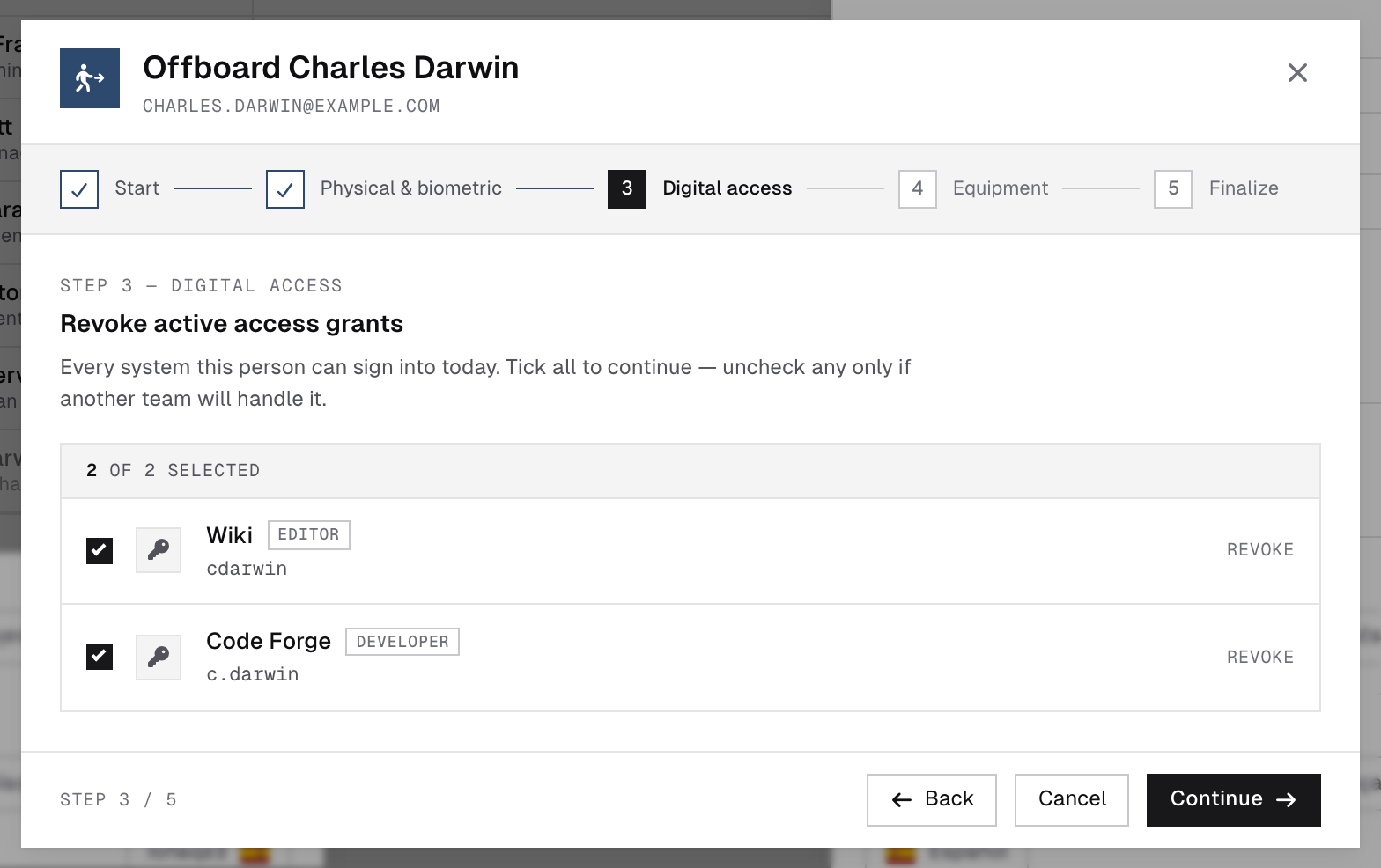
The Offboard wizard walks a departure through five steps: Start → Physical & biometric → Digital access → Equipment → Finalize. Each step is a checklist — face reset, terminal removal, keycard and building access, per-grant access revocation, per-asset equipment return — and you can't continue until everything applicable is ticked. Finalizing blocks the account and writes the full case to the Offboard log tab.
Offboarding does not cut a leaver off mid-shift. The offboarding report that goes to every system owner names the exact cutoff in bold — the last working day plus the hours in force that day (a part-timer's own end-of-day wins over the office default) — with a plain "keep this open until X, remove it after" line. Integrations get the same answer automatically: rather than firing at offboard time, the access.revoke_due webhook is held until office-local midnight after that last day and released from there. A reinstated leaver cancels their own pending event. An ordinary manual revoke, outside offboarding, still fires immediately.
Delete is a soft removal that keeps history. Anonymize irreversibly strips personal data (GDPR erasure) — it has a 10-second countdown for a reason. Both are offboard-first: as soon as a person has any position history, the buttons stay disabled ("Offboard this user first") until the wizard has been finalized. Only a never-employed account can be removed straight away.
3Organisation — offices, departments, positions, working days
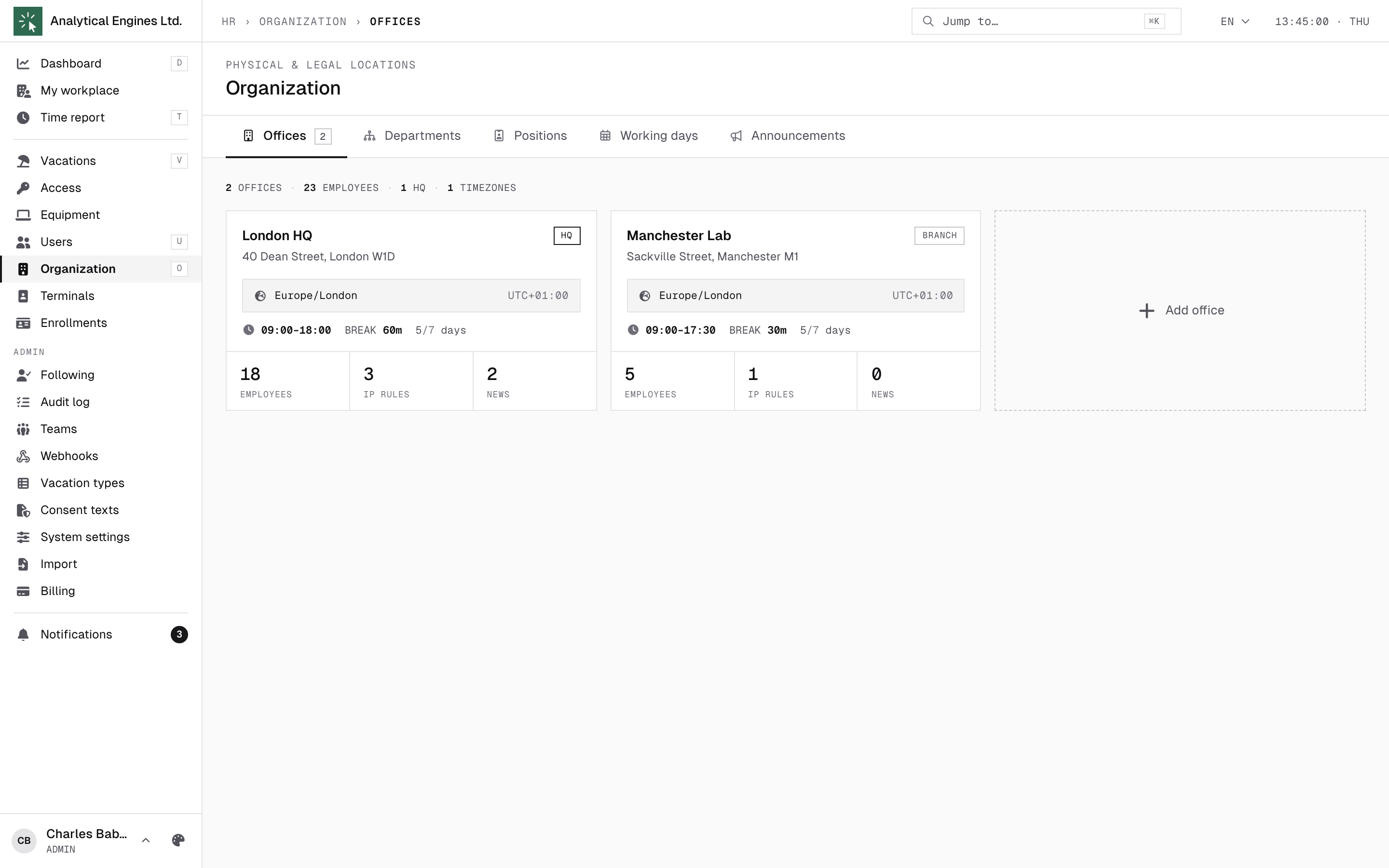
Organization gathers the whole structure in five tabs: Offices, Departments, Positions, Working days and Announcements.
Offices
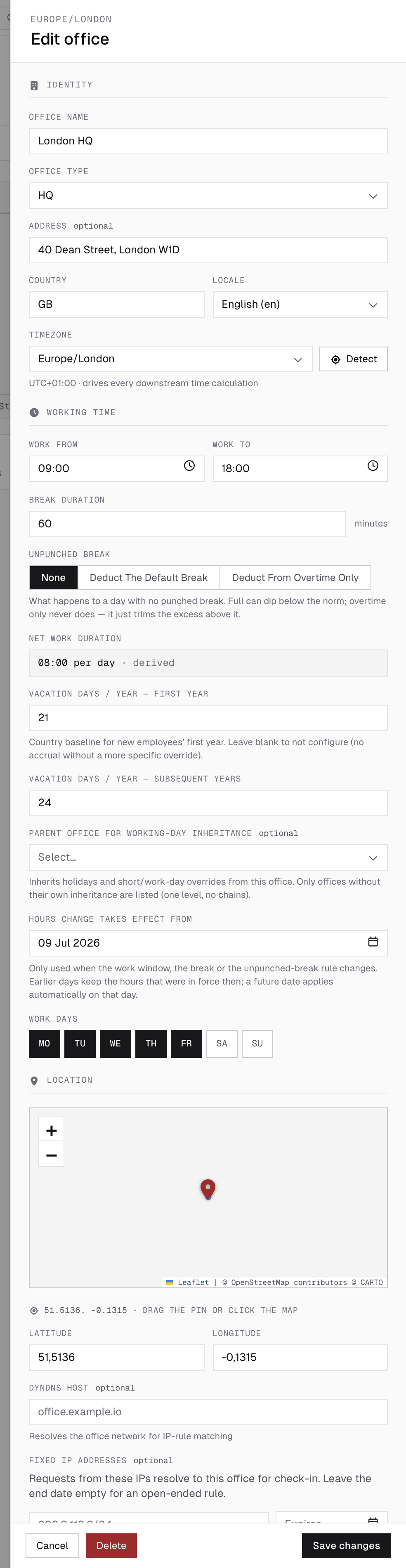
Each office carries the rules its people inherit: working hours and break (changes are effective-dated, with history), work days (Mon–Sun picker), timezone, and the vacation allowance — days per year for the first year and subsequent years. Optionally: a map pin with a geofence radius, and the office network (below). The pin and radius are stored for the coming mobile app — today nothing is decided by distance: whether a punch counts as in-office is settled by the IP address alone. An office may also name a parent office for working-day inheritance — it then observes all of that office's holidays and overrides on top of its own (see Working days below), so a country branch can follow the HQ calendar without re-entering every holiday.
The office network is what tells a punch it was made in the office: a DynDNS host that resolves to the current address, and/or Fixed IP addresses for a static address or a whole NAT pool — each rule may carry its own expiry date. The office page’s IP whitelist tab shows the addresses currently in force, including the one the DynDNS host resolves to. This is the list the check-in policies match against (section 7), and it is what decides in-office versus remote on a phone, browser or dashboard punch.
Unpunched break is a three-way choice for a day where nobody punched a break at all: None leaves it alone; Deduct the default break charges the office break once the day is worked to at least 75% of its norm (this can dip the day below the norm); Deduct from overtime only also requires no punched break, but only trims the excess worked past the norm — the norm itself is never reduced. Any punched break, however short, opts the day out of either mode. It is None by default; switching to either deducting mode changes what everyone's totals mean, so announce it before you do. This settles office-schedule days only: a shift carries its own break and its own rule on the shift row, and only borrows these as the starting values when a shift manager creates one.
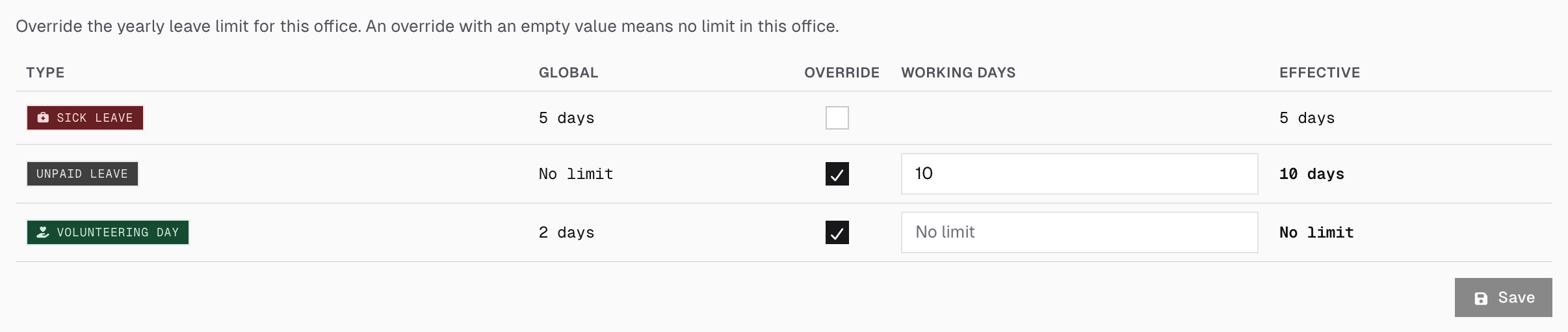
Leave limits — the office page's Leave limits tab (after Working days) lets one office deviate from a leave type's yearly limit (section 5). It lists every type with no balance effect: the Global limit, an Override tick, the override Working days, and the Effective limit for this office. Tick Override and enter working days to use a different cap here; tick it and leave the days empty for no limit in this office, even if the type has one. Save saves the whole table.
Office announcements are not edited on the office card — they live in Organization → Announcements and each one may target several offices at once (leave the selection empty and it reaches everybody).
Departments & positions
Departments form a drag-to-reorganise tree; a department can't be deleted while it still has children or people. Positions define the schedule type — office hours or shifts — and may override the office vacation allowance per office.
Working days
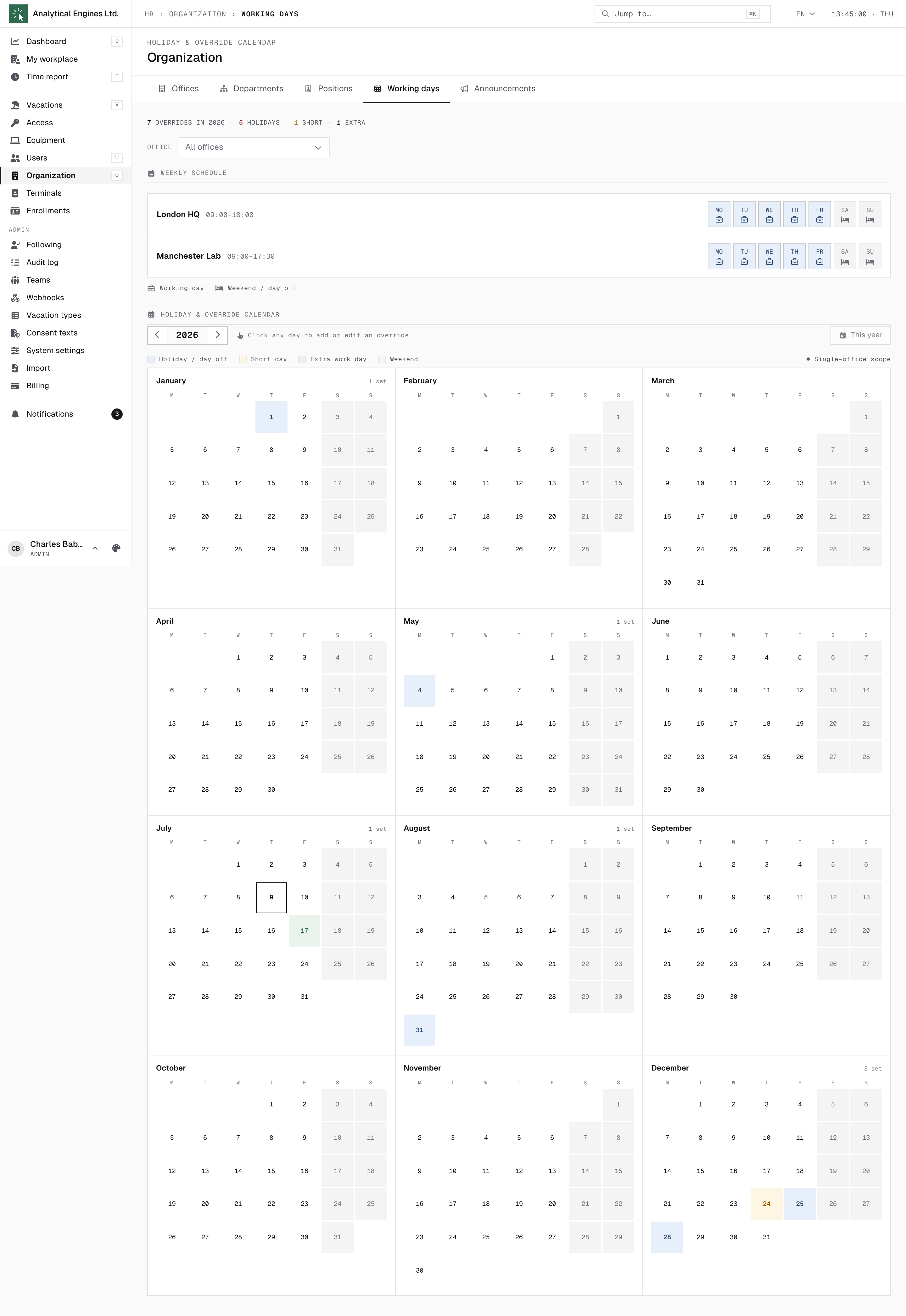
The calendar of exceptions: holidays, short days and working-day overrides, scoped to one office, several offices, or global. These drive everything — vacation previews skip them, the terminal and reports respect them. An office that names a parent (above) also inherits the parent's exceptions; its own entry on a date always wins over an inherited one, which wins over a global one.
4Teams — where team leads come from
Teams (Admin section) is the only place team leads are made. A team is a named group of people, independent of departments: someone can sit in several teams, and every person must belong to at least one (the invite asks for it).
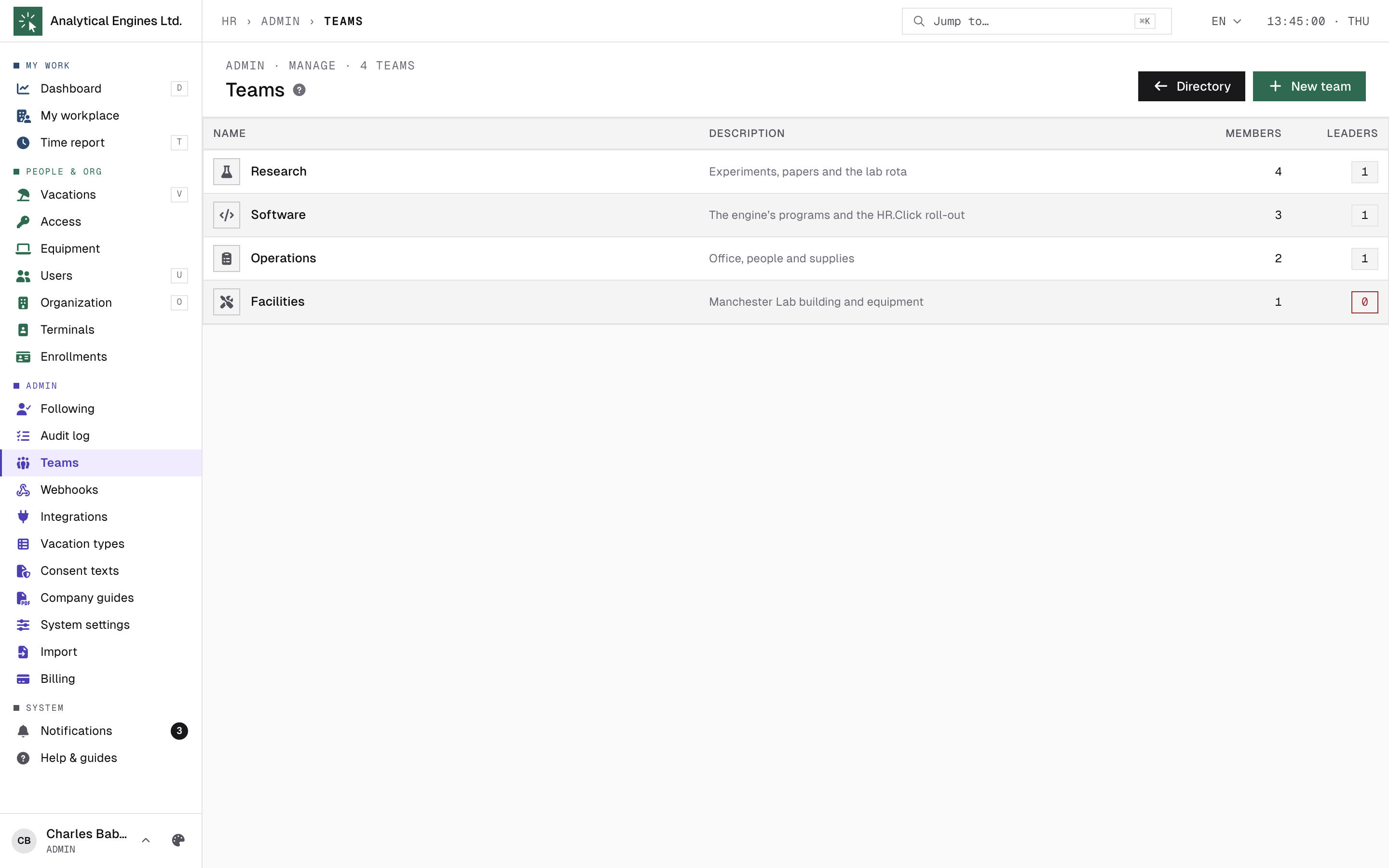
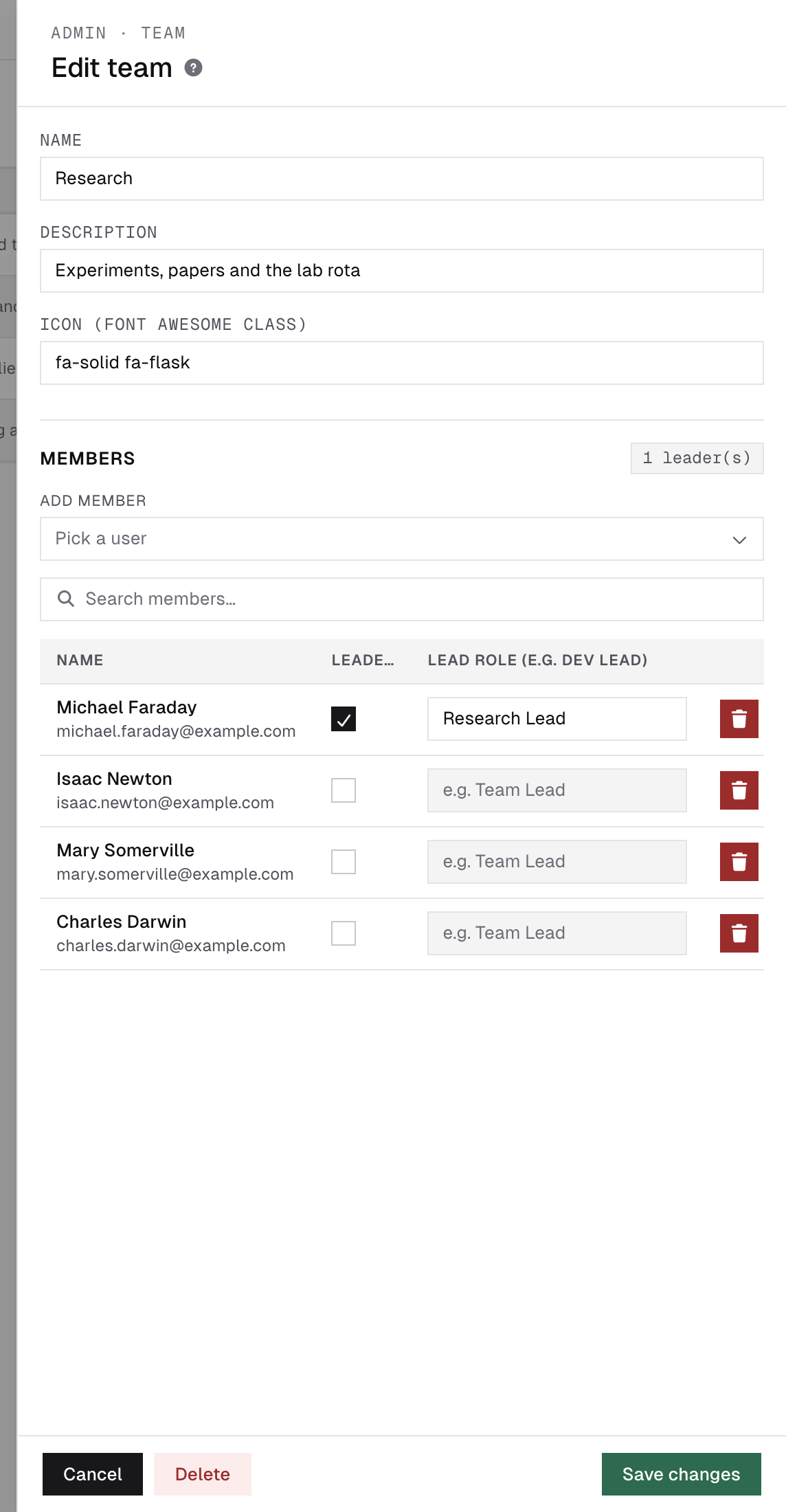
Manage teams lists every team with its member and leader counts; New team or a click on a row opens the editor:
- The team — name, a short description and an optional icon (a FontAwesome class, e.g. fa-solid fa-code).
- Members — Add member picks people from the directory; tick Leader on whoever leads the team and, optionally, give that leader a Lead role title such as “Dev Lead”. A new team cannot be created without at least one leader; an existing team that loses its last one shows a warning count in the header, so it stands out until you name a new one.
Leaders approve their team’s leave at the TL stage (for the vacation types that ask for it, section 5) and get team-scoped views; their side is the Team Lead Guide. People who are not admins find their own teams under My teams, which appears in their menu once they belong to one.
5Vacation types — your leave policy
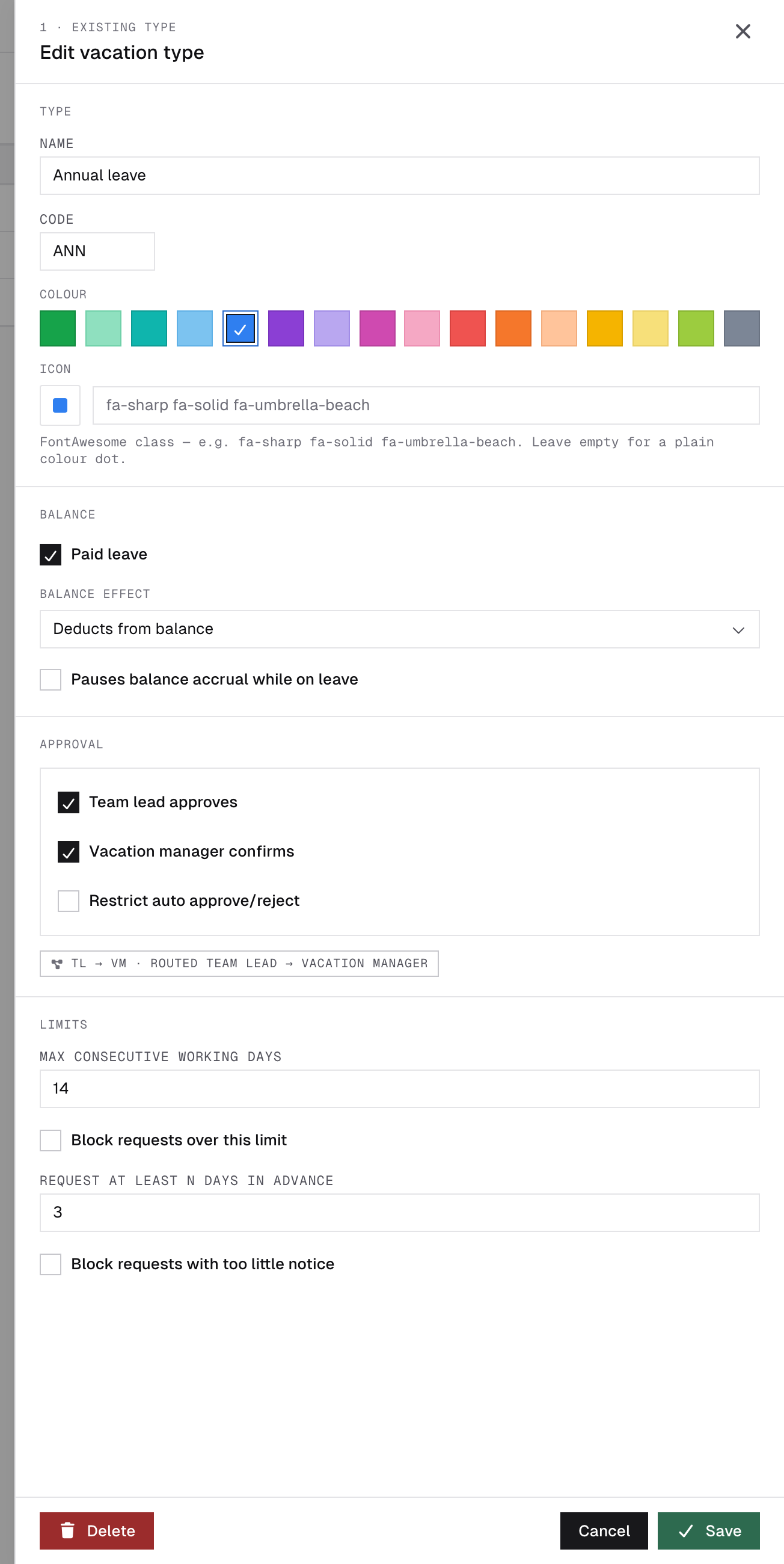
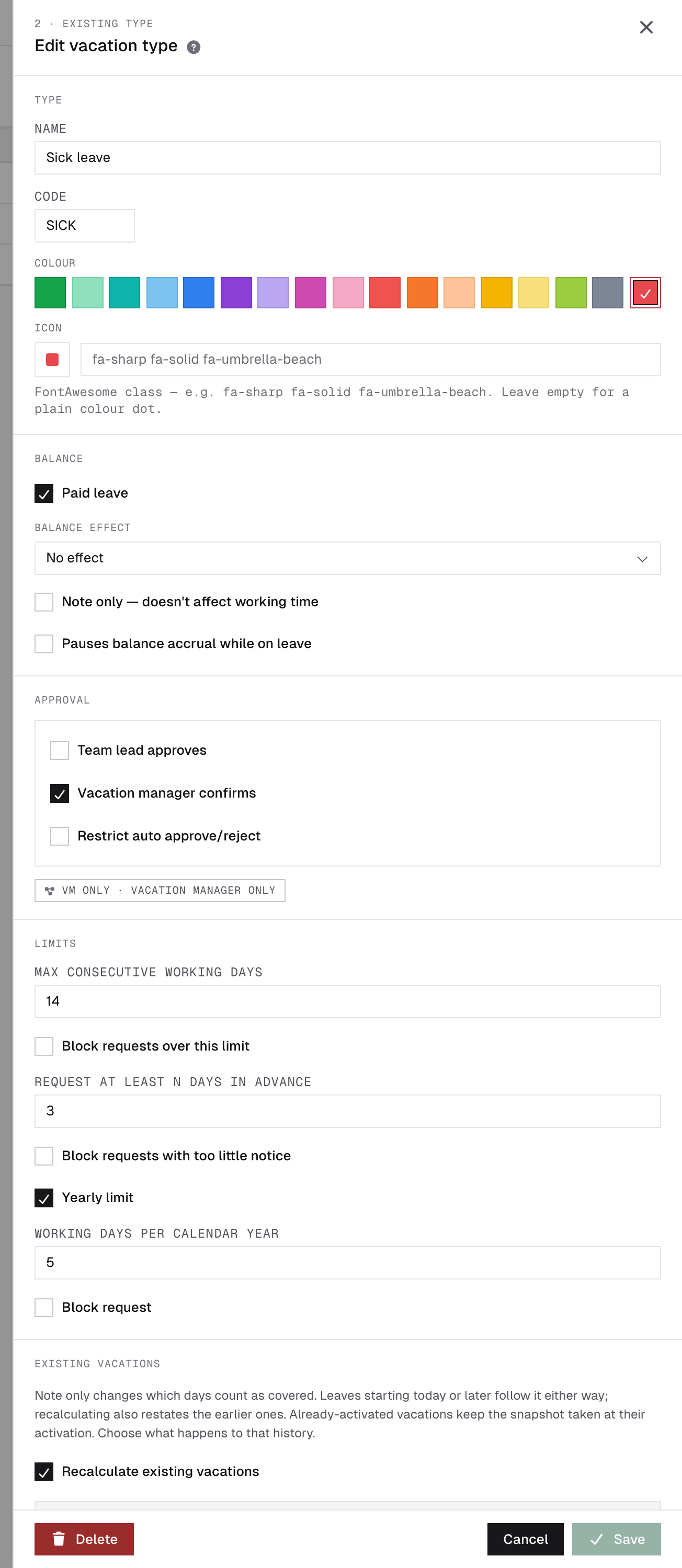
Vacation types define what employees can request and how each kind of leave behaves. The editor has four groups — type, balance, approval, limits — plus a reconcile step that appears only when you change a balance rule on a type already in use.
Type and balance
- Type — name, a code of 2–4 letters or digits, stored in capitals (shown in report matrices instead of the full name), calendar colour, and an icon (a FontAwesome class, e.g. fa-sharp fa-solid fa-umbrella-beach) that then stands next to the type everywhere it is named — request form, list, calendar legend, day drawer. Leave the icon empty for a plain colour dot.
- Paid leave — time on this leave is paid. Unpaid leave still records attendance but is left out of payroll. Paid or not, a leave covers the person’s daily norm for the hours it takes: a full day of it leaves nothing owed, a part of a day leaves only the remainder — unless the type is Note only (below) or a compensation type, which records work done on a day off rather than an absence.
- Balance effect — Deducts from balance (annual leave), Adds to balance (compensation) (time off in lieu of overtime) or No effect (sick, unpaid, informational).
- Note only — doesn’t affect working time — for informational marks such as INFO: the leave is shown on the day but changes nothing about working time. On a working day the whole norm stays owed; on a weekend, holiday or a day without a shift it creates no norm, and work done then counts as ordinary weekend work. It also leaves a shift worker’s shifts as they are and lets new ones be planned over it, whereas other full-day leave (compensation aside) puts the shifts it covers on leave on approval, even for a single day. Available only with No effect on the balance — choosing another effect unticks it. Mark your informational types (INFO and the like) as Note only; otherwise their days count as covered and nobody owes the norm for them. On a type already in use, ticking or unticking it opens the same Existing vacations choice as a balance change: Recalculate existing vacations on restates every activated leave of the type (their shifts go on leave or come back, and the time statistics of their days are recomputed), off applies it only to leaves starting today or later. It can’t be ticked while activated leaves of the type still moved the balance — change the balance effect to No effect with recalculation first.
- Pauses balance accrual while on leave — no new entitlement accrues for the days a person spends on this leave; typical for long unpaid or parental leave. The accrual simply skips those days — nightly accrual, recalculation and the year-end forecast all count them as zero — rather than adding a correcting debit afterwards. Approving, cancelling or rejecting such a leave recalculates that person at once, and switching the flag on a type recalculates everyone currently on it.
Approval
Team lead approves and Vacation manager confirms compose the flow: both stages, one of them, or neither — then the request is approved automatically. A badge under the ticks spells out the route the current combination produces.
Restrict auto approve/reject takes the type out of the timeout rules: a pending request of it is never auto-approved after the configured wait (section 7), and a flagged one is never auto-rejected on its deadline — it keeps reminding the approver instead. Someone has to decide. Use it for the types where silence must not become a decision (unpaid, long-term, parental). It does nothing on a type that needs no approval.
Limits
| Limit | What it does |
|---|---|
| Max consecutive working days | The longest single request, counted in working days — a Friday plus Monday–Tuesday over a weekend is 3. Leave it empty for no limit. |
| Request at least N days in advance | Minimum notice. 0 or empty means no notice is required. |
Each limit has its own block tick. Off (the default) makes the limit soft: a request that breaks it is still accepted but flagged, so it needs a manual decision and is auto-rejected on a deadline unless the type is restricted (above). On makes it hard: the request is refused at submit.
Employees can request less than a full day and, optionally, say which part of it — start, middle or end of their working hours. It then shows as a hatched band on the day bar of their dashboard and time report; the middle position is approximate, and the band never changes how hours are counted. A compensation type (Adds to balance) takes no part of the day.
Yearly limit
Available for types with no balance effect (sick, unpaid, informational; a deducting type is already capped by the balance). Tick Yearly limit and set Working days per calendar year: what one person may take of this type from 1 January to 31 December, counting approved and still-pending requests. Halves are allowed (2.5). It is set in working days and turned into hours by each person's own work schedule, so “5” is 40 h for an 8 h/day employee and 20 h for a 4 h/day part-timer — five of their own days for both. Over the limit a request is flagged and always needs the vacation manager, even on a type that normally needs no approval; tick Block request to refuse it at submit instead. An office can override the limit (section 3).
Changing a balance rule
Changing the balance effect, the pause flag or the paid flag of an existing type opens Existing vacations, because activated leave keeps the rule that applied when it was activated. The same block reappears later if an earlier “from now on” change left history that no longer matches the type. Recalculate existing vacations decides what happens to that history:
- On — bring history in line with the new rule now: balances move and the people affected are notified.
- Off — apply the rule only from now on; existing rows stay exactly as recorded.
With recalculation on, Preview impact shows how many vacations and people it touches, the total change in hours and each kind of move; a paid ↔ unpaid flip also says how many days of time statistics will be restated. Save stays disabled until you have run the preview, and asks for a fresh run if you change the settings afterwards — so history is never recalculated silently.
6GDPR consent texts
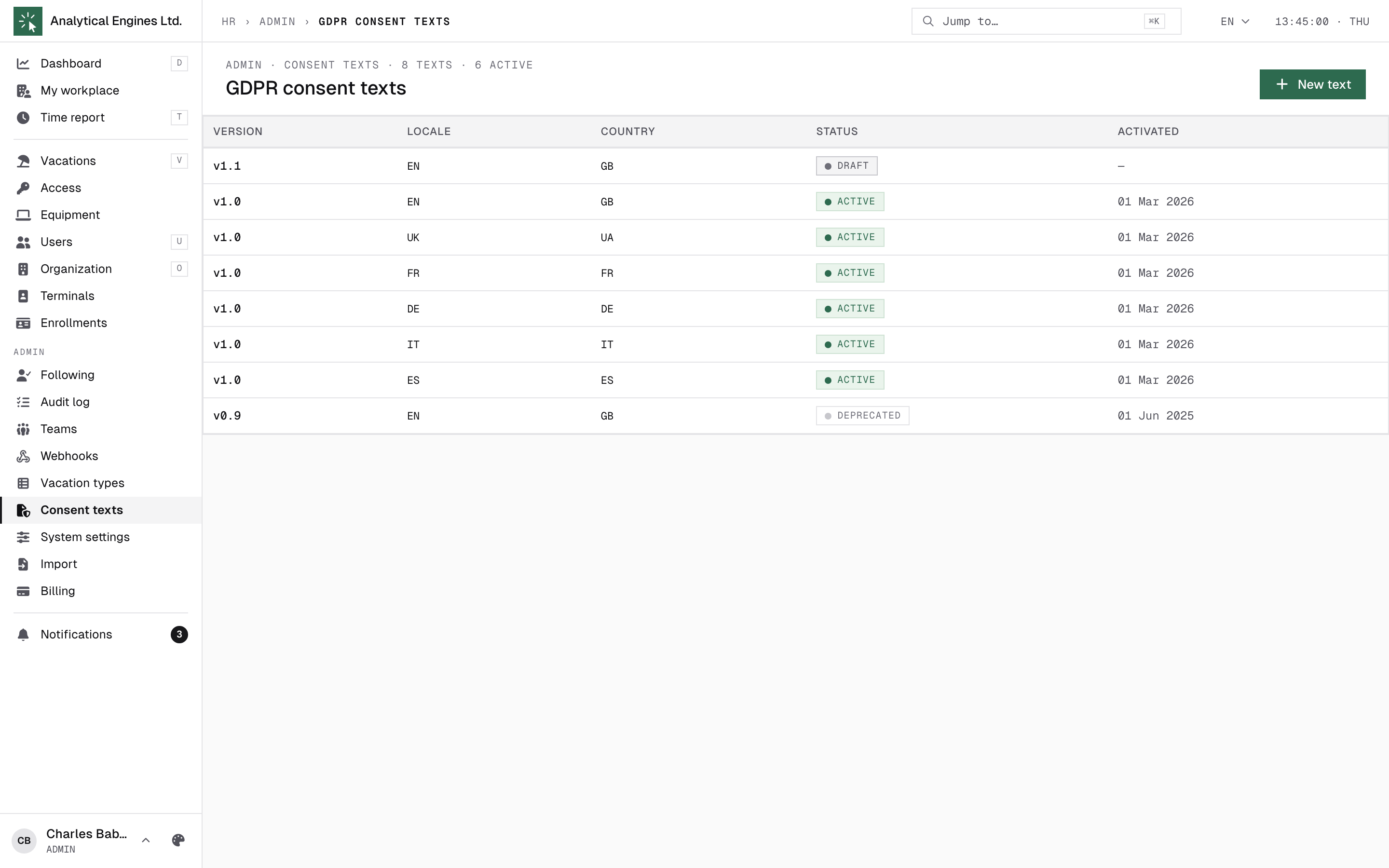
Consent texts manages the biometric-consent documents employees sign at terminal enrolment, versioned per country and language. The lifecycle is strict: a draft is editable → Publish makes it active (and immutable) → Deprecate retires it. To change wording, create the next version. Each version links to its signatures — who accepted, when, where.
7System settings
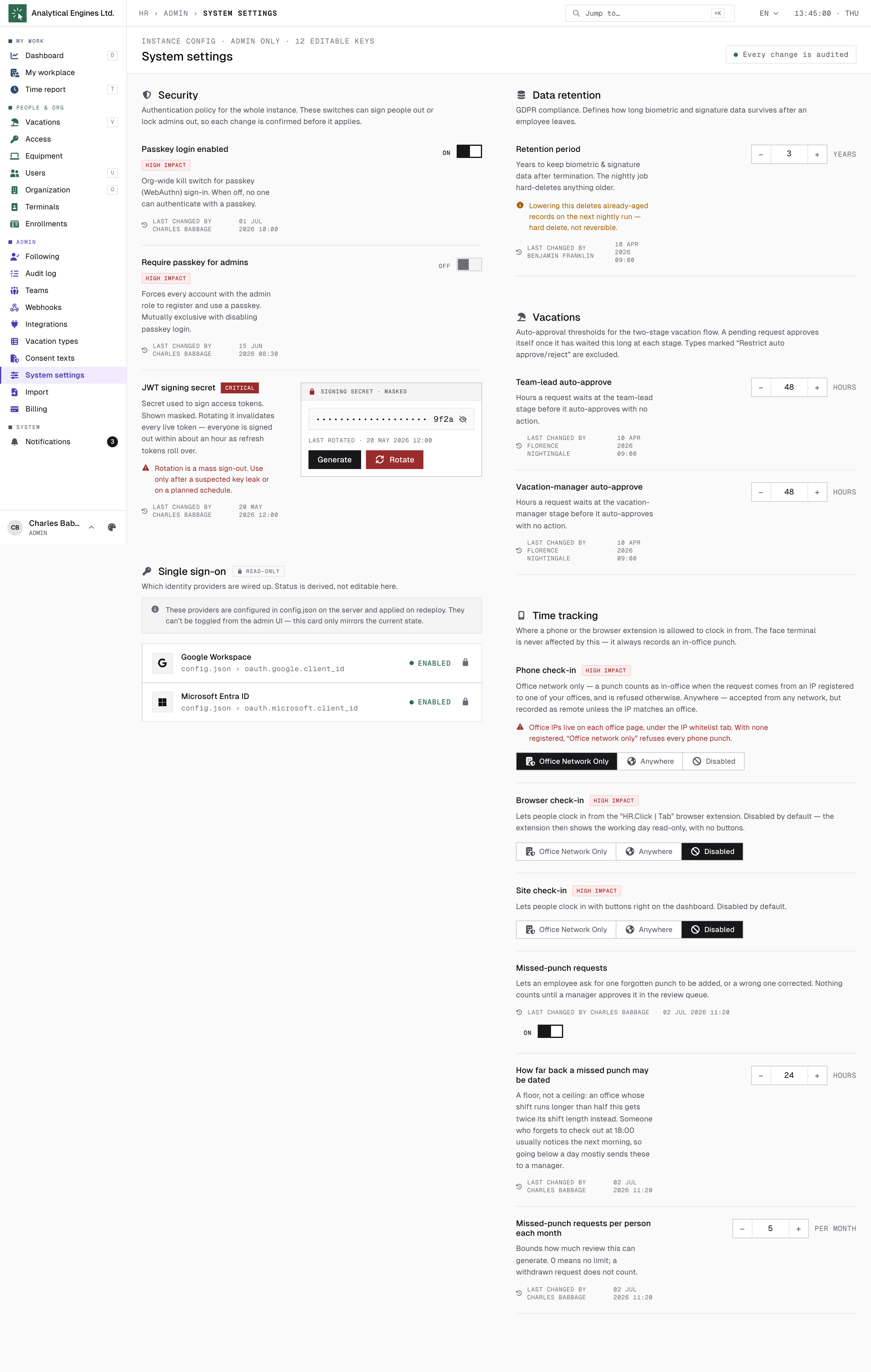
System settings holds the instance-wide switches. Each one saves on its own, every change is audited, and a “last changed by” line names who changed it and when. Settings marked High impact ask for confirmation and spell out the consequence first.
Security and sign-in
| Setting | What it does |
|---|---|
| Passkey login enabled | The org-wide switch for passkey (WebAuthn) sign-in. Off means nobody can sign in with a passkey. It cannot be turned off while passkeys are required for admins. |
| Require passkey for admins | Every account with the HR Admin role must register and use a passkey. |
| JWT signing secret | The secret that signs sign-in tokens, shown masked with its last characters and the date it was last rotated. Rotate and Generate both create a new secret and put it in force after a confirmation. Either way every live token is invalidated — everyone is signed out within about an hour. It is your incident lever after a suspected leak, not a routine button. |
| Single sign-on | Read-only. Shows whether Google Workspace and Microsoft Entra ID sign-in are enabled; both are configured by your operator in the instance configuration, not here. |
Data retention
Retention period is how many years biometric and signature data — faceprints, signed consents — survive after a person has left. A nightly job hard-deletes anything older. Lowering the value deletes records that are already past the new limit on the next nightly run, and that cannot be undone, so check with whoever owns your GDPR policy before you shorten it.
Leave auto-approval
The Vacations group sets how long a pending request may wait before it approves itself: Team-lead auto-approve and Vacation-manager auto-approve, each in hours (1–720), one per approval stage. Leave types marked Restrict auto approve/reject (section 5) never auto-approve, however long they wait.
Check-in policy
The Time tracking group decides where people may clock in from, with one policy per channel: Phone check-in (the mobile app), Browser check-in (the HR.Click browser extensions) and Site check-in (buttons on the HR.Click dashboard itself). All three take the same three values. The face terminal ignores them entirely: it always records an in-office punch.
| Policy value | What it means |
|---|---|
| Office network only | A punch is accepted only from an IP address registered to one of your offices (section 3). Anything else is refused — and with no office addresses registered at all, every punch on that channel is refused. This is the default for phone check-in. |
| Anywhere | Accepted from any address. A punch made outside a known office network is recorded as remote, not in-office — it still counts as worked time. |
| Disabled | That channel cannot clock in at all. This is the default for browser check-in and site check-in; with browser check-in off, the extensions keep showing the day read-only and the time strip disappears from everyone's new-tab page. With site check-in off, the dashboard shows no check-in buttons at all. |
All three are marked High impact: changing one asks for confirmation, spelling out the consequence, and writes a "last changed by" line.
Missed-punch requests
Whether an employee may ask for one forgotten punch to be added, or a wrong one replaced, instead of coming to a manager for every missed check-out. Nothing they file counts until a time manager approves it in Approvals — the queue is the gate, these settings only bound how much reaches it.
| Setting | What it does |
|---|---|
| Missed-punch requests | The feature switch. On by default. Off removes the One punch tab entirely, leaving people the whole-day self-report. |
| How far back a missed punch may be dated | Default 24 hours, counted in working hours: the office’s weekends and holidays do not use it up, so on Monday morning Friday is still open. It is a floor, not a ceiling: an office whose shift runs longer than half of it gets twice its own shift length instead, so a 20-hour rotation reaches back 40 hours without you setting anything. Going below a day mostly sends these requests to a manager, because someone who forgets to check out at 18:00 rarely notices before the next morning. |
| Missed-punch requests per person each month | Default 5; 0 means no limit. Bounds how much review this can generate. A withdrawn request does not count — nobody reviewed it. Independently, at most three requests may await a decision at once. |
What stops a person inventing a month of attendance is not the window — it is that a request is one punch, that it is only accepted where it fits the day’s existing punches (a check-in cannot follow a check-in), that it needs a written reason, and that a manager approves it. The window exists so the feature stays about forgetfulness rather than rewriting history; anything older stays a manager’s job, and the employee’s date picker simply will not offer it.
8Company guides
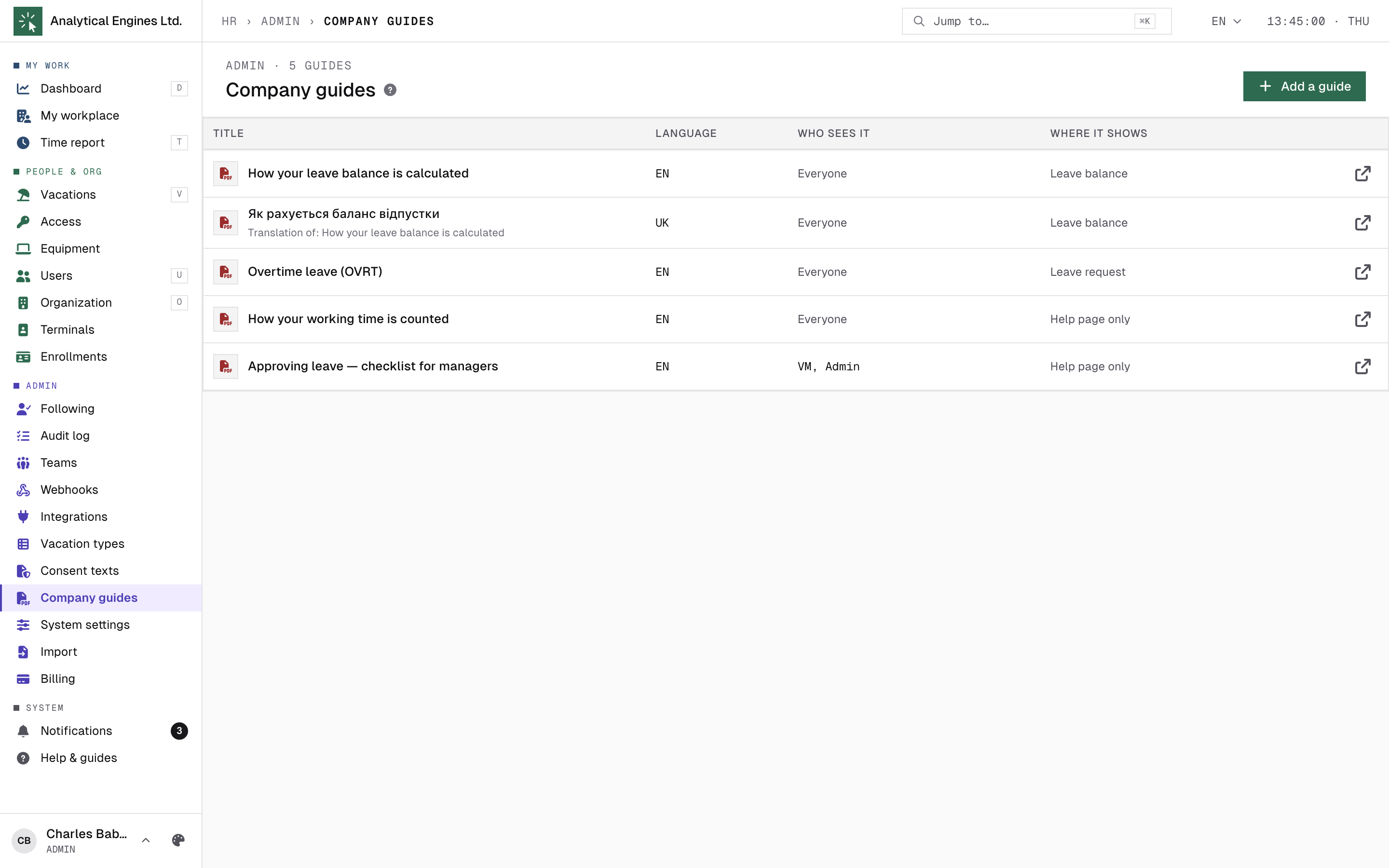
Company guides holds PDF guides written for your company alone — your leave rules, how working time is counted under your settings. Guides live with your instance: other companies on HR.Click never see them, and nothing is published on docs.hr.click.
Adding a guide
Add a guide opens the editor:
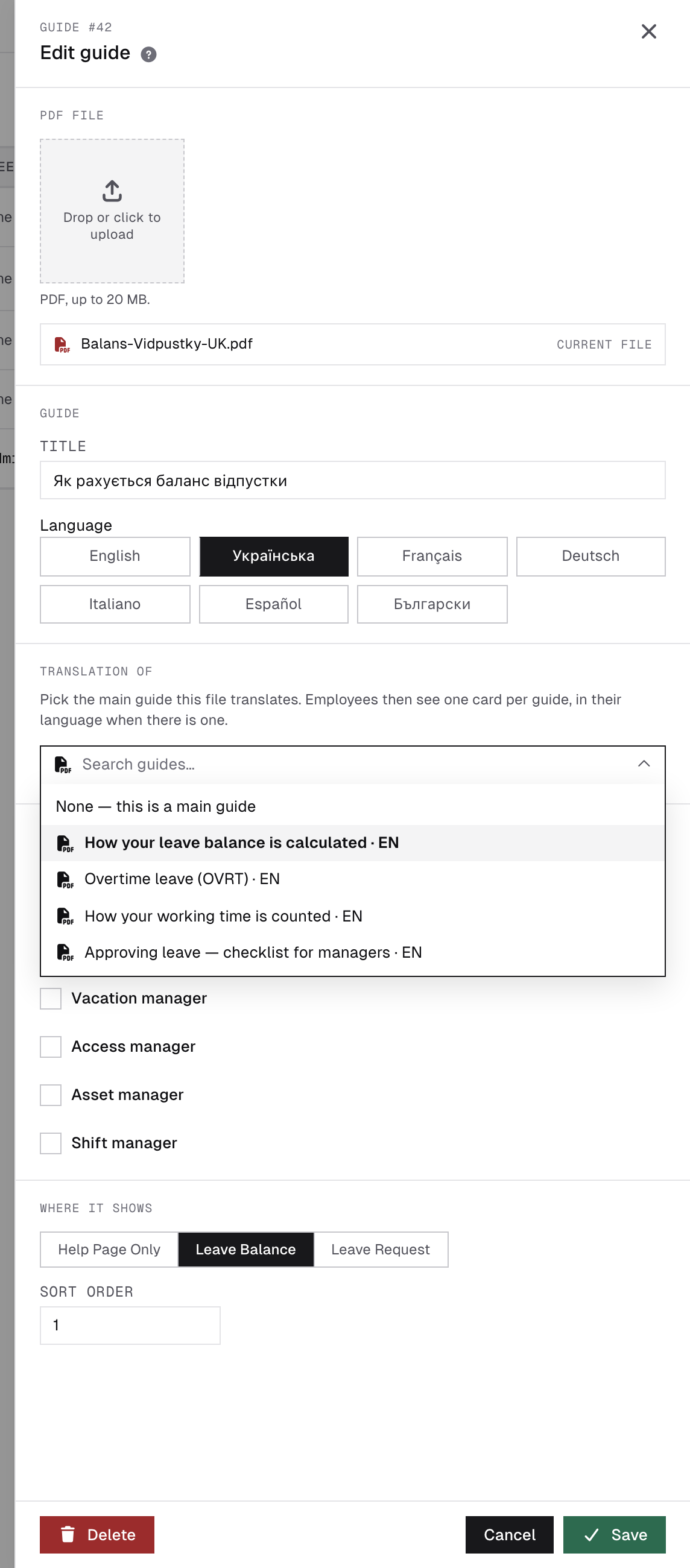
- PDF file — drag it onto the drop zone or click it; PDF only, up to 20 MB. The title is filled from the file name — rename it to something people will recognise.
- Language — the language this file is written in. One file per language; translations are linked to their main guide (below).
- Translation of — leave it on None — this is a main guide for a new guide; pick the main guide when this file is its translation.
- Who sees it — tick roles to narrow the audience (e.g. a checklist for vacation managers), or leave all unticked for everyone.
- Where it shows — every guide appears on everyone's Help & guides page; Help page only keeps it there. Leave balance also puts a Company guide link into the How your balance is calculated explainer; Leave request puts it under the impact preview of a leave request.
- Sort order — lower numbers show first.
Click a row to edit it: change the details, drop a new PDF to replace the file, or Delete it. The open icon shows the PDF in a new tab. Links to a guide stop working as soon as it is edited, replaced or deleted — people simply get a fresh one the next time they open the page.
Translations
Upload the main version first, then each translation as its own file with Translation of pointing at the main guide. The picker is searchable and only offers main guides, never one that already has a version in the same language; the list shows a Translation of line under every translation. A main guide that already has translations cannot itself become a translation. Deleting a main guide does not orphan the others: its English translation takes over as the main version, or the first translation if there is no English one.
Each language version keeps its own audience and placement, so give a translation the same Who sees it and Where it shows as its main guide — otherwise it will not appear in the same places.
Where people find them
- Help & guides shows one card per guide, with the first page of the PDF as its cover, in the reader’s own language when there is a version in it, otherwise the main version. A My language / All languages switch widens the list, and each card links its other languages. The same page also lists the HR.Click user guides for the roles the reader holds.
- Next to the leave balance and the leave request, the link lists every guide placed there in the reader’s language, falling back to English.
9Webhooks and integrations
Two admin pages connect HR.Click with other systems. Webhooks works in both directions — HR.Click pushing events out, and external systems pushing events in. Integrations is for partners that cannot receive webhooks and fetch the data themselves instead.
Outbound webhooks
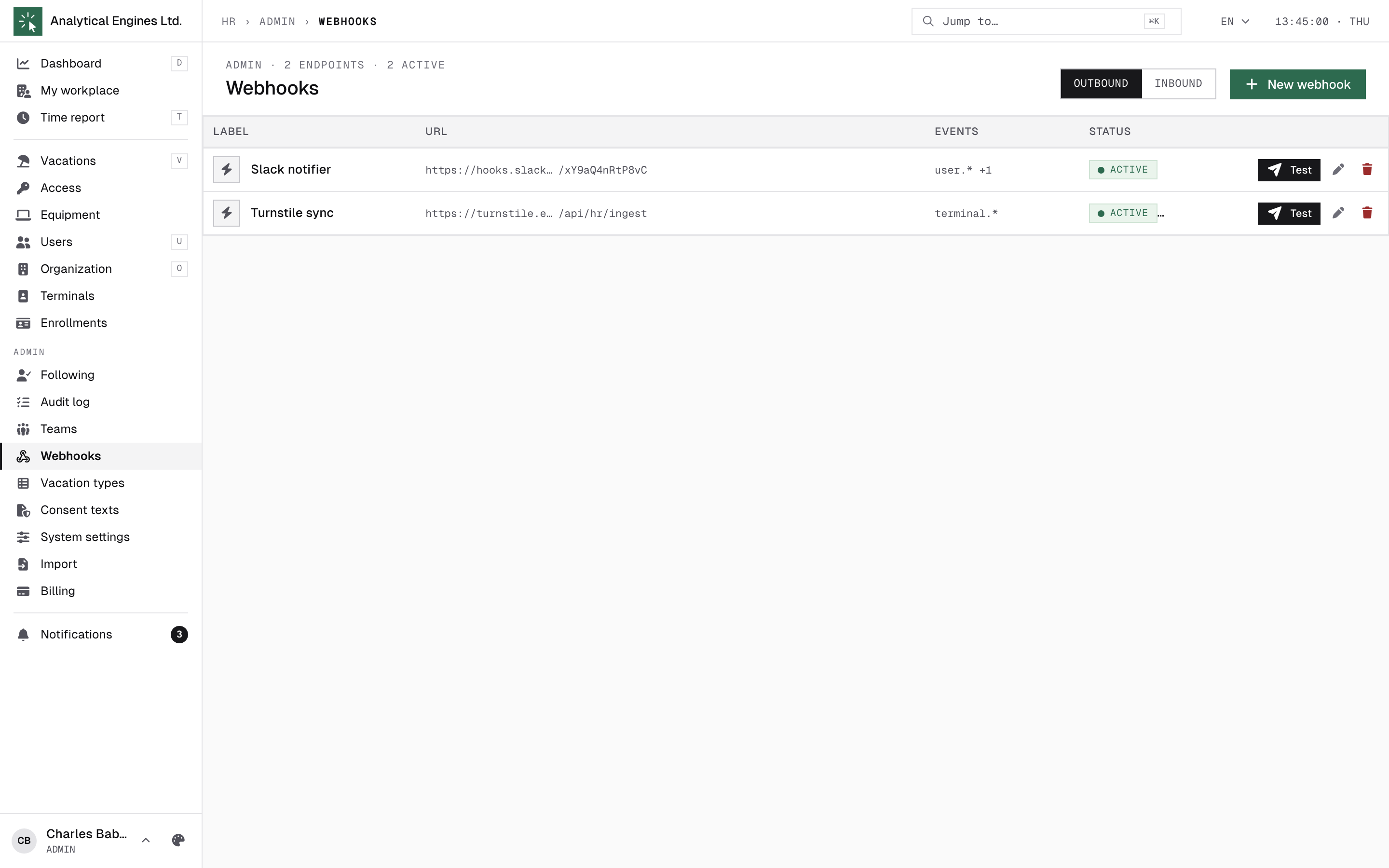
Endpoints that receive HR.Click events (check-ins, vacations, access, shifts…). Each has an HTTPS URL, an HMAC secret (shown once; rotate any time), a checkbox tree of subscribed events, a Send test button, and a Recent deliveries table with per-delivery status and retry. Failing endpoints are badged in the list.
Inbound webhooks
The Inbound tab registers external systems — turnstiles, access control, an HRIS — that push signed events into HR.Click, such as check-ins or access grants. A source has a name, a Slug (lowercase letters, digits, _ or -) that becomes its own receive URL, a signing secret shown once (rotate any time) and the Allowed events it may send. Download integration doc gives the sender’s developers everything they need. Recent deliveries shows the last 50 requests, each with a replay action. Switching a source off rejects its requests but keeps its configuration.
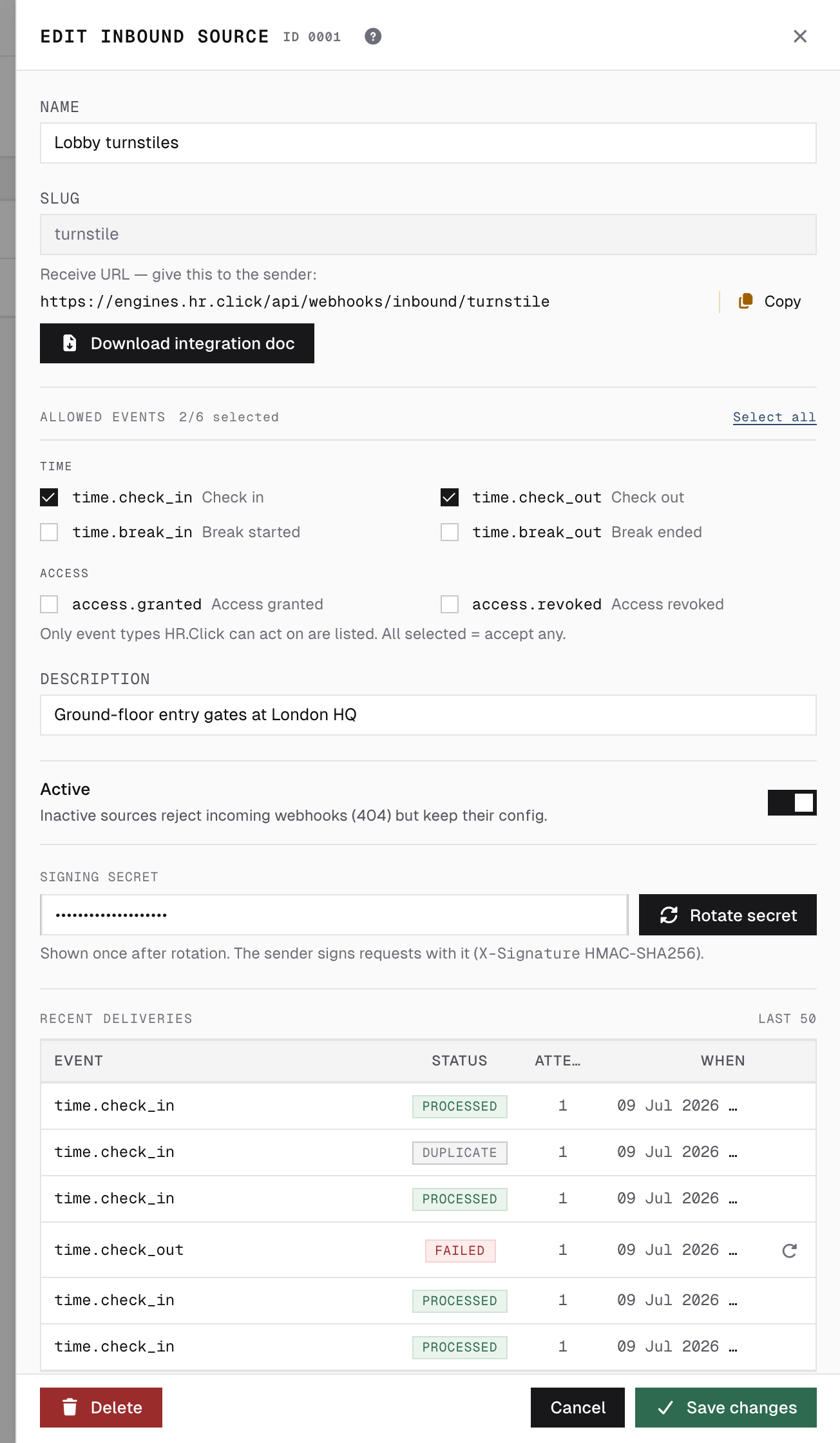
A punch that arrives this way counts straight away, as EXTERNAL SYSTEM — the signature is the verification, the same way a paired terminal is.
Integration clients (pull API)
Integrations registers a partner that fetches attendance (check-in, check-out, break start and end) and vacation events (created, approved, deleted) on its own schedule — for systems that are not allowed to accept incoming connections, where a webhook cannot reach them.
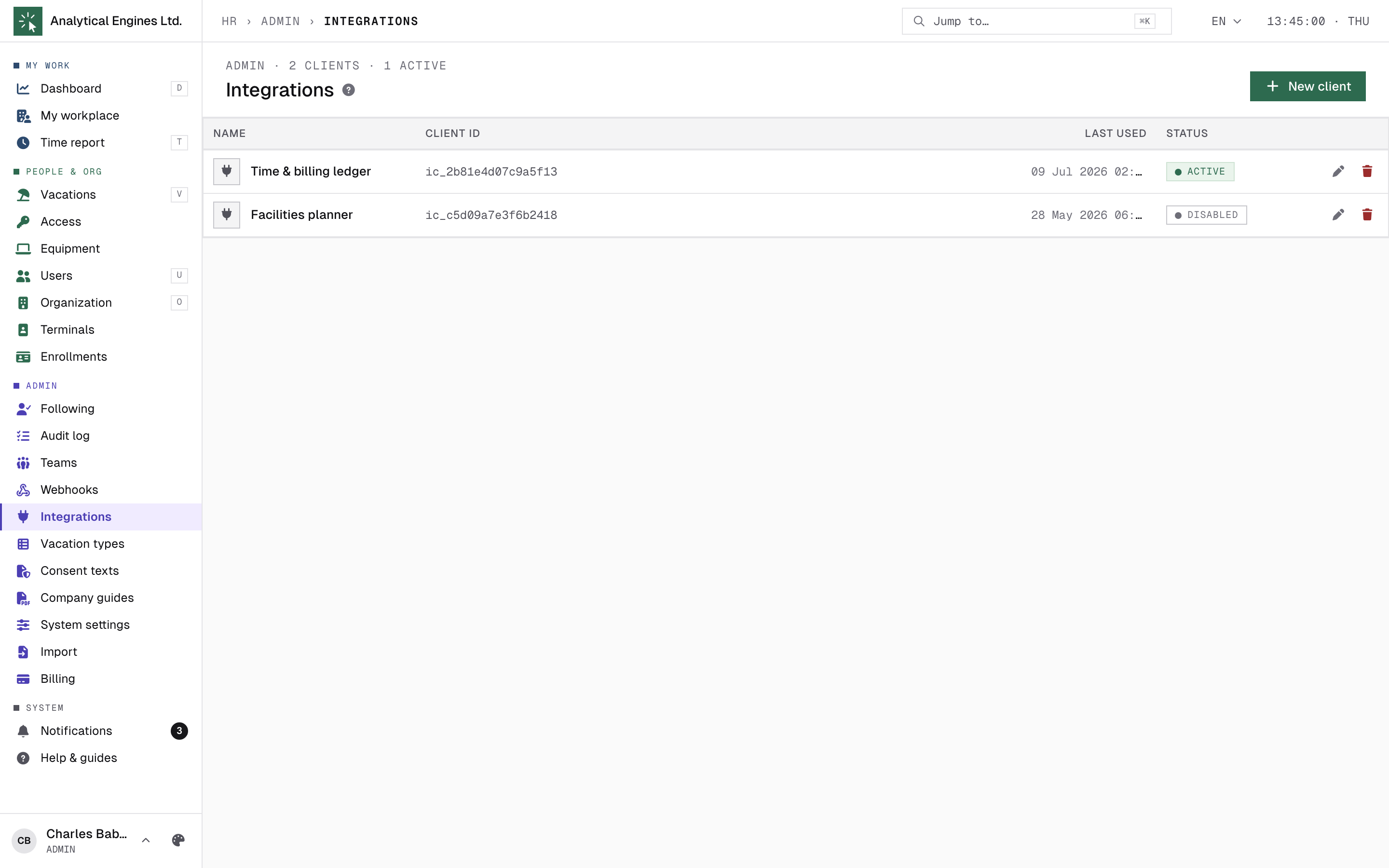
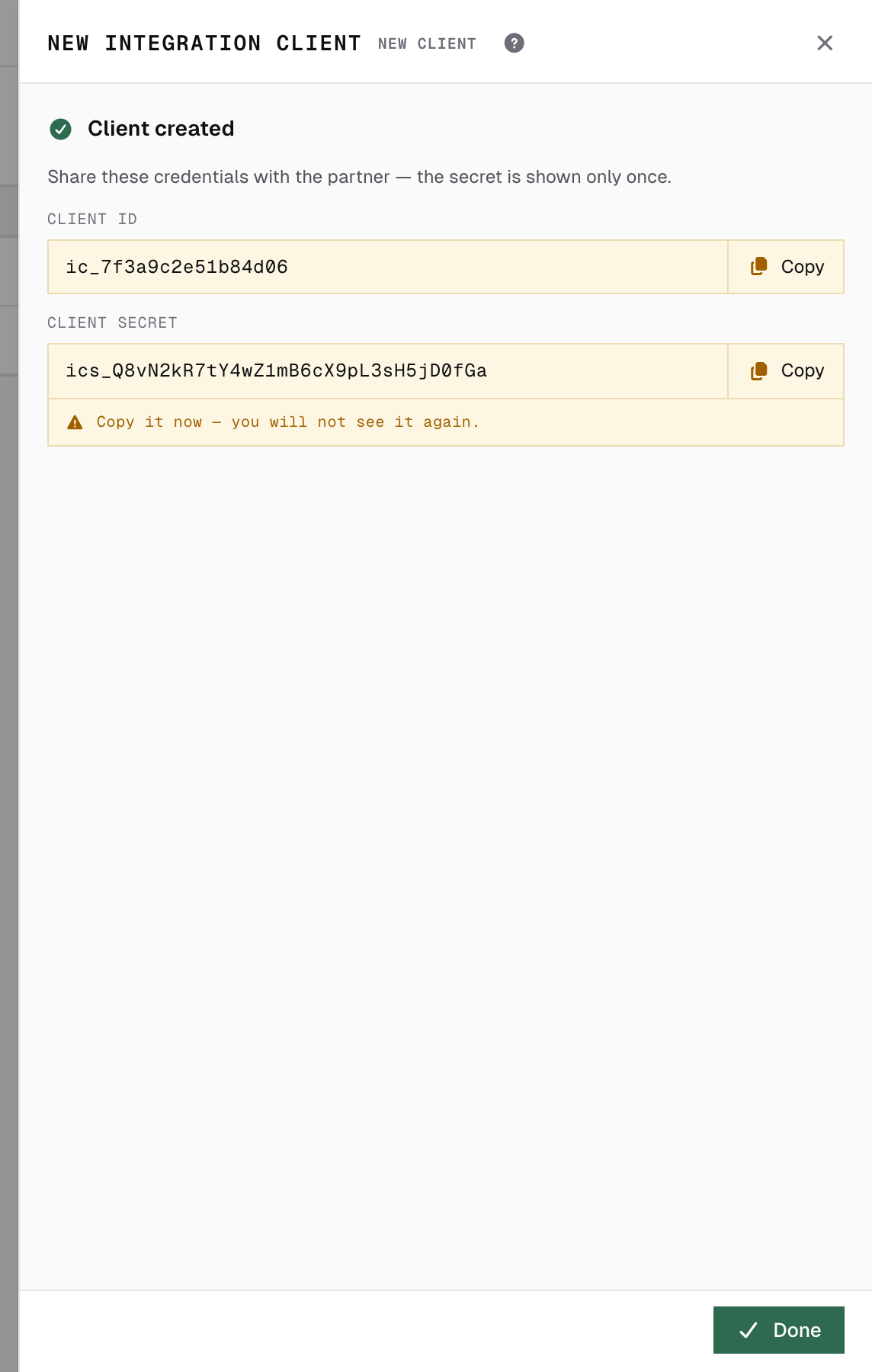
- New client asks for a name and an optional description. On save HR.Click shows the Client ID and Client secret — copy the secret now, it is never shown again. Pass both to the partner over a secure channel.
- The partner exchanges them for a token valid for 24 hours, and can re-fetch any window up to 60 days back, so a missed sync can be repeated safely.
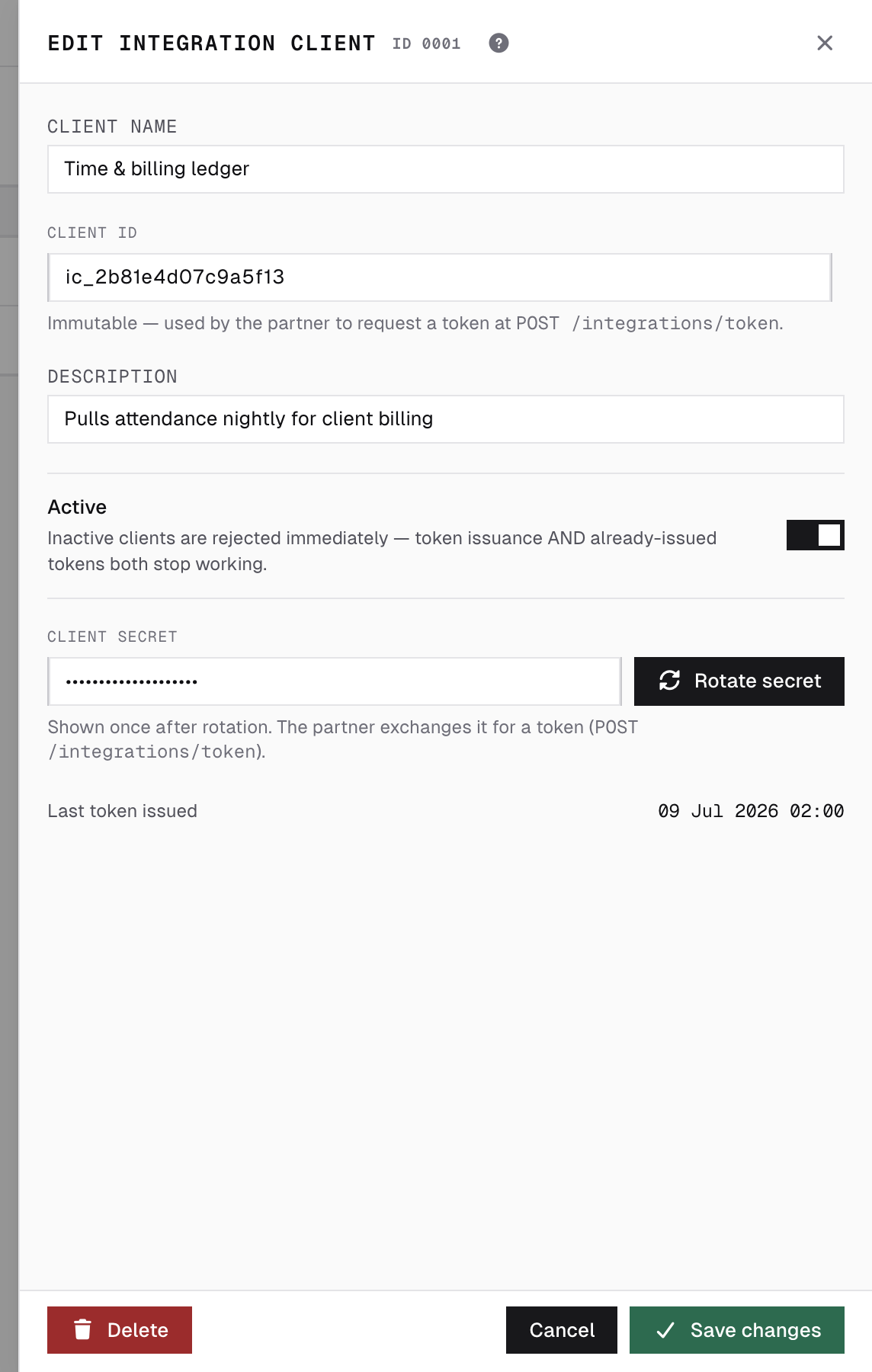
Clicking a client opens it for editing:
- Rotate secret issues a new secret, again shown once. The Client ID never changes.
- Switching a client off rejects it immediately — it can no longer get a token, and tokens it already holds stop working too.
- The client’s page shows when it last obtained a token — the quickest check that the partner is still syncing.
10The audit log
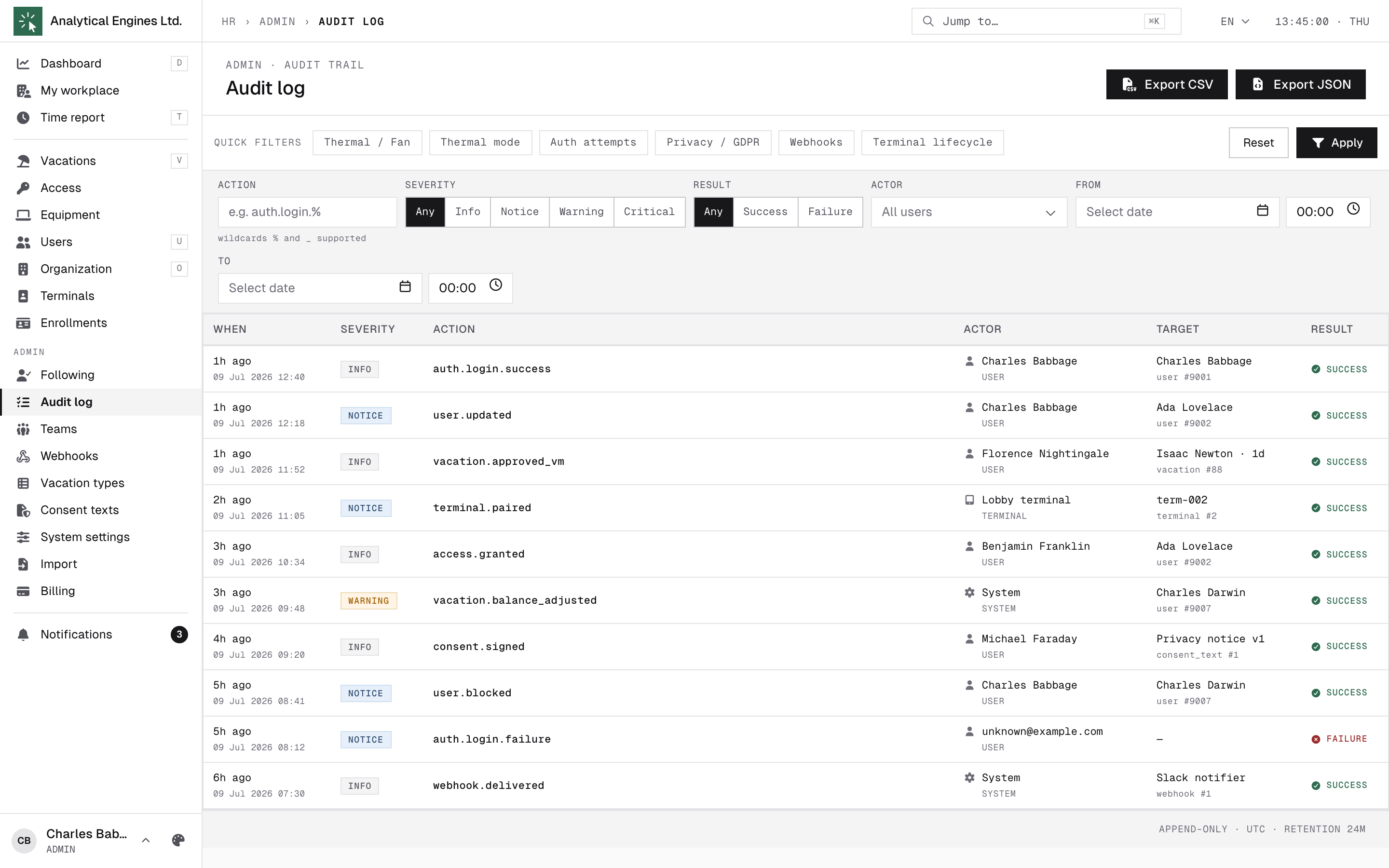
Every meaningful action lands in the append-only Audit log — sign-ins, edits, approvals, terminal events, privacy actions — with actor, target, result, request id, IP and metadata. Filter by action (wildcards % and _ work, e.g. auth.%), severity, result, actor and time; preset chips cover the common hunts. Export CSV / JSON is rate-limited to one export per minute. Retention: 24 months, UTC.
11Import
Import onboards a whole company from a spreadsheet: upload (a template is downloadable) → review — the wizard walks Overview → Leave types → Positions → Teams → People, letting you map/merge/skip each item — → commit with a summary. The file can be dropped straight onto the upload area. On the People step each person carries a department picker: nobody lands in a default department by accident, and leaving it untouched keeps whatever the file said. The commit is gated by your seat quota: you can't import more people than the plan allows.
12Billing
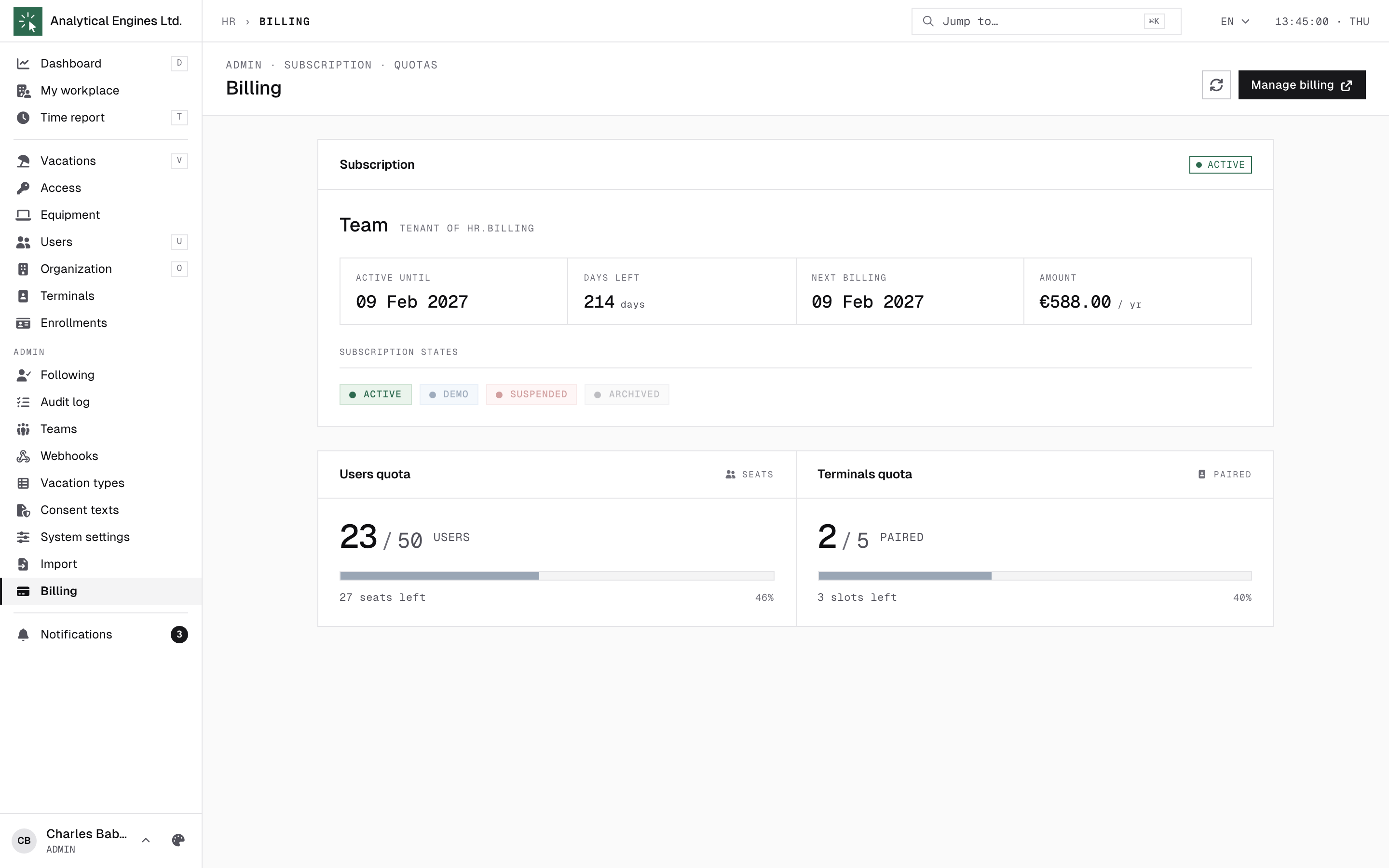
Billing shows your subscription (plan, status, renewal date and amount) and the two quotas that gate growth: user seats and terminals. When you change plan, the price breakdown also prints the all-in monthly cost averaged per seat per day — the figure to quote when someone asks what HR.Click costs per employee. Payment methods and invoices live in the external billing portal — Manage billing opens it.
13Following
Following is a personal convenience for admins, time managers and shift managers: pick a colleague and the events to track — check-in, break, clock-out — and get notified when they happen. Useful for reception or duty rosters. It is personal: only you see your follows. Pause, edit or unfollow any time. A shift manager can follow only colleagues on a shift schedule.
14Where a check-in came from
Check-in sources
Every punch carries the channel it came from, and the day drawer and the approvals queue name it:
| Source | Where it comes from |
|---|---|
| FACE · TERMINAL | A face terminal. Always in-office; no check-in policy applies. |
| PHONE + QR | A phone scanning the QR code a terminal shows, instead of the face scan. |
| PHONE | The mobile app. Governed by Phone check-in (section 7). |
| BROWSER | The HR.Click browser extensions. Governed by Browser check-in. |
| WEB DASHBOARD | The check-in buttons on the HR.Click dashboard. Governed by Site check-in. |
| MANUAL ENTRY | Entered by a manager — a correction or back-fill — or imported. |
| SELF-REPORTED | An employee logging a whole day by hand. Counts only once a time manager approves it. |
| MISSED PUNCH | An employee asking for one forgotten or wrong punch (section 7). Counts only once approved. |
| EXTERNAL SYSTEM | An inbound webhook (section 9). Counts on arrival. |
Location of a punch
A punch made from a phone, a browser extension or the dashboard stores the address it arrived from, and a background sweep resolves that into a country, region and city — plus a VPN/proxy verdict where the provider supplies one. A self-reported day or a missed-punch request stores the address too, but there it says where the request was filed from, not where the work happened — someone claiming the office while filing from elsewhere is exactly the signal worth keeping. The location shows in the day drawer under the event: a flag, the place, the address itself in the tooltip, and a VPN or Tor tag when the connection is not what it seems. Nothing shows until the lookup has landed.
- Only some punches carry it. Terminal, manual, imported and external-system rows stay empty on purpose — a kiosk reports its own office uplink and a back-fill reports the operator's, neither of which is the employee's location.
- Only you see it. The block is admin-only, deliberately narrower than the rest of the record: a time manager reads attendance, not where a person physically was. The data is left out of the payload entirely for everyone else, rather than merely hidden on screen.
- The lookup never blocks a punch. It runs on a schedule, reuses an answer it already holds for the same address, and stops rather than burning rows when the provider fails — so an expired key or an exhausted quota resolves itself on a later run.
- The provider is wired up by your operator in the instance configuration, not in System settings. With none configured, punches simply carry no location and everything else works unchanged.
This is location history about your staff. Anonymizing a person clears their stored addresses and resolved places while keeping the punches, and a GDPR data export (Art. 15) includes both the locations and any notes the person attached to their punches — because that is exactly what those articles cover. Do not re-purpose the block for anything you have not told your people about.
HR.Click — Administrator Guide · v1.3 · October 2026. Product screens shown with sample data; names of persons are fictitious examples.