
HR.Click | Time
Punching the clock from your browser toolbar
Contents
- 1 What this extension is
- 2 Installing and connecting it
- 3 The popup, button by button
- 4 The toolbar badge
- 5 Reminders
- 6 When the buttons are missing
- 7 What it stores, and what it can reach
- 8 Troubleshooting
HR.Click · Browser ExtensionsTime — the punch-only popup
1What this extension is
HR.Click | Time is a small popup on your Chrome toolbar with the four buttons of a working day: check in, take a break, end the break, check out. That is all it is. It does not replace your new tab, it does not show your colleagues, and it opens nothing until you click the icon.
One extension works with any HR.Click portal — you type your company’s address once, on first run.
HR.Click publishes two extensions. HR.Click | Tab replaces your new-tab page with the office dashboard and carries the same punch buttons at the top. HR.Click | Time is for people who would rather keep their new tab to themselves and only want to punch the clock. Install whichever suits you — installing both works, but each keeps its own session and appears as its own device in HR.Click, so there is little reason to.
Checking in from the browser is off until an administrator turns it on for your company — that switch lives in a part of HR.Click only they can open. Until then the popup still connects and still shows your day — read-only, with no buttons. That is expected, not a fault.
2Installing and connecting it
- Install HR.Click | Time from the Chrome Web Store. In the portal you can reach the listing from Settings → Profile → Browser extension.
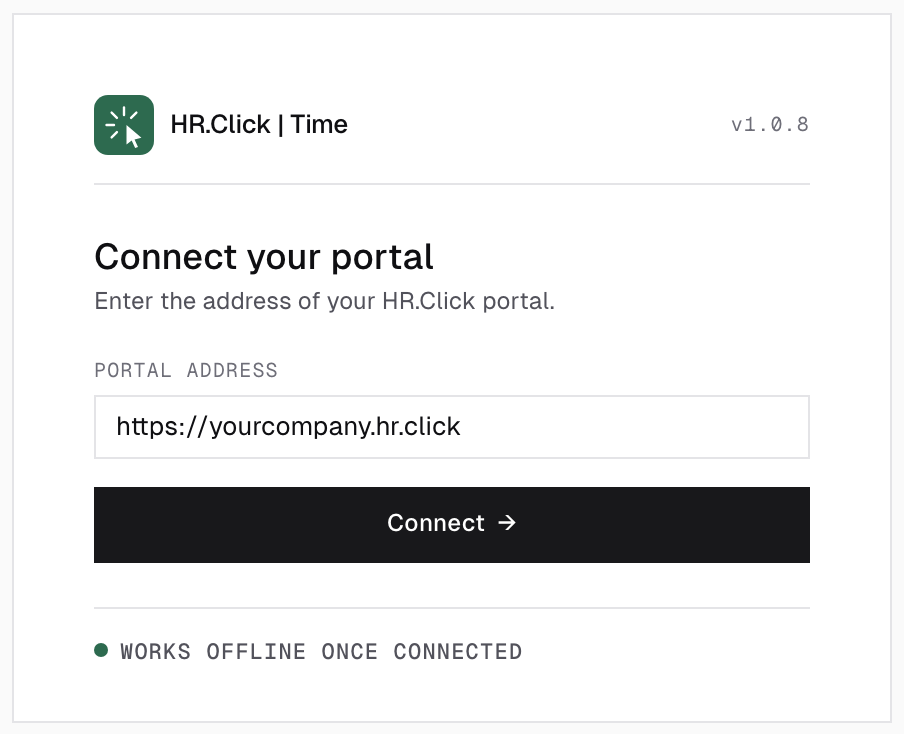
- Click the toolbar icon. The popup offers Connect and opens a full setup tab — sign-in never happens inside the popup, because a popup closes the moment it loses focus.
- Type your portal address (e.g.
https://yourcompany.hr.click) and press Connect. Chrome asks for permission to talk to that address; the extension checks the address really is an HR.Click instance and picks up your company name and logo. - Press Sign in. Your portal opens in a separate window — sign in there as usual and press Authorize. If you closed it by accident, Open it again brings it back.
- The setup tab confirms You are all set. Close it; from here on the toolbar icon is the whole product.
Only the portal window ever sees your password — the extension never asks for it. Signing in also registers this browser as a device in HR.Click, which is how a punch is proven to come from you.
To point the extension at a different portal, open the setup tab again and use Use a different portal.
3The popup, button by button
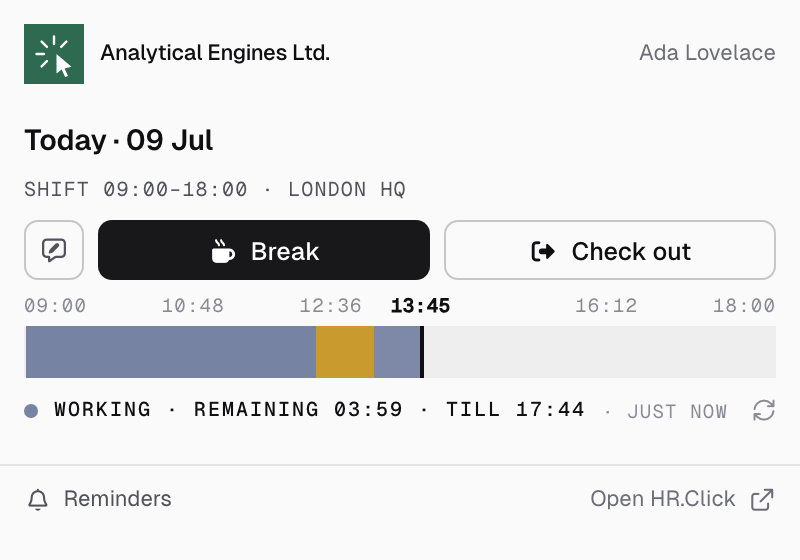
The popup is one screen: your company at the top, your day in the middle, two links at the bottom.
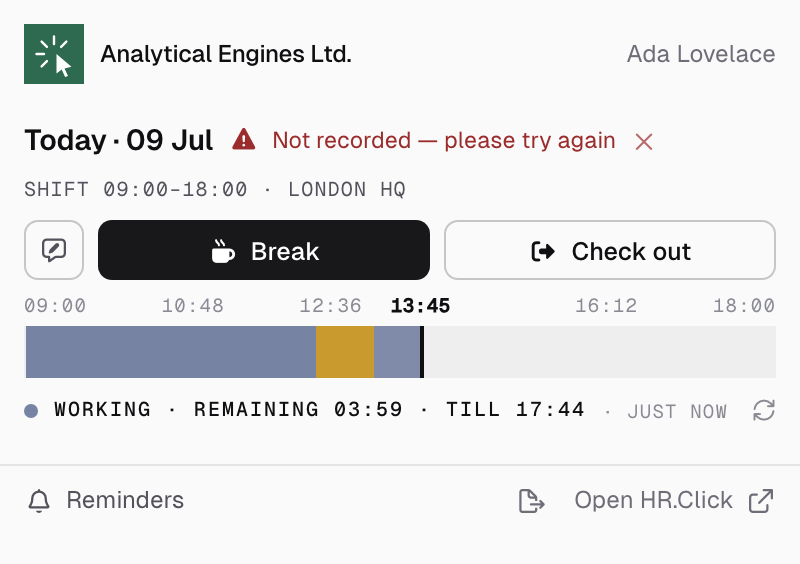
- The bar is your working day drawn end to end — the office window as the track, your worked stretches filled in, breaks cut out of it, and a marker for the current moment. Time before and after the shift window is shown as its own segment, so early starts and late finishes are visible rather than blended in.
- The status line says where you stand — working, on a break, or done — together with what you have worked so far.
- The buttons are whatever the day allows next: Check in, Break, End break, Check out. You never see an action that would be refused — the day’s state decides what is offered.
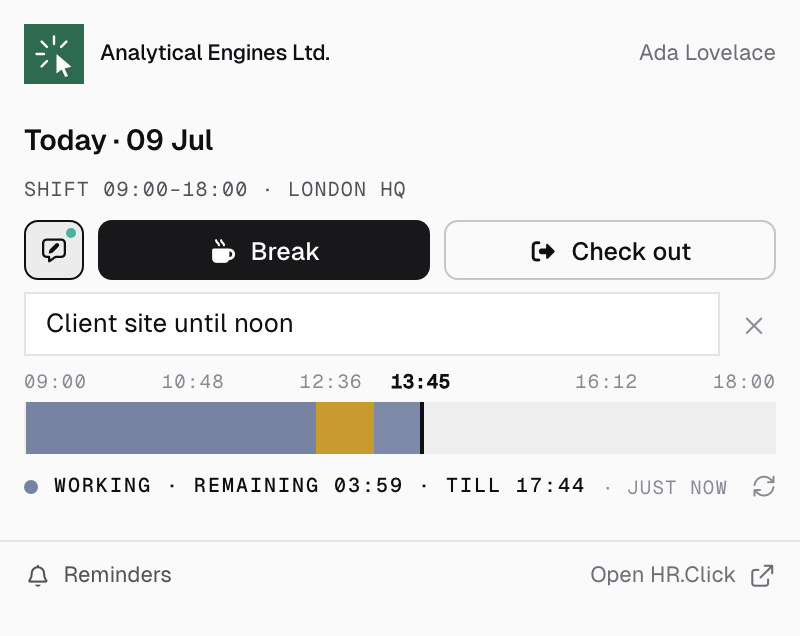
- Add a note to this check-in attaches a short line to the punch you are about to make (“stuck in traffic”, “client site”). It is optional, it reaches your time manager on that day, and Discard note drops it before you punch.
- REMOTE next to the buttons means this punch will be recorded as remote — you are not on a network your company has registered as an office. It still counts as worked time.
- Refresh re-reads the day from the portal, picking up check-ins made anywhere else — at the terminal, on another machine, or by your time manager.
- Reminders switches this browser’s reminder notices on and off (section 5); the export icon between them saves a diagnostic log (section 8); Open HR.Click opens the portal itself.
After every punch
After every punch the extension asks the portal what the day looks like now, rather than trusting what it drew a second ago. That is why a punch someone else recorded for you cannot leave you with the wrong buttons for long.
If a punch does not land
A popup closes the moment you click elsewhere, so the extension writes every punch down before sending it, then asks the portal whether it really arrived. Until it is confirmed you see why: Not recorded — please try again, or No connection — this check-in is not recorded yet. A punch that went missing on the way is retried once; if it is still not there, HR.Click itself notifies you within about five minutes — which reaches you even if you pressed the button and walked away. If your session has ended, the popup opens straight on Sign in again instead of showing buttons that could not record anything.
On a day off, or before your schedule starts, the popup says so — “No shift today — a check-in here is recorded as overtime.” You can still punch; the hours simply land outside a scheduled window and your time manager sees them as such.
4The toolbar badge
The extension keeps a small badge on its icon so you can tell your state without opening anything:
| Badge | Meaning |
|---|---|
| ON | You are checked in and the clock is running. |
| || | You are on a break. |
| No badge | You are not on the clock — before your first check-in, after checking out, or signed out. |
The badge follows punches made anywhere, not only the ones you make here: check in at the face terminal and the badge turns on by itself within a few minutes.
5Reminders
With Reminders on, this browser can raise two Chrome notifications — no more than one of each per day:
| Notice | When it appears |
|---|---|
| Shift started, no check-in | A few minutes after your working day was due to start while nothing has been recorded. |
| Session still open | Shortly after your working day was due to end while you are still checked in. |
Both thresholds come from your own office schedule — or your shift, if you work in shifts — the extension asks the portal for them rather than assuming. Leave counts too, paid or unpaid: on a day fully covered by it there is no check-in reminder at all, and leave for part of the day (say, 2 hours) moves the check-in reminder later by its length — the extension assumes the leave opens your day, whichever part of the day you picked. Only a leave type your company marked Note only (an informational mark such as INFO) changes neither: it is just a note, so the reminders run as on any working day.
HR.Click itself can also remind you, independently of this switch: the Forgot to check out reminder, once you have worked today’s expected hours and are still checked in. It is set in the portal under Notifications → Preferences.
Reminders stay silent on days off, when your account is not time-tracked, when a punch would be refused anyway, and, of course, while the toggle is off. The switch is per browser: turning it off here does not touch your notification preferences in the portal.
6When the buttons are missing
| What you see | Why, and what to do |
|---|---|
| The day is drawn, but there are no buttons at all | Browser check-in is switched off for your company. Ask an administrator; nothing about the extension needs reinstalling. |
| A punch is refused away from the office | Your company allows browser check-in only from its own network. Use the face terminal, or ask an administrator whether the office network list is complete. |
| Time tracking is off for your account | Your account is not time-tracked. Switch it on in the portal under Settings → Profile, or ask your administrator whether it should be. |
| The popup is dimmed and says it has no connection | You are offline. The last known state stays on screen, and the buttons come back with the network — a punch is never queued and never invented. |
| Sign in again | The session expired or was revoked. One click re-runs the short sign-in from section 2; your settings survive it. |
7What it stores, and what it can reach
- The session this extension holds is deliberately narrow: it may read your own day, read who you are, and record your own punches. It cannot open anyone else’s data, and it cannot change anything else in HR.Click — even if the token were stolen.
- It keeps your last day snapshot, your company name and logo, and your reminder preference on this machine, so the popup draws instantly. Everything else is fetched fresh.
- It reads no pages, no history and no tabs. Chrome grants it access to your portal address alone — the permission you approved during setup.
- Signing out from the popup ends the session for this browser only; your other devices and the portal itself are untouched.
8Troubleshooting
| Symptom | Fix |
|---|---|
| “Connect” cannot find the portal | Check the address — it must be the same one you open in the browser, including https://. A portal that is down or unreachable from your network fails the same way. |
| The sign-in window never came back | Press Open it again in the setup tab. If Chrome blocked the window, allow pop-ups for the portal address. |
| The badge disagrees with reality | Open the popup and press Refresh. The badge is repainted on a timer, so it can lag a punch made elsewhere by a few minutes. |
| A punch is rejected with a conflict | Someone (or a terminal) recorded a punch in the meantime. The popup re-reads the day and redraws the buttons — repeat the action you actually want. |
| A punch does not appear anywhere | Press the export icon in the popup footer and attach the saved JSON file to your request. It describes what this browser did over the last day — which buttons you pressed, which requests went out and how each ended — so support can tell a press that never left the machine from one the portal refused. It stays on your machine and holds no passwords or personal data. |
| The hours look wrong in the portal | The extension only records punches; corrections are made by a time manager. Ask them, or log the missing time in the portal (Employee Web Guide, “Forgot to punch? Log time”). |
HR.Click — “HR.Click | Time” Browser Extension Guide · v1.1 · October 2026. Product screens shown with sample data; names of persons are fictitious examples.