HR.Click | Tab
Your office on every new tab
Contents
- 1 What this extension is
- 2 Installing and connecting it
- 3 The new tab, panel by panel
- 4 Punching the clock from the tab
- 5 Quick-launch tiles
- 6 Making it yours — settings
- 7 Offline, and how fresh the page is
- 8 What it stores, and what it can reach
- 9 Troubleshooting
HR.Click · Browser ExtensionsTab — the office new-tab page
1What this extension is
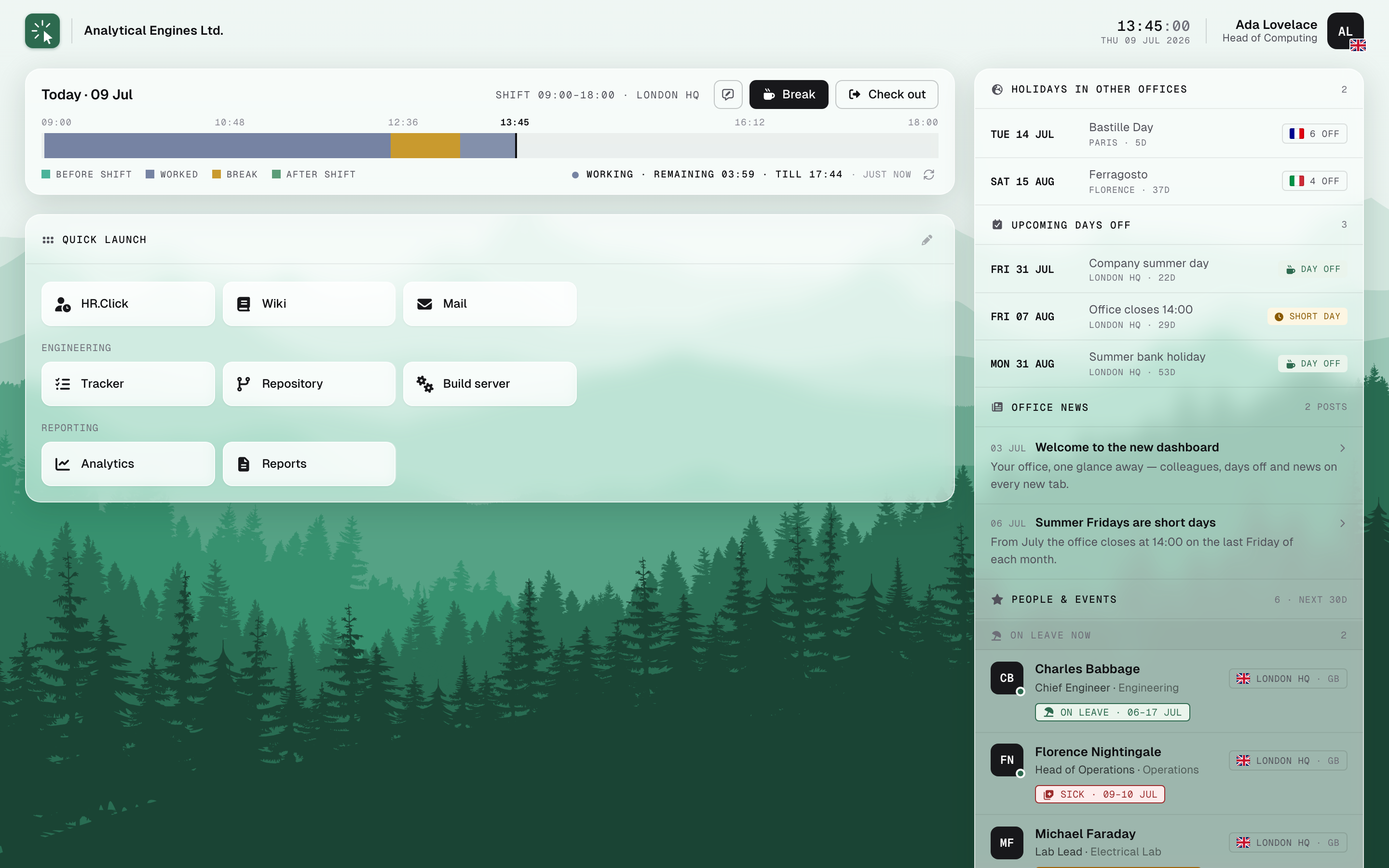
HR.Click | Tab replaces Chrome’s new-tab page with your office: the state of your working day and its buttons, your own quick-launch tiles for the tools you open all day, and a rail of what is happening around you — who is away, whose birthday it is, what is closed in which country, and the latest office news. All of it over a panorama that follows the time of day.
One extension works with any HR.Click portal — you type your company’s address once, on first run. After that it opens instantly, with or without a network.
HR.Click publishes two extensions. Tab is this one: the full new-tab page, punch buttons included. HR.Click | Time is a small toolbar popup with nothing but those buttons, for people who would rather keep their new tab. Install whichever suits you — installing both works, but each keeps its own session and appears as its own device in HR.Click.
2Installing and connecting it
- Install HR.Click | Tab from the Chrome Web Store. In the portal you can reach the listing from Settings → Profile → Browser extension.
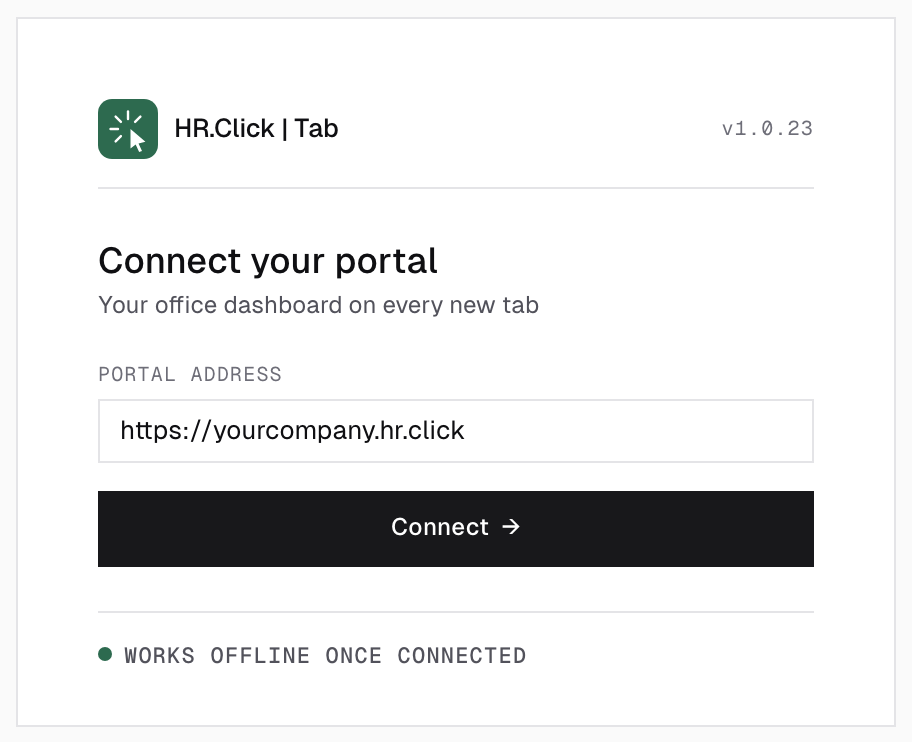
- Open a new tab. Type your portal address (e.g.
https://yourcompany.hr.click) and press Connect. Chrome asks for permission to talk to that address; the extension checks it really is an HR.Click instance and picks up your company name and logo. - Press Sign in. Your portal opens in a separate window — sign in there as usual and press Authorize.
- The new tab fills in. There is nothing else to configure.
Only the portal window ever sees your password — the extension never asks for it. Signing in also registers this browser as a device in HR.Click, which is how a punch from here is proven to come from you.
3The new tab, panel by panel
The page is two columns over the panorama. On the left, your day and your tiles; on the right, the office rail.
Your day and tiles
- Your day (top left) — the working-day bar with your punch buttons. Section 4 covers it.
- Quick launch — your own tiles, grouped into categories. Section 5.
The office rail
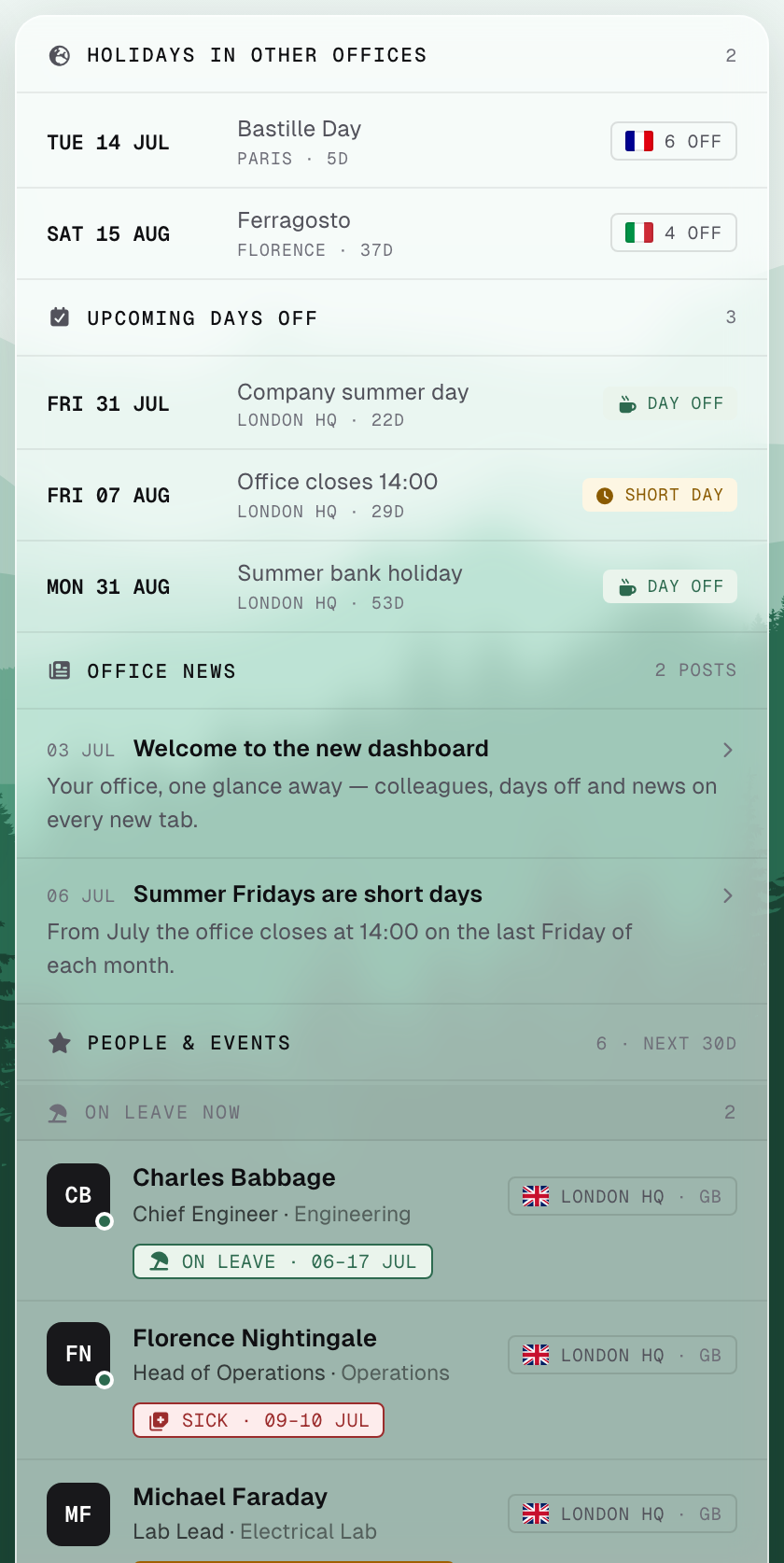
- Holidays in other offices — what is closed today or shortly, in the offices that are not yours. Useful before you send something to a colleague abroad.
- Upcoming days off — the holidays and special days that apply to your office, in order.
- Office news — announcements addressed to your office; click one to read it in full.
- People & events — colleagues with something happening in the next 30 days. ON LEAVE NOW is pinned at the top; each row carries the person’s office and a chip for what is coming: a birthday, a work anniversary, leave (hatched while it is still awaiting approval), sick leave or a holiday. A leave for only part of a day carries its length — SICK LEAVE 2h — so a short appointment doesn’t read like a day away.
The rail only shows sections that have something in them — a quiet week is a shorter page, not a page of empty headings.
4Punching the clock from the tab
The strip at the top left is the same day strip the HR.Click | Time popup shows, and it behaves identically:
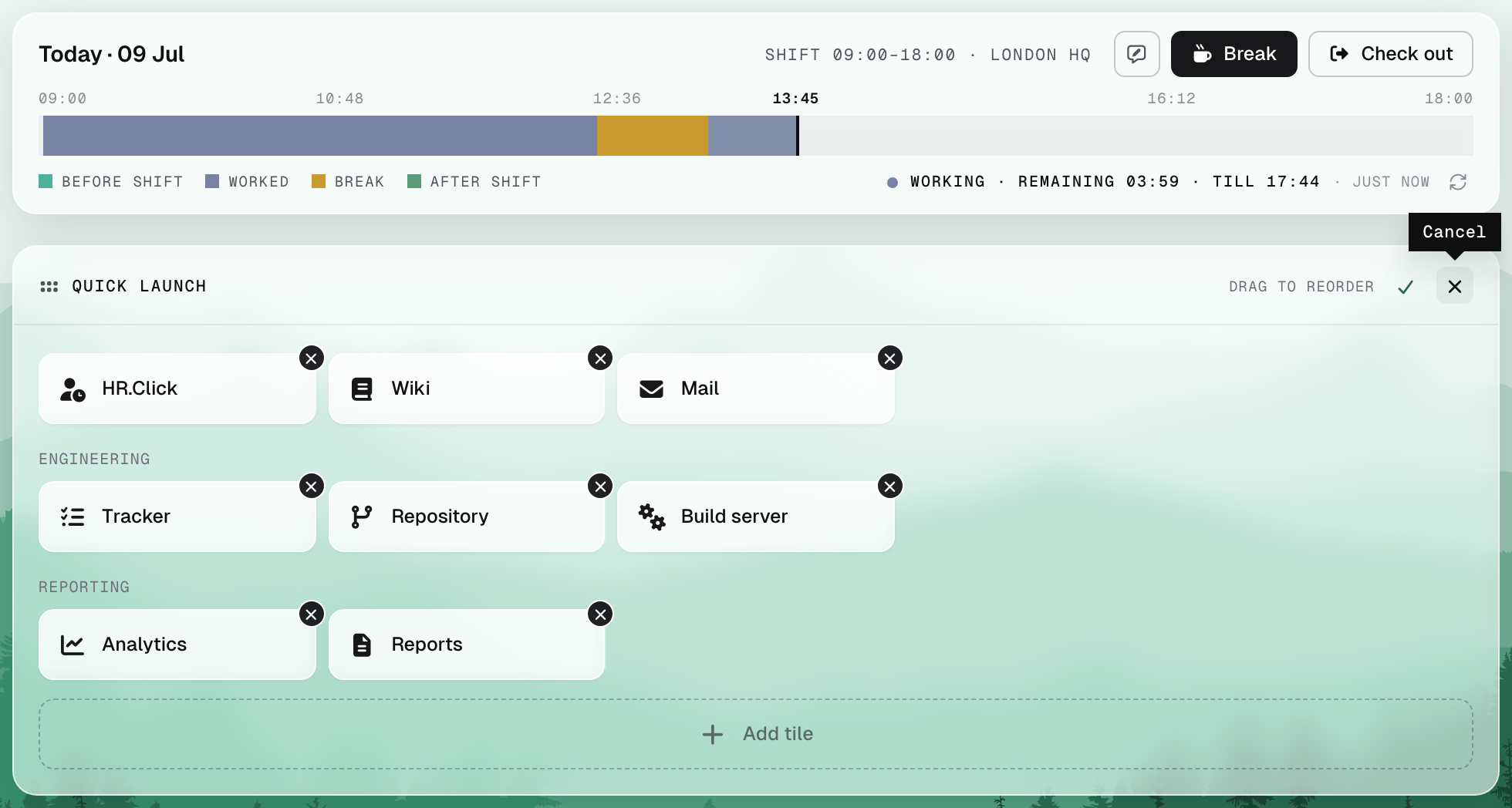
- The bar draws your working day end to end — the office window as the track, worked stretches filled in, breaks cut out, a marker at the current moment, and time before or after the shift as its own segment.
- The buttons offer only what the day allows next: Check in, Break, End break, Check out.
- Add a note to this check-in attaches a short line to the punch (“stuck in traffic”, “client site”); your time manager sees it on that day. Discard note drops it before you punch.
- REMOTE means the punch will be recorded as remote — you are not on a network registered as an office. It still counts as worked time.
- Refresh re-reads the day, picking up check-ins made at the terminal or anywhere else.
The tab remembers a punch until the portal confirms it really landed. If it cannot, the strip says so and keeps saying it until the punch is confirmed: Not recorded — please try again, or No connection — this check-in is not recorded yet. A punch that went missing on the way is retried once; if it is still not there, HR.Click itself notifies you within about five minutes, so a check-in never vanishes unnoticed. When the session has ended, the buttons are blurred behind the Signed out of the portal. banner — Signed out — sign in again to record a check-in — rather than pretending to work.

Checking in from the browser is off until an administrator turns it on for your company — that switch lives in a part of HR.Click only they can open. Until then the strip still shows your day — read-only, with no buttons. Some companies allow it only from the office network; away from it, a punch is refused and the face terminal remains the way in.
On a day off, or before your schedule starts, the strip says so: a check-in there is recorded as overtime. If your account is not time-tracked at all, it says that instead — you can switch it on in the portal under Settings → Profile.
5Quick-launch tiles
Tiles are yours alone — the extension ships with none and never adds any by itself.
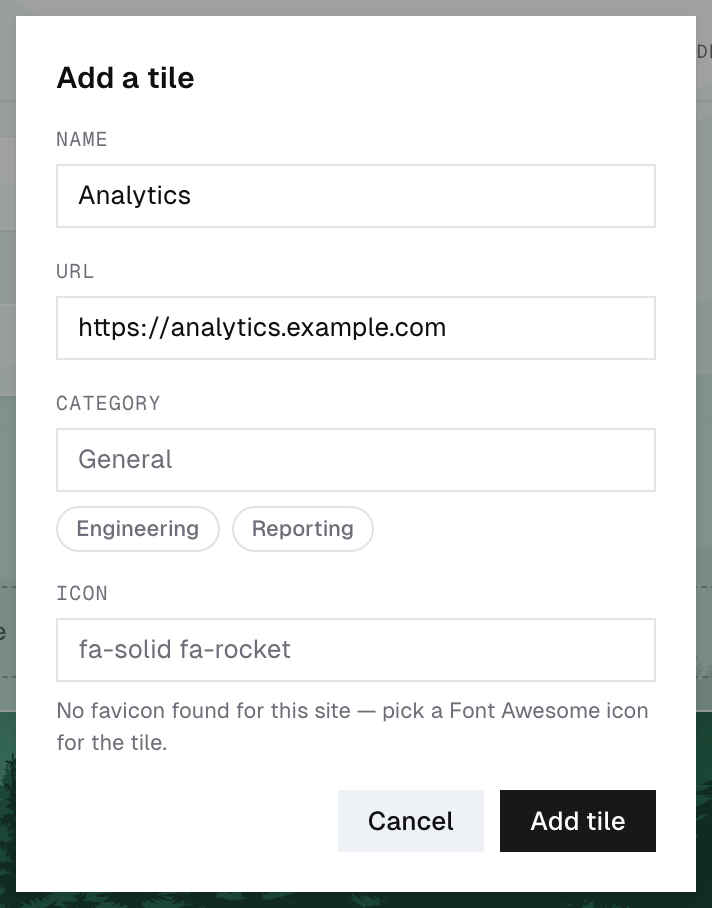
- Press the pencil (Edit tiles), then Add tile.
- Give it a Name, the URL it opens, an Icon and a Category. Tiles without a category sit under General.
- While editing, drag tiles to reorder them and use the cross on a tile to remove it. Save keeps the arrangement; Cancel discards it.
Tiles are stored with your HR.Click account, not with the browser — sign in on another machine and they follow you.
6Making it yours — settings
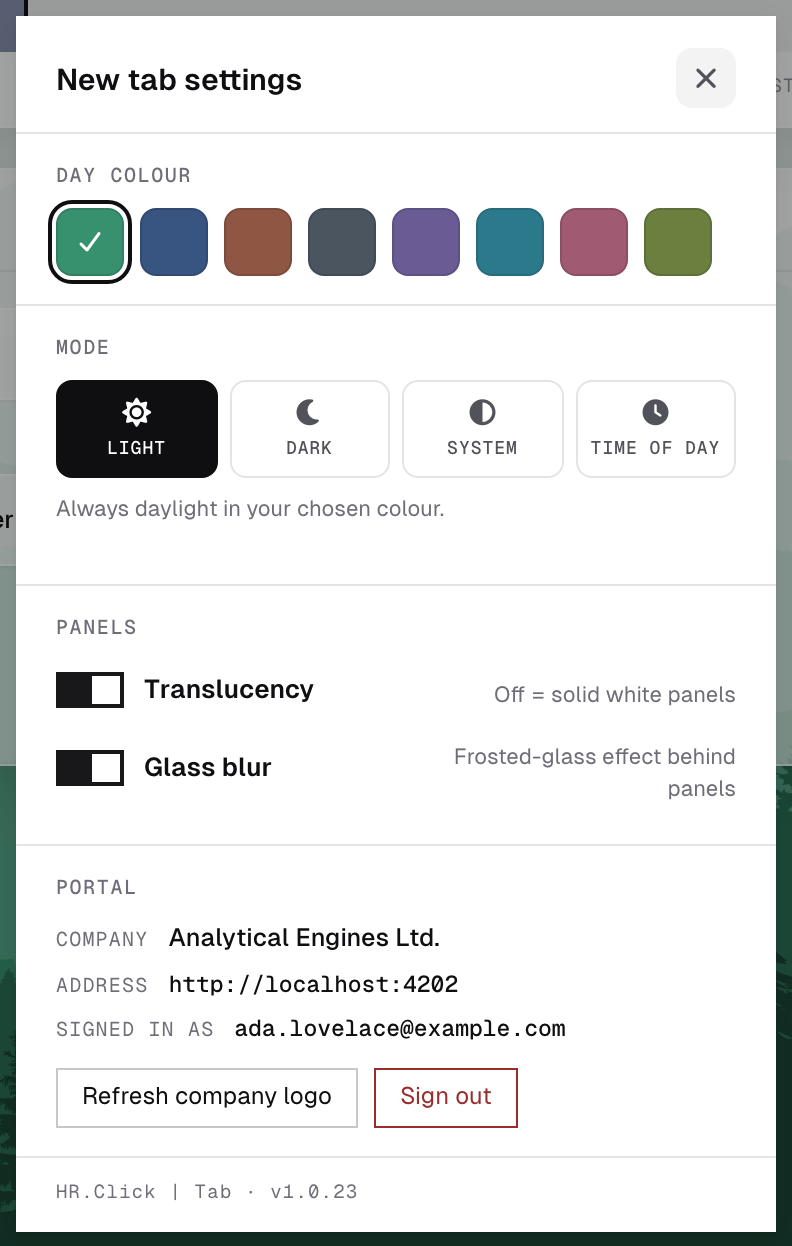
Click your avatar (top right) to open New tab settings:
| Setting | What it does |
|---|---|
| Day colour | The palette of the daytime panorama. |
| Mode | Light — always daylight in your chosen colour. Dark — always night, stars included. System — follows your system light/dark theme. Time of day — follows the real sunrise and sunset for your timezone. |
| Translucency | Off gives solid white panels instead of translucent ones. |
| Glass blur | The frosted-glass effect behind panels. Available while translucency is on; turning it off costs nothing visually on a slow machine. |
| Portal | Which company and address this tab is connected to, and the account it is signed in as. |
| Refresh company logo | Fetches the company logo again. The logo is downloaded once at connect and kept locally, so this is the way to pick up a new one. |
| Export local log | Saves a small JSON file describing what this browser did over the last day — which punch buttons you pressed, which requests went out and how each one ended. It stays on your machine and holds no passwords or personal data; attach it if you report a punch that did not register. |
| Sign out | Ends the session for this browser only. Your other devices and the portal itself are untouched. |
Settings apply the moment you change them and sync to your account in the background, so a second machine picks them up on its own.
7Offline, and how fresh the page is
The tab is built to open instantly, every time, including on a train:
- The last known office snapshot renders immediately from this machine; nothing waits on the network.
- A refresh happens in the background only when you are online and the snapshot has aged past a few hours — opening twenty tabs does not mean twenty requests.
- Nothing is ever discarded for being old. After an offline stretch the page still renders, with a discreet offline · updated … line at the bottom telling you how stale it is.
- The day strip is on a shorter leash than the rail: it revalidates within minutes, because a punch made at the terminal must show up quickly.
8What it stores, and what it can reach
- The session this extension holds is deliberately narrow: your office page, your own tab settings, your own day and your own punches. It cannot open the rest of HR.Click — no directory, no reports, no one else’s data — even if the token were stolen.
- It keeps the office snapshot, your tiles and settings, the company logo and a small user snapshot on this machine, so the page draws with no network.
- It reads no pages, no history and no tabs. Chrome grants it access to your portal address alone — the permission you approved during setup. The tiles you create are links you typed yourself; the extension does not watch where you go.
- Colleagues’ leave appears the same way it does on My workplace in the portal — who is away, not why.
9Troubleshooting
| Symptom | Fix |
|---|---|
| “Connect” cannot find the portal | Check the address — it must be the same one you open in the browser, including https://. A portal that is down or unreachable from your network fails the same way. |
| The sign-in window never came back | Start the sign-in again from the tab. If Chrome blocked the window, allow pop-ups for the portal address. |
| A punch does not appear anywhere | Open Settings → Diagnostics, press Export local log and attach the file to your request — it shows whether the press reached the portal at all. |
| Signed out of the portal. banner | The session expired or was revoked. Sign in again re-runs the short sign-in; your tiles and settings survive it. |
| The page looks stale | Check the offline · updated … line at the bottom. Back online, the next new tab refreshes it; the day strip has its own Refresh. |
| The company logo is out of date | Settings → Refresh company logo. |
| No punch buttons on the strip | Browser check-in is switched off for your company — see section 4. |
| The panorama feels heavy on an old machine | Turn off Glass blur, and Translucency with it. |
HR.Click — “HR.Click | Tab” Browser Extension Guide · v1.1 · October 2026. Product screens shown with sample data; names of persons are fictitious examples.